
Help center Indonesia Open V-SKOR

How can we help?

Still stuck?

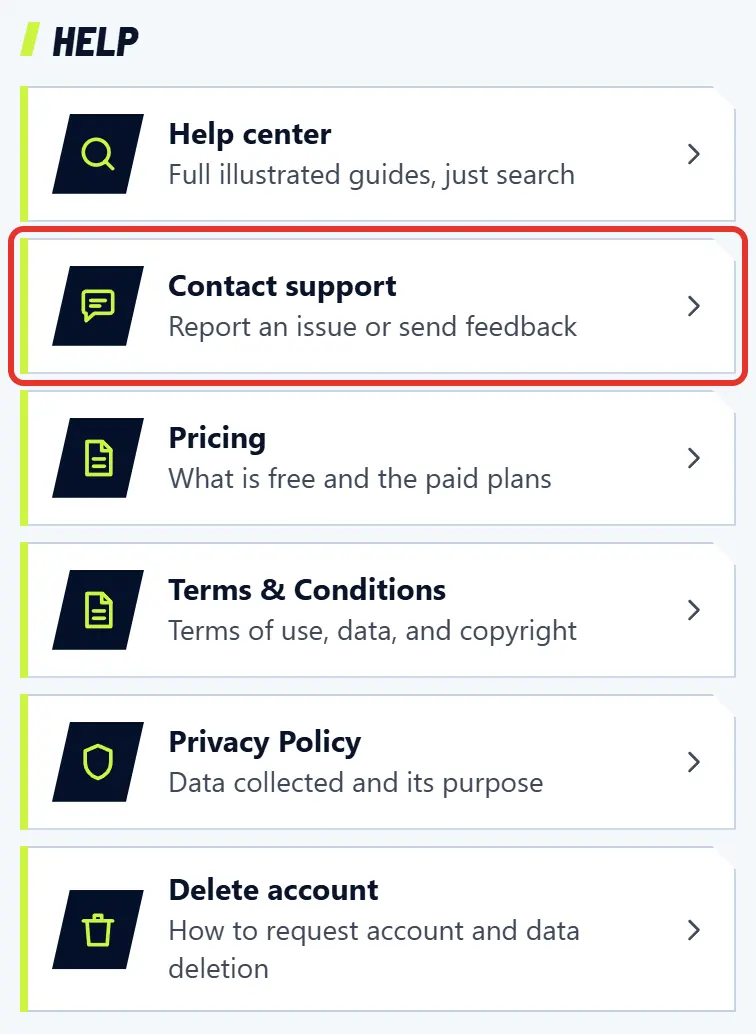
The V-SKOR team is here to help, and usually replies within 24 hours.

Install V-SKOR on your phone

Open it with one tap, full screen, with notifications.

Steps

Android

  1. Open v-skor.com in Chrome.

  2. On the card that appears, tap Install app.
    On the card that appears, tap Install app.
  3. No card? Tap the browser menu (three dots), then choose Install app or Add to Home screen.

  4. Open V-SKOR from its new icon.

iPhone

  1. Open v-skor.com in Safari, not Chrome or another app.

  2. Tap the Share icon on the bottom bar. On the latest iOS, first tap the button to the left of the address bar, then choose Share.

  3. Scroll down and choose Add to Home Screen. Not there? Tap View More first.

  4. Tap Add in the top right corner, then open V-SKOR from its new icon.

Computer

  1. On a computer or laptop, just open v-skor.com in your browser. No install needed.

  2. Want it on your phone? Open v-skor.com on the phone, then follow the Android or iPhone steps.

Note

Opened from inside Facebook, Instagram, or TikTok? V-SKOR can't be installed from there. Tap the three dots menu, then choose Open in browser.

Related topics

Sign up and create your player card

It takes about a minute, and you get your player card.

Steps

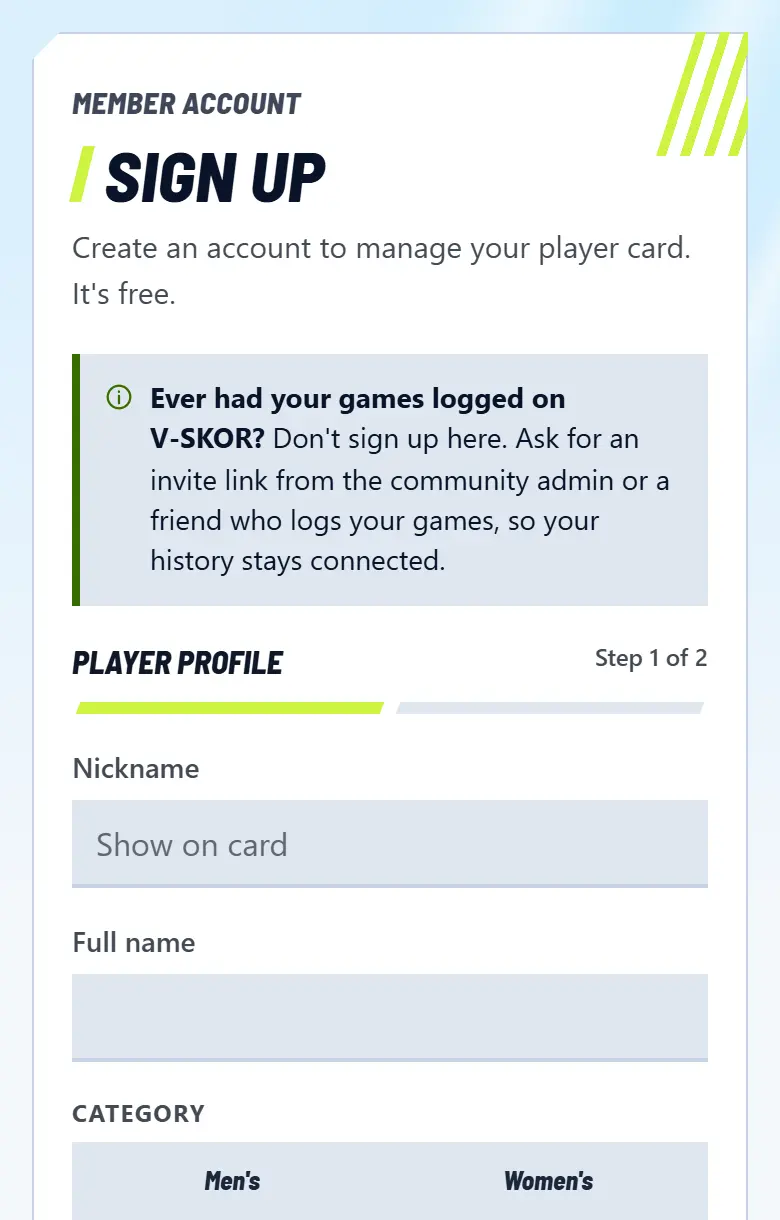
  1. Open the Me tab, then tap Sign up.

    Open the Me tab, then tap Sign up.
  2. Enter your nickname and full name, and choose your category and estimated grade. Your home city is optional (tap the location icon to fill it in), then tap Next. Admins can reassess your grade after you play.

  3. Enter your email and password (at least 8 characters, letters and numbers), tick the agreement, then tap Create account.

  4. Open the email from V-SKOR and click the confirmation link. Not there? Check your spam folder.
  5. Choose a community to join, then tap Request to join. Your card's grade, rating, and stats fill in as you play.

Note

Already played on V-SKOR? Don't sign up again. Ask your community admin for an invite link so your history stays connected.

Open the sign up page

Related topics

Sign in and forgotten password

How to get back in if you signed out or forgot your password.

Steps

  1. Open the Me tab, then tap Sign in.

  2. Enter your account email and password, then sign in.

  3. Forgot it? Tap Forgot password? on the same page, then enter your account email.

  4. Open the email from V-SKOR, click the link, then create a new password. Not there? Check your spam folder.
Note

Signed in and want to change your password? Open Me, Account, then Change password.
Open Forgot password

Related topics

Turn on notifications

Get news about games, scores, and messages even when V-SKOR is closed.

Steps

Android

  1. Tap the bell icon in the top right.

    Tap the bell icon in the top right.
  2. Tap Enable notifications, then choose Allow when the browser asks.

  3. Want to check? Open the bell again, then tap Test notification.

iPhone

  1. Add V-SKOR to your Home Screen first. On iPhone and iPad, notifications only work from the installed app (iOS 16.4 or later).

  2. Open V-SKOR from its Home Screen icon.

  3. Tap the bell icon in the top right, tap Enable notifications, then choose Allow.

Note

Blocked it by accident? Tap the lock icon next to the site address, set Notifications to Allow, then reload the page.

Related topics

Change the language

V-SKOR is available in Indonesian and English.

Steps

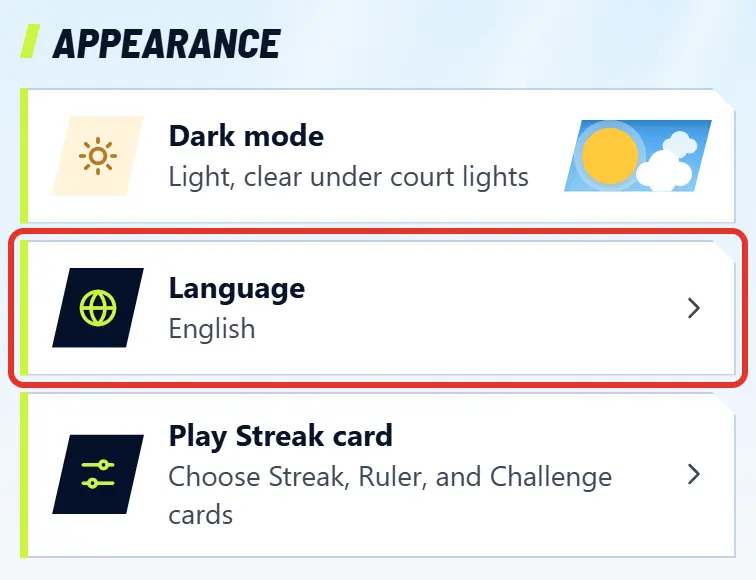
  1. Open the Me tab.

  2. Tap Language.

    Tap Language.
  3. Choose a language. The app reloads in that language right away.

Note

Choose Auto to follow your location: Indonesian in Indonesia, English elsewhere.

Open the Me tab

Related topics

Find and join a game

From finding a game to getting your spot.

Steps

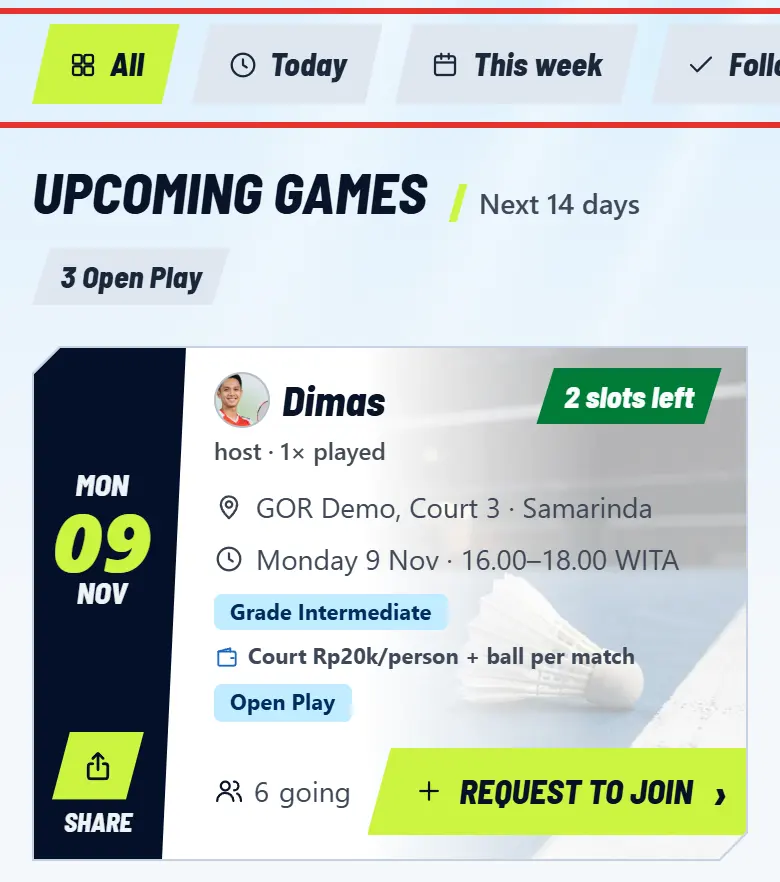
  1. Open the Play tab. Use the search box or the Today, This week, and In my city filters.

    Open the Play tab. Use the search box or the Today, This week, and In my city filters.
  2. Tap a card, then check the place, time, quota, and how to pay.

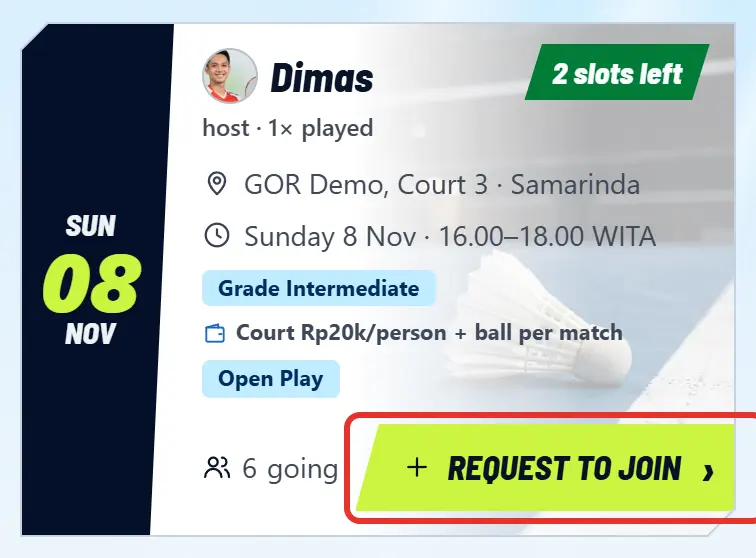
  3. Tap Join the game. If you are not a member of the community, the button says Ask to join and a community admin accepts you. For public Open Play, tap Request to join and write a message. Your spot is safe once you are accepted.

    Tap Join the game. If you are not a member of the community, the button says Ask to join and a community admin accepts you. For public Open Play, tap Request to join and write a message. Your spot is safe once you are accepted.
  4. Quota full? You go on the Reserves list and move up automatically if someone cancels.

  5. Can't make it? Tap Cancel joining so someone else can take your spot.

  6. Want to bring friends? Tap Share under the date on the card, then send it via WhatsApp, another app, or a copied link. You can also send it straight to a community chat or a private message on V-SKOR.

Note

You need an account and a player profile to join a game.

Open the Play tab

Related topics

Complete guide to running a game

From creating the game, accepting players, marking who came, the draw, keeping score, and collecting dues, to ending the session. Every button is explained.

1Who can manage a game

What you see on the Manage page depends on your role. This guide is written from the side of a community admin, who has the most buttons.

Roles

Community admin
Every feature for games in their community.
Host
The person who created the Open Play. Every feature except New player, Who can join, and Delete session. They get Cancel schedule instead.
Stand-in
A member standing in for an admin who is late. Attendance, matches, and scores only.
Scorer
A player who is present and was asked to score matches they are not playing in.

2Create the game

There are two ways in. Community admins use Sessions & schedule. Everyone else uses Host a game.

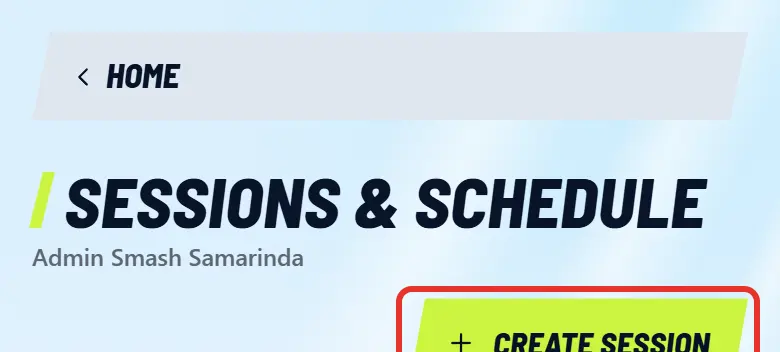
  1. Community admin: tap Admin at the top, open Sessions & schedule, then tap Create session.

    Community admin: tap Admin at the top, open Sessions & schedule, then tap Create session.
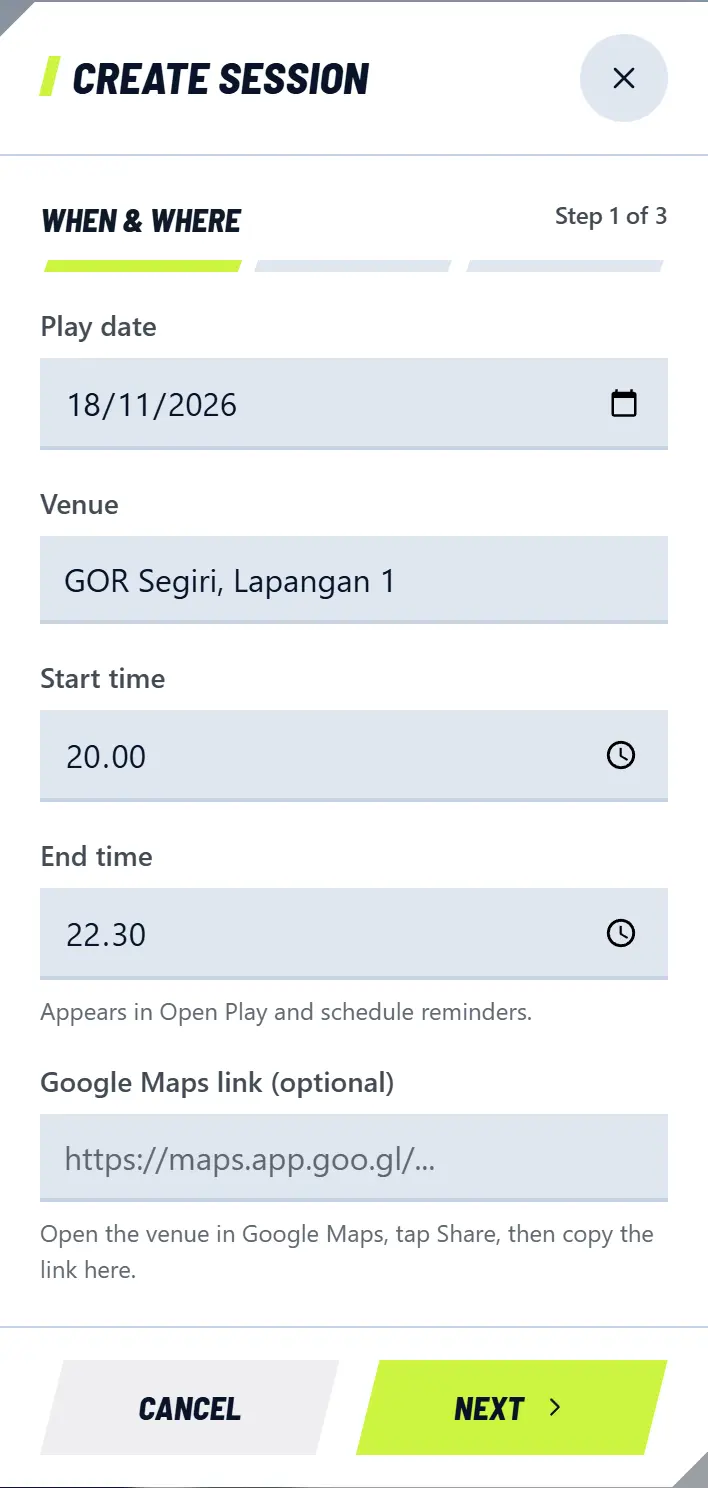
  2. The When & where step: enter Play date, Venue, Start time, End time, and a Google Maps link if you have one, then tap Next.

    The When & where step: enter Play date, Venue, Start time, End time, and a Google Maps link if you have one, then tap Next.
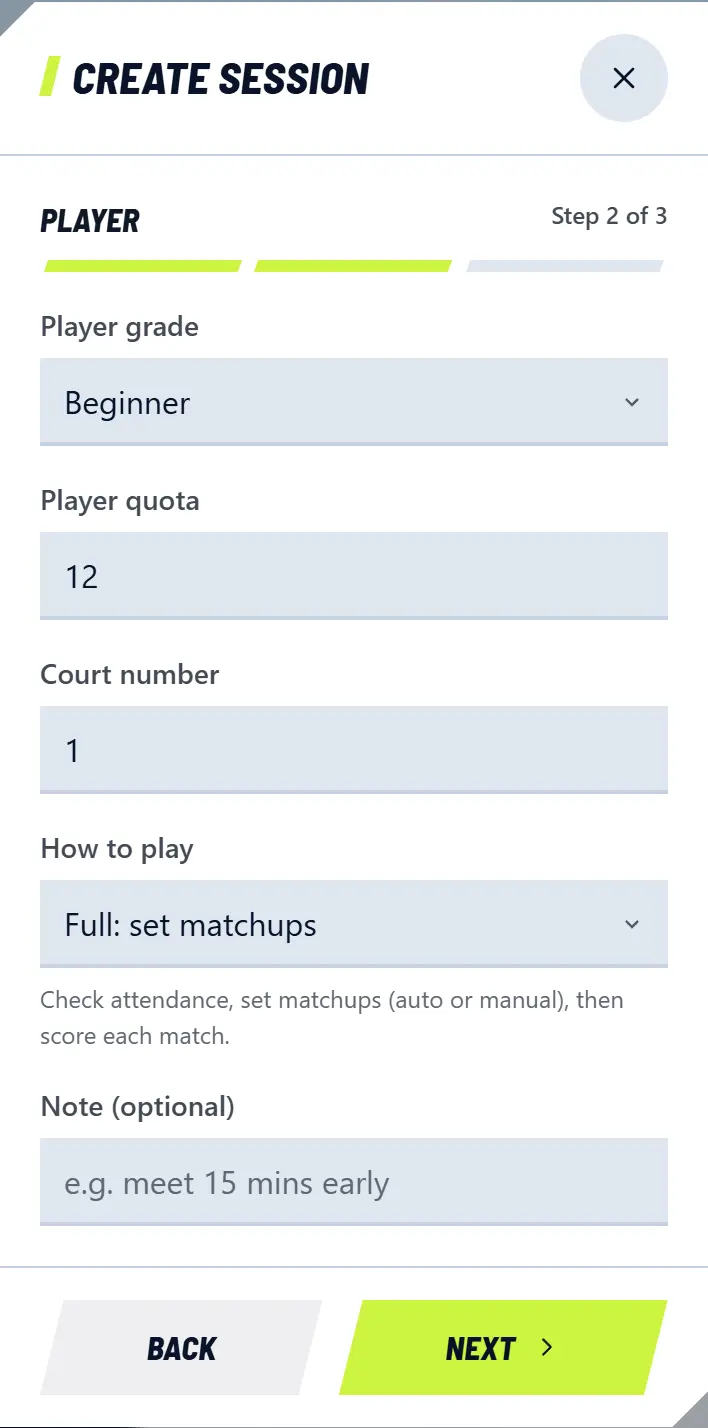
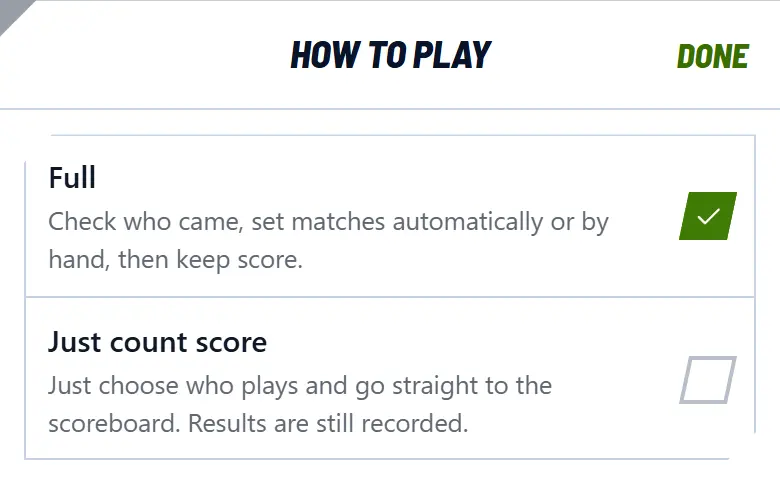
  3. The Player step: set Player grade, Player quota (leave it empty for no limit), Court number, and How to play. A new session copies these from your last one, so a weekly game only needs a quick check.

    The Player step: set Player grade, Player quota (leave it empty for no limit), Court number, and How to play. A new session copies these from your last one, so a weekly game only needs a quick check.
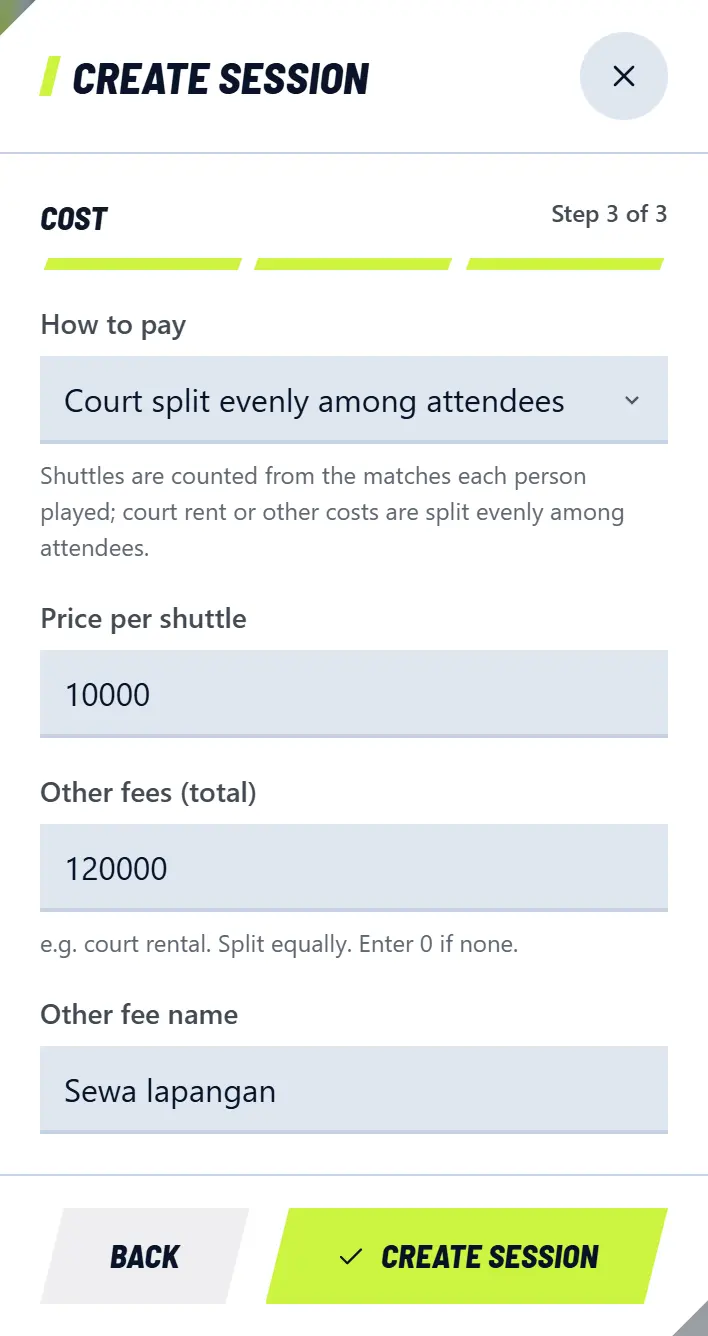
  4. The Cost step: choose How to pay, enter Price per shuttle and Other fees (total) such as the court fee, then tap Create session.

    The Cost step: choose How to pay, enter Price per shuttle and Other fees (total) such as the court fee, then tap Create session.
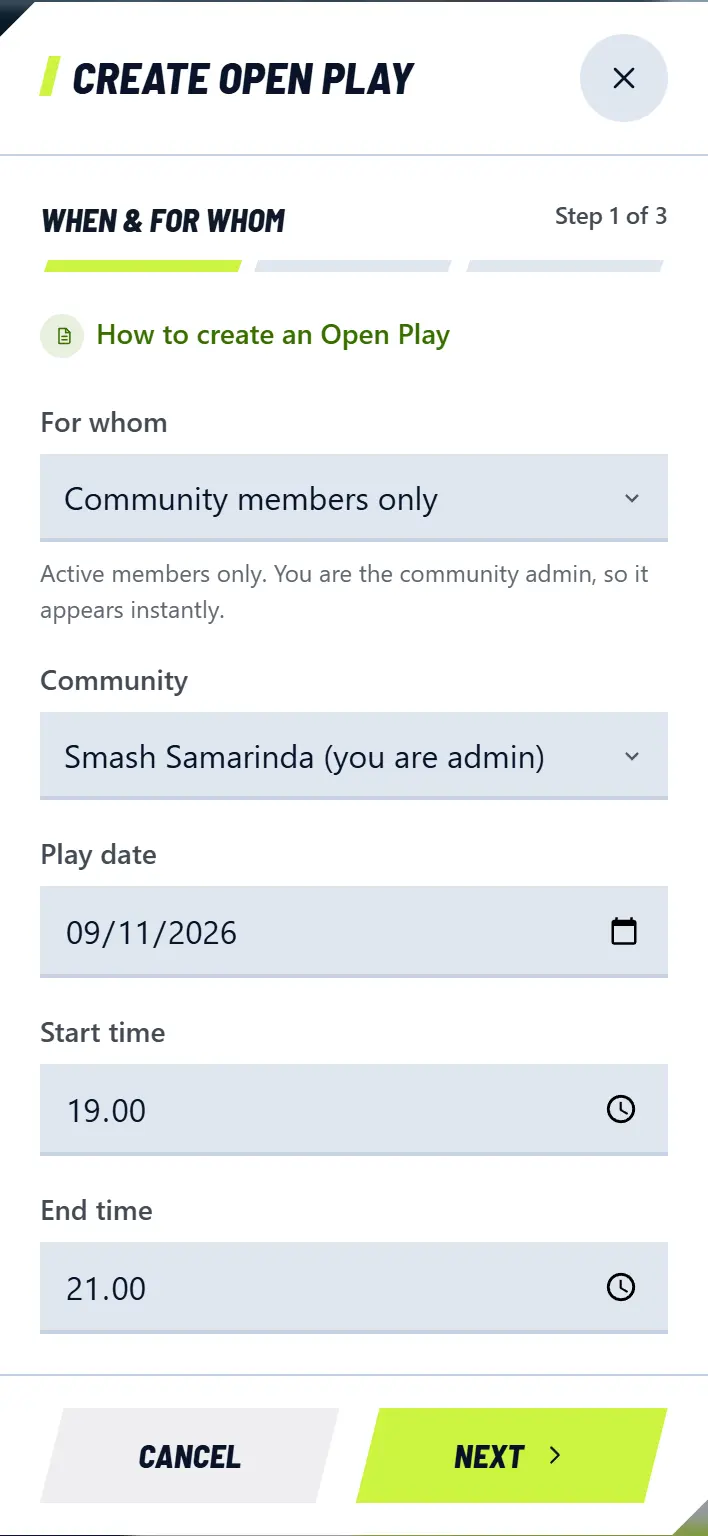
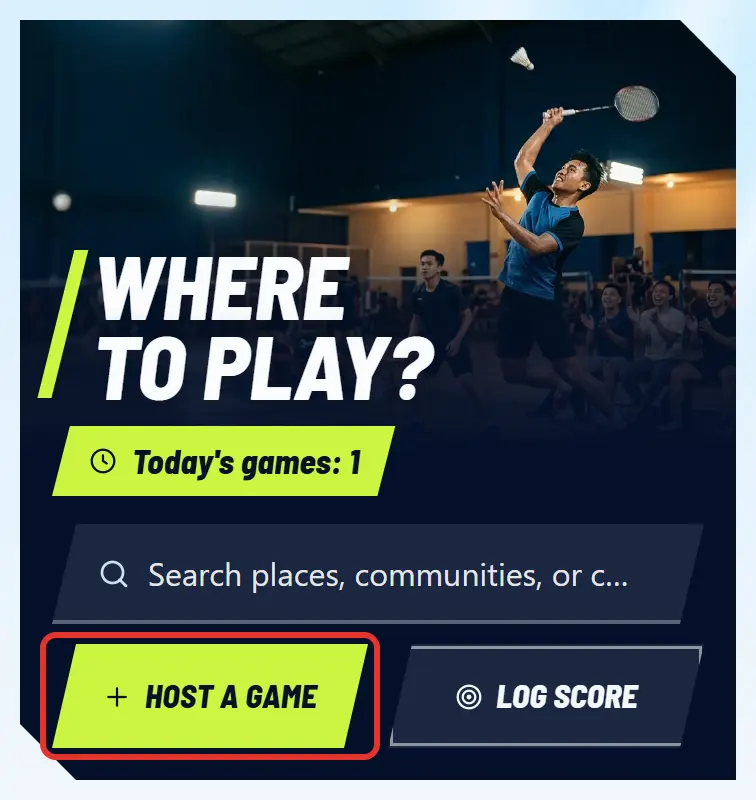
  5. Not an admin: on the Play tab, tap Host a game. The When & for whom step: choose For whom (public or members only), then the date and time. The date can be up to 14 days ahead.

    Not an admin: on the Play tab, tap Host a game. The When & for whom step: choose For whom (public or members only), then the date and time. The date can be up to 14 days ahead.
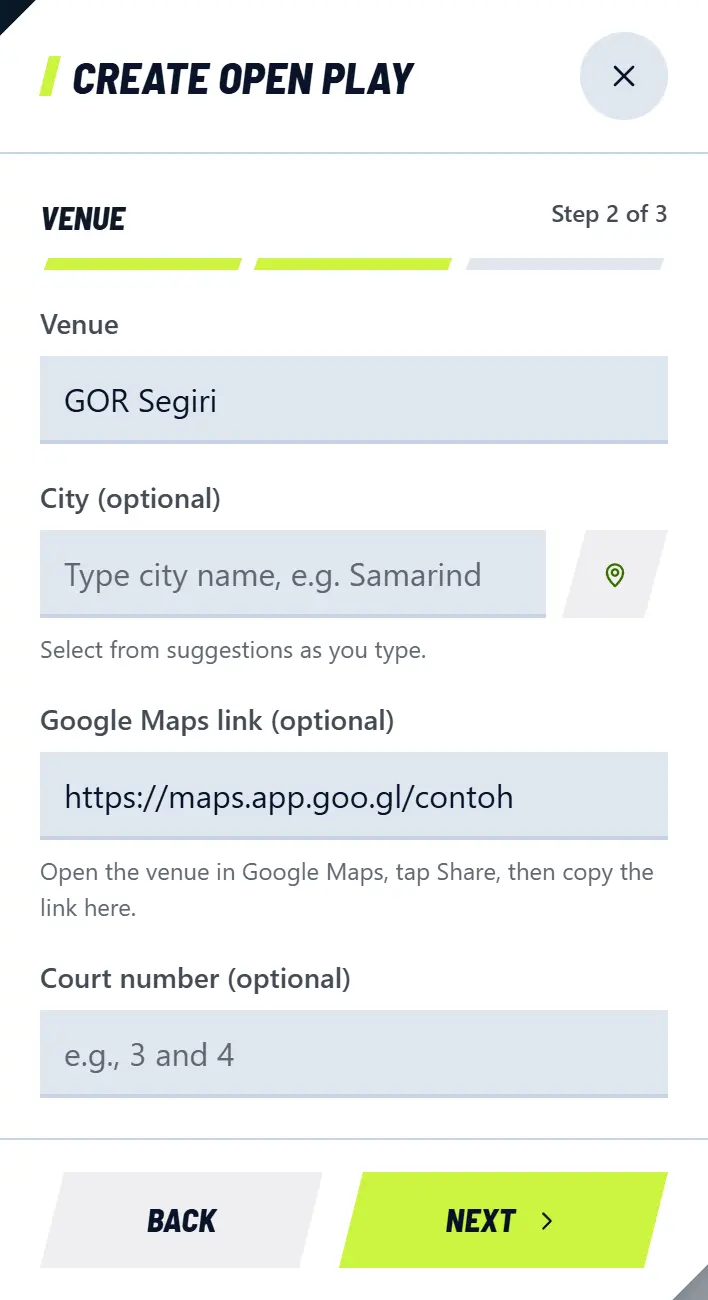
  6. The Venue step: enter the venue, city, Google Maps link, and court numbers. Public games must have a city and a Maps link.

    The Venue step: enter the venue, city, Google Maps link, and court numbers. Public games must have a city and a Maps link.
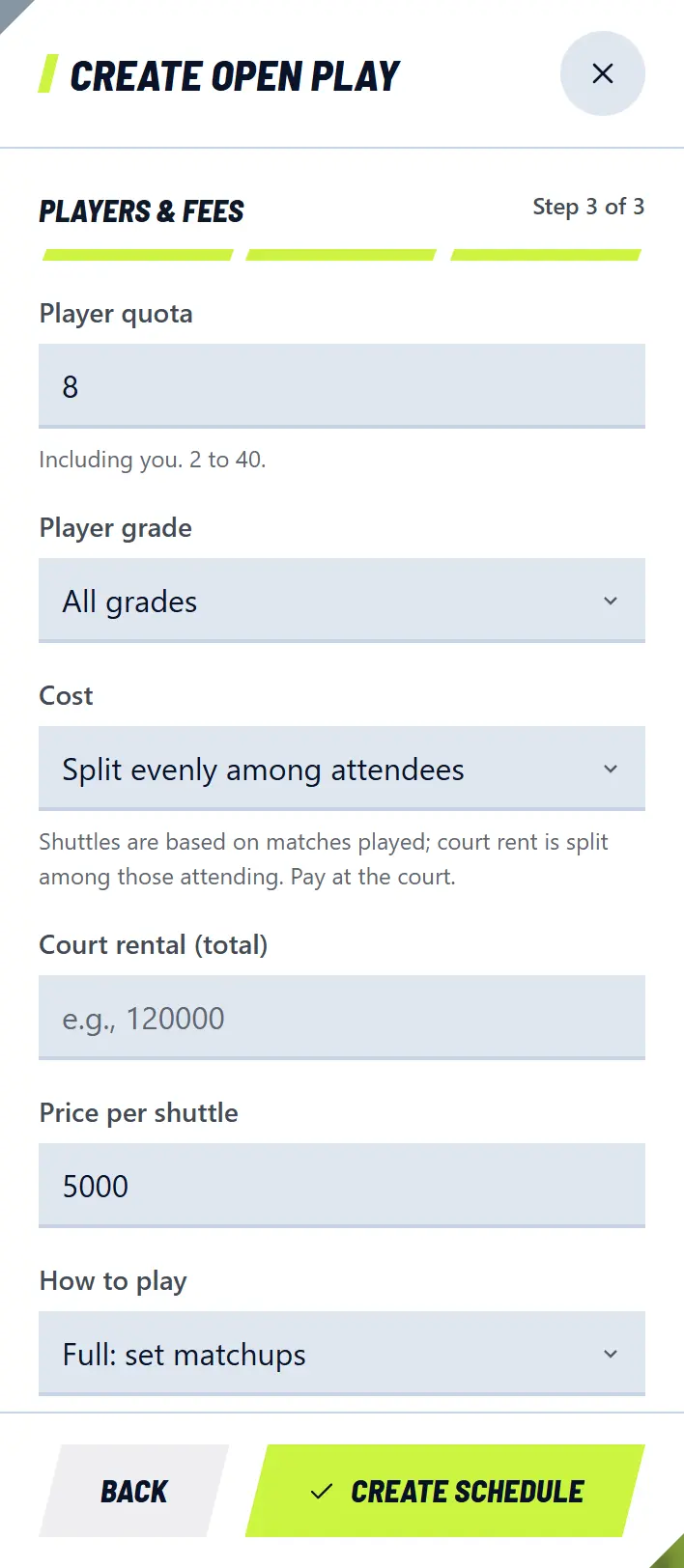
  7. The Players & fees step: set the quota (including you), the level, and Cost: split evenly, a fixed price per person, or your treat. Choose How to play, then tap Create schedule.

    The Players & fees step: set the quota (including you), the level, and Cost: split evenly, a fixed price per person, or your treat. Choose How to play, then tap Create schedule.

Cara main options

Full
Attendance and a draw. Good for a normal game. This guide uses this mode.
Just count score
No attendance list or draw. For each match just choose who plays, and they are marked present automatically.

Public Open Play needs a confirmed email, a profile photo, and a complete profile. The form lists anything missing.

Members-only Open Play created by a non-admin appears after a community admin approves it.

3Get to know the Kelola page

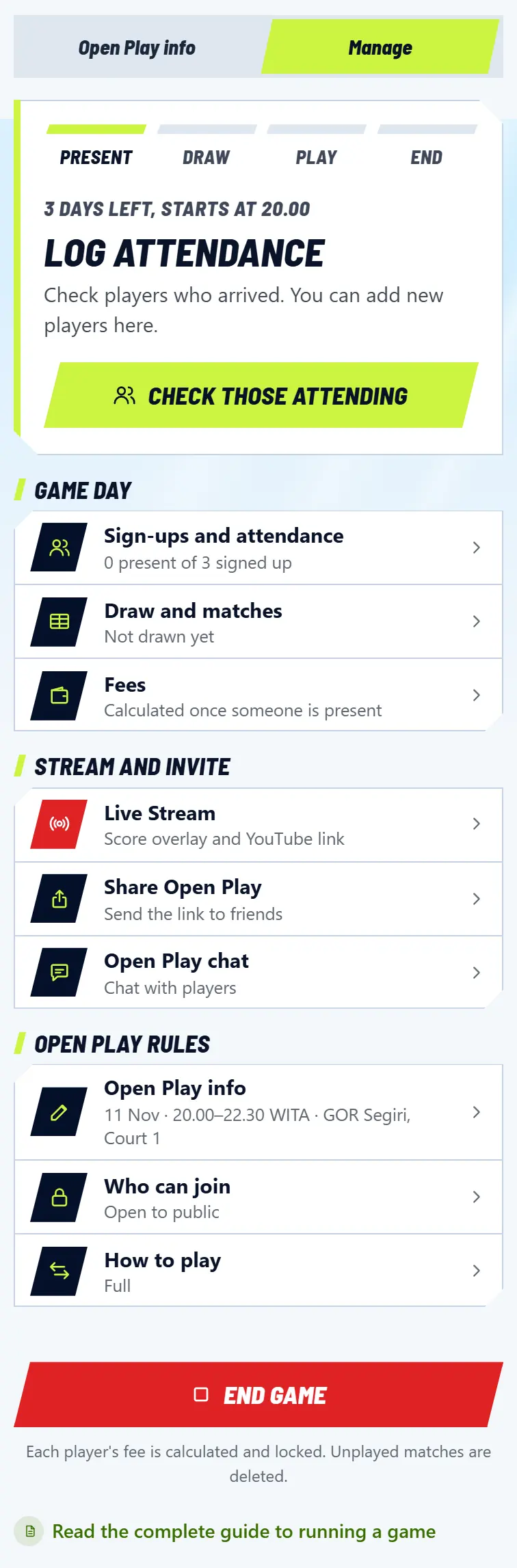
  1. Open the game. At the top there are two choices: Open Play info is what players see, Manage is where you manage it.

    Open the game. At the top there are two choices: Open Play info is what players see, Manage is where you manage it.
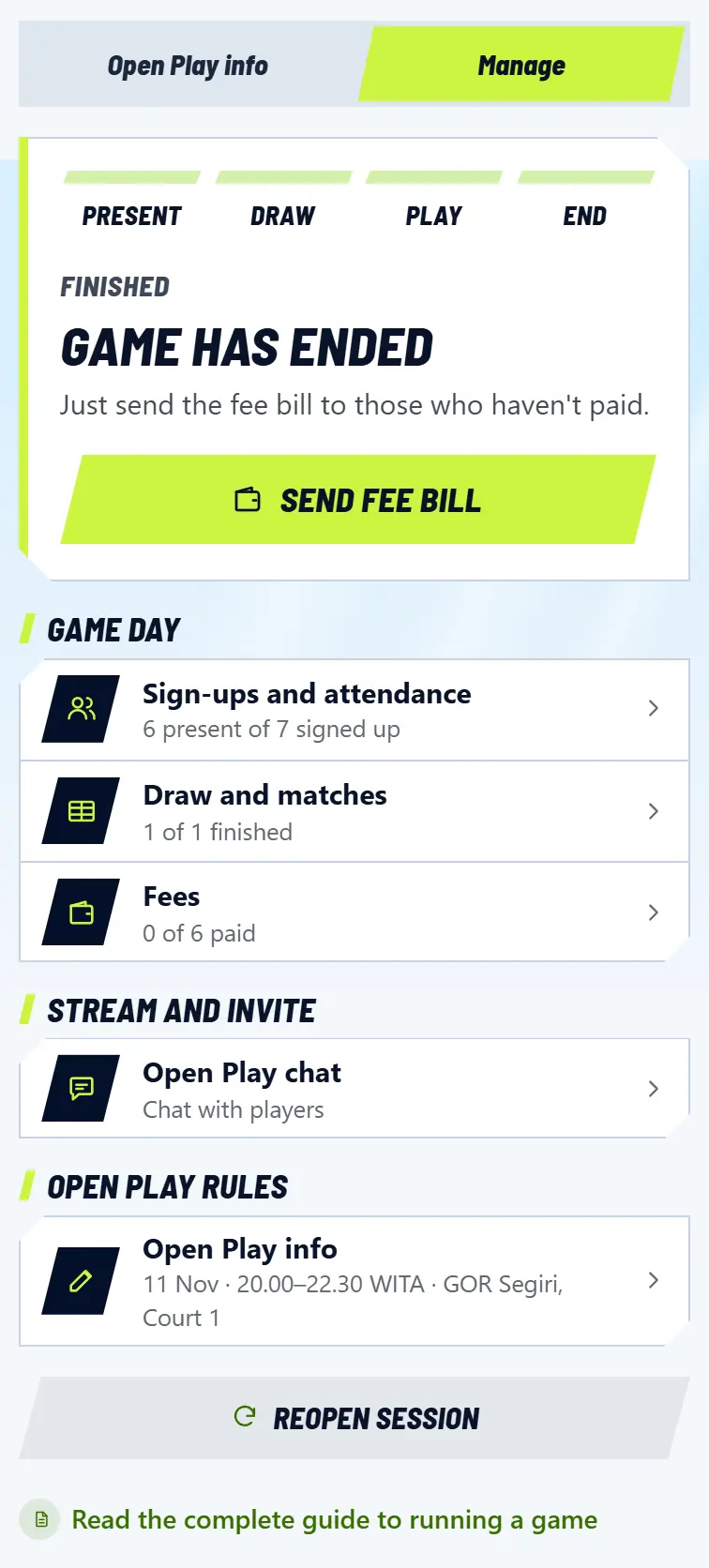
  2. The top card shows the order of the day: Present, Draw, Play, End. Its big button is always the next step, so when in doubt, just tap it.

  3. Everything else is in the list under the card. Tap a row to open it in a pop-up, then tap Finished to close it.

What the list holds

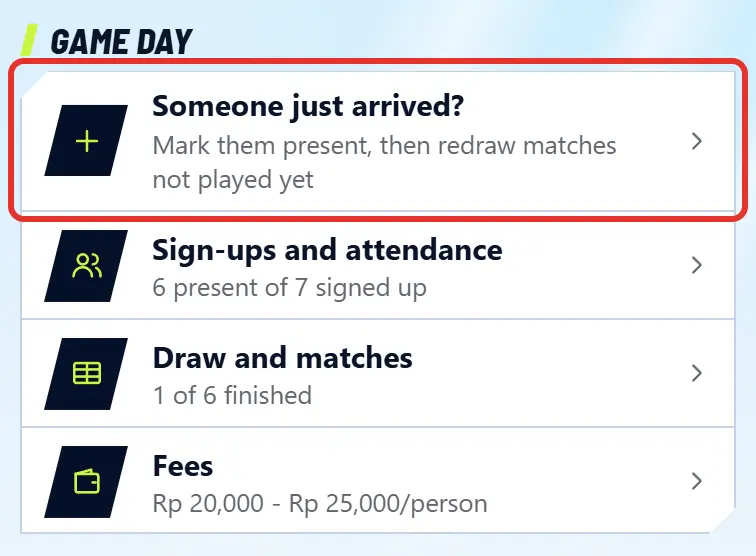
Someone just arrived?
Appears once there are matches. For people who arrive mid-session.
Sign-ups and attendance
Who signed up, who came, and join requests.
Draw and matches
Arrange opponents and see all matches.
Fees
Shuttle and court costs, then who has paid.
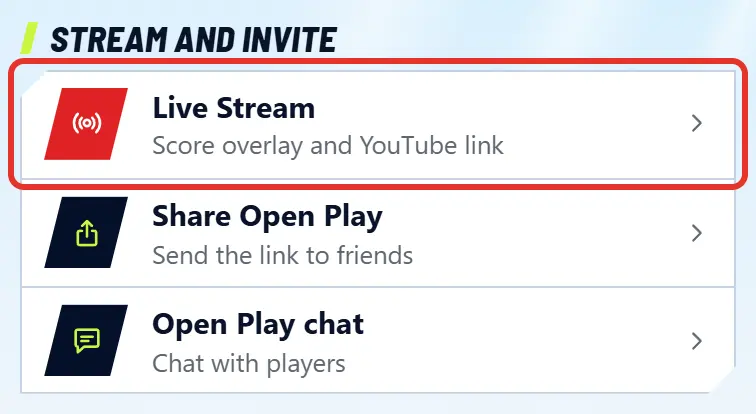
Live Stream
Scores over your video, or a YouTube stream inside the app. See the OBS guide and streaming in the app.
Share Open Play
Send the game link to friends or a group.
Open Play chat
Talk with the people in this game.
Open Play info
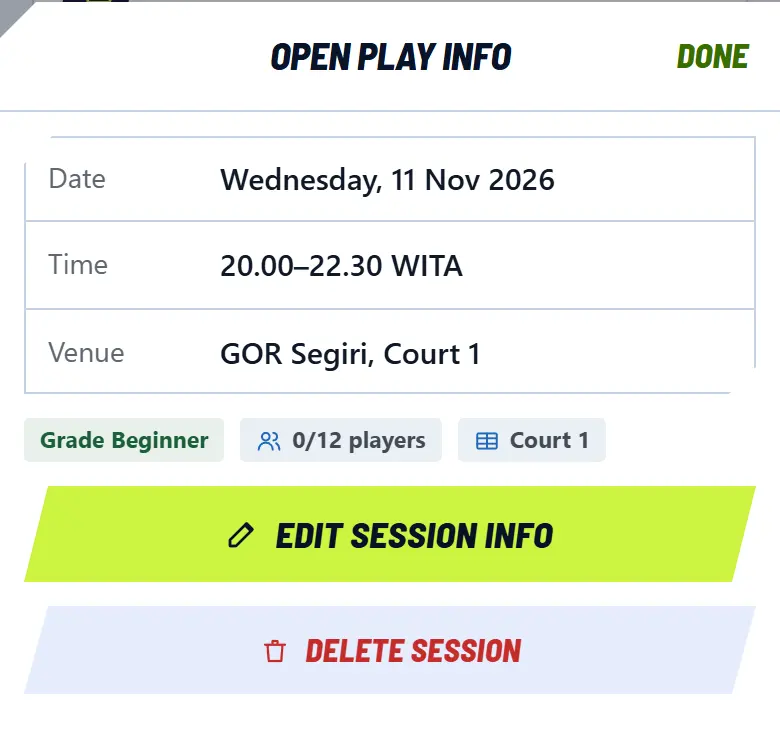
Change the date, time, or venue, cancel, or delete.
Who can join
Members only, or open to the public.
How to play
Switch between Full and Just count score.
End game
The red button at the very bottom. Locks dues and closes the game.

4Invite people and handle requests

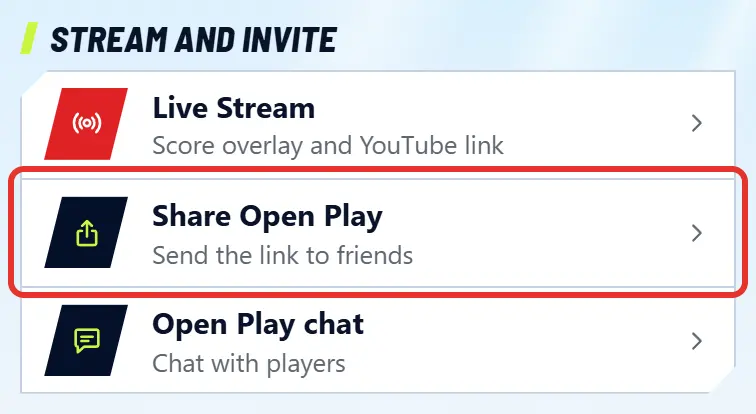
  1. Tap Share Open Play to send the link to your group. In a community game, active members can join right away. In Open Play, everyone who asks needs your approval first.

    Tap Share Open Play to send the link to your group. In a community game, active members can join right away. In Open Play, everyone who asks needs your approval first.
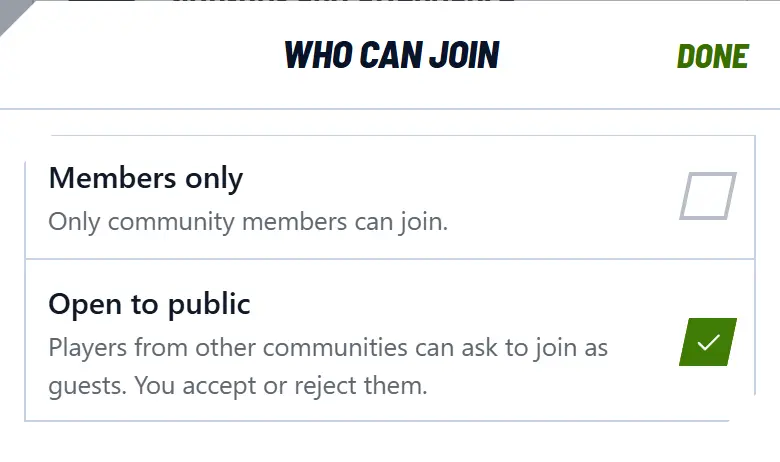
  2. Want people from outside the community? Open Who can join, then choose Open to public. They become guests that you need to approve.

    Want people from outside the community? Open Who can join, then choose Open to public. They become guests that you need to approve.
  3. When someone asks to join, you get a notification and a red number on the Play tab. A card there has a Review button.

    When someone asks to join, you get a notification and a red number on the Play tab. A card there has a Review button.
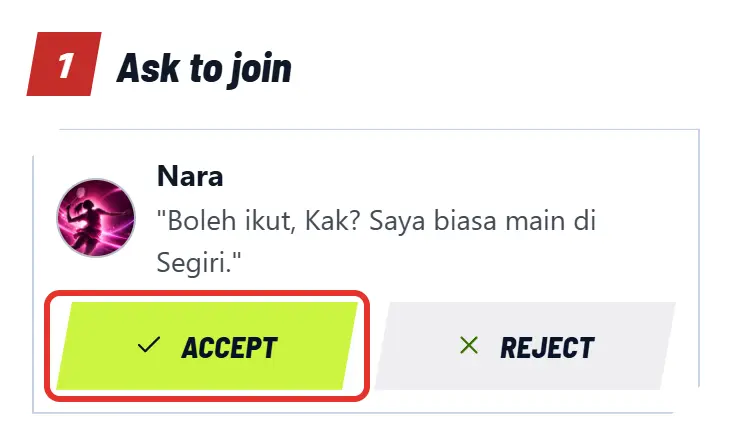
  4. Requests show at the top of Sign-ups and attendance. Tap Accept or Reject. The person is notified. Someone who is rejected cannot ask again for the same game.

    Requests show at the top of Sign-ups and attendance. Tap Accept or Reject. The person is notified. Someone who is rejected cannot ask again for the same game.
  5. Need to remove someone? Open the Open Play info tab, then in the Attending list, tap the cross next to their name. The first reserve moves up automatically. This only works before play starts.

Quota full? People you accept or who sign up later go to Reserves, and move up automatically when someone cancels.

5Mark who came

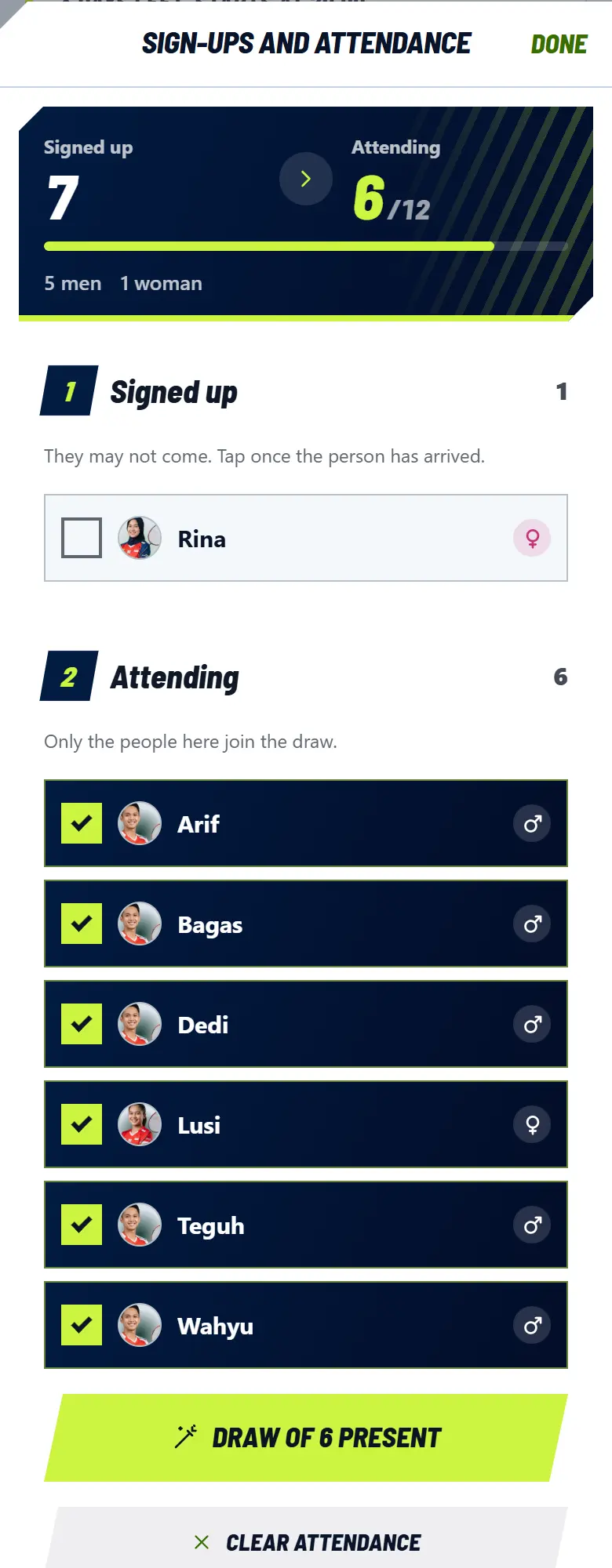
There are two stages: Signed up holds people who plan to come, Attending holds people who actually came. Only people present join the draw.

  1. Tap Sign-ups and attendance. The board at the top shows how many signed up, how many came, and the number of men and women.

    Tap Sign-ups and attendance. The board at the top shows how many signed up, how many came, and the number of men and women.
  2. As soon as someone arrives, tap their name in Signed up. It moves to Attending and saves right away. Tapped by mistake? Tap again and it moves back.

  3. Everyone here? Tap Everyone signed up is present. This button appears when more than one person is still unticked.

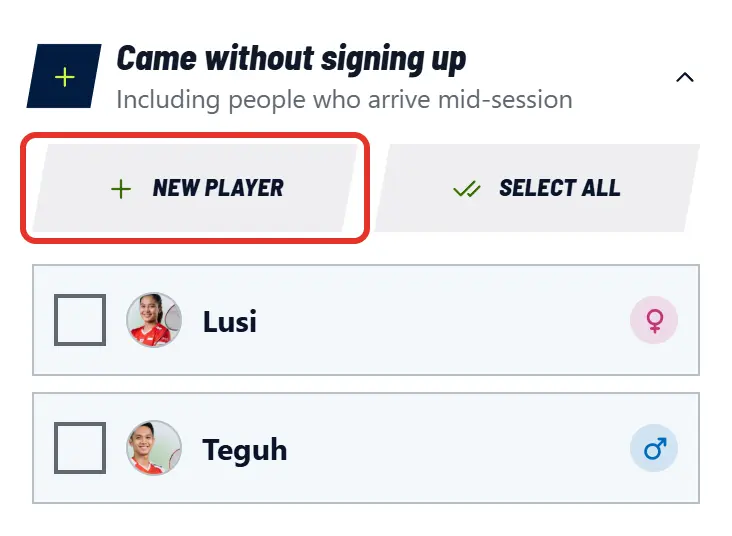
  4. Someone came without signing up? Open Came without signing up, then tap their name. Select all ticks every member of the community, so only use it if everyone really came.

    Someone came without signing up? Open Came without signing up, then tap their name. Select all ticks every member of the community, so only use it if everyone really came.
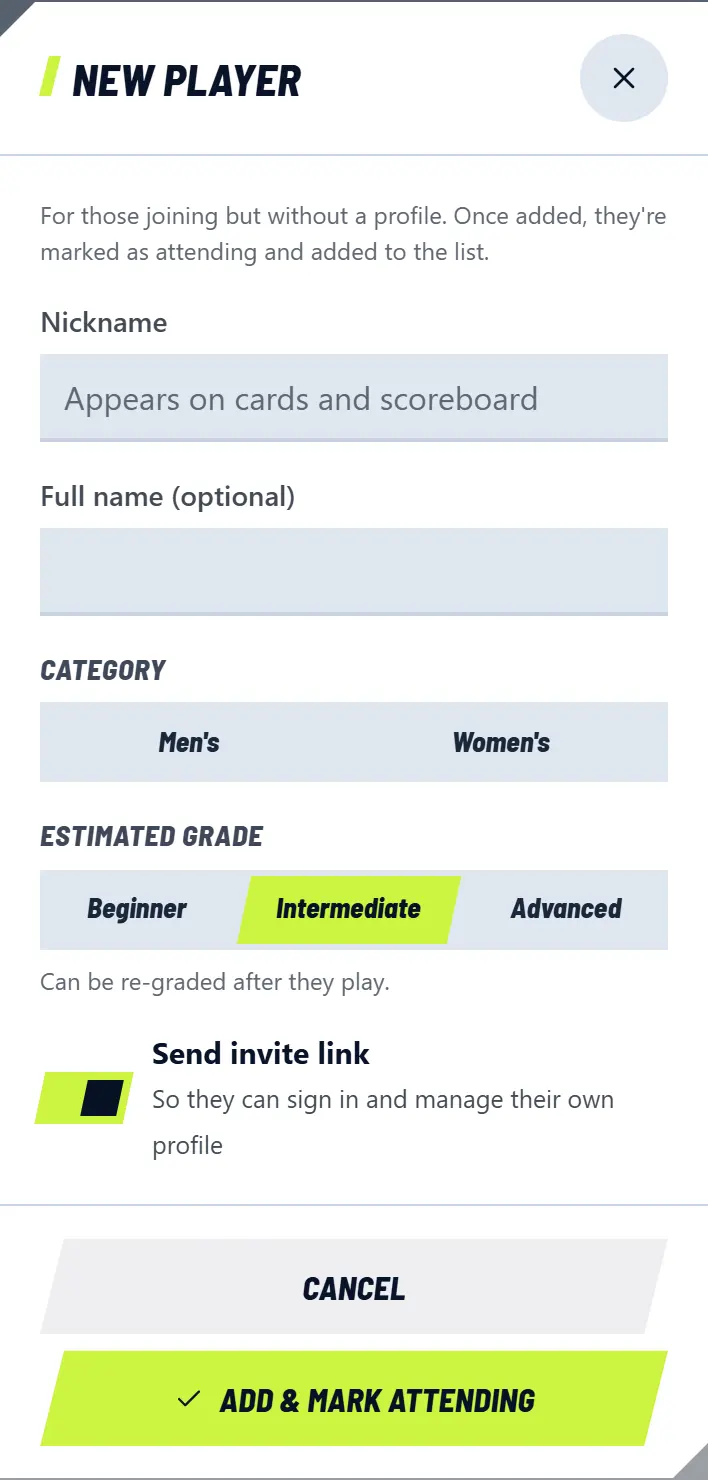
  5. No profile yet? Tap New player, enter Nickname, Category, and Estimated grade, then tap Add & mark attending. Leave Send invite link on so they can manage their own profile.

    No profile yet? Tap New player, enter Nickname, Category, and Estimated grade, then tap Add & mark attending. Leave Send invite link on so they can manage their own profile.

Other labels and buttons

Guest
Not a member of this community.
Reserves
Signed up after the quota was full. Can still be ticked if they turn up.
Clear attendance
Clears every attendance tick. Sign-ups stay.

Do not remove someone from Attending after they have played, even if they leave early. Otherwise their shuttle cost is not billed to anyone.

6The draw: arrange who plays whom

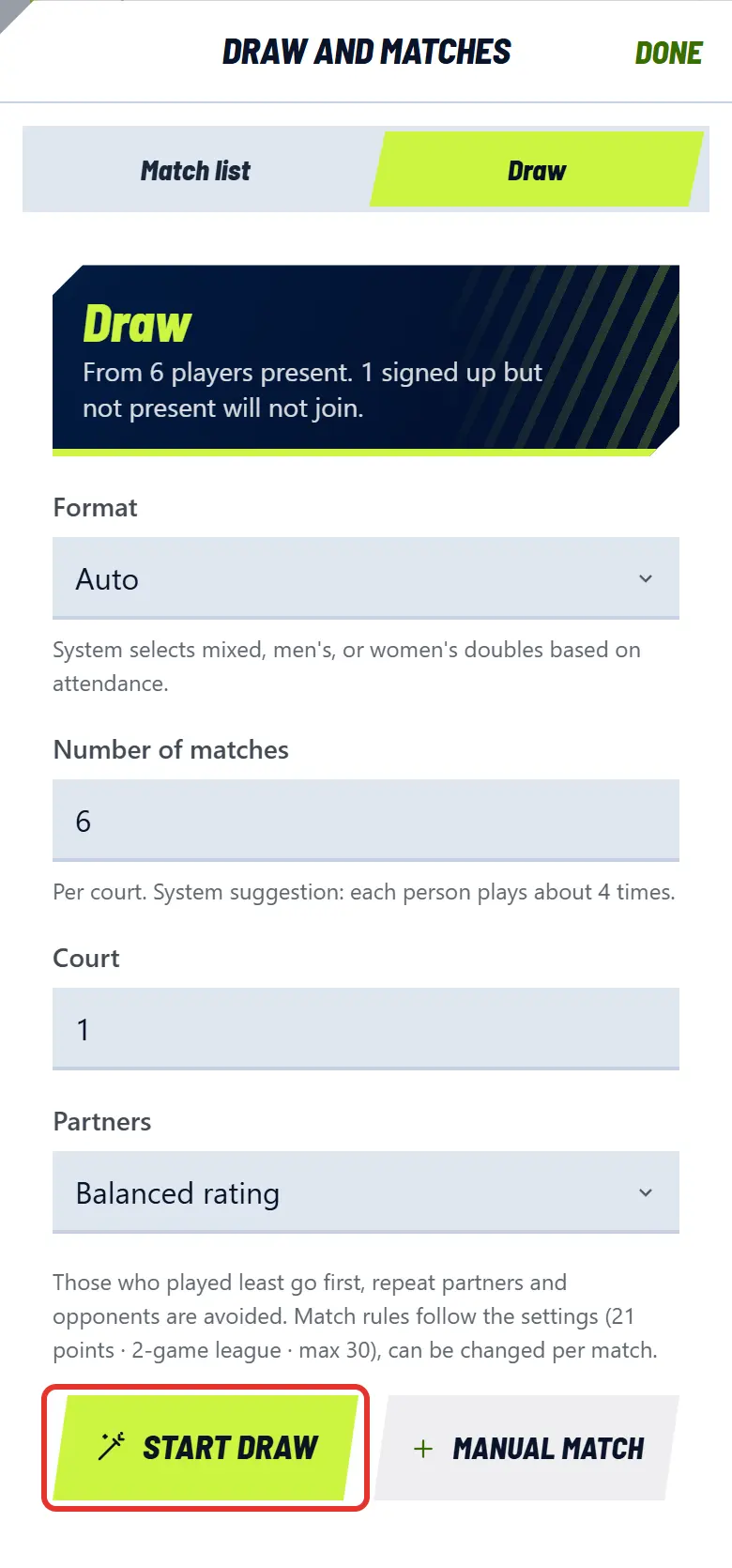
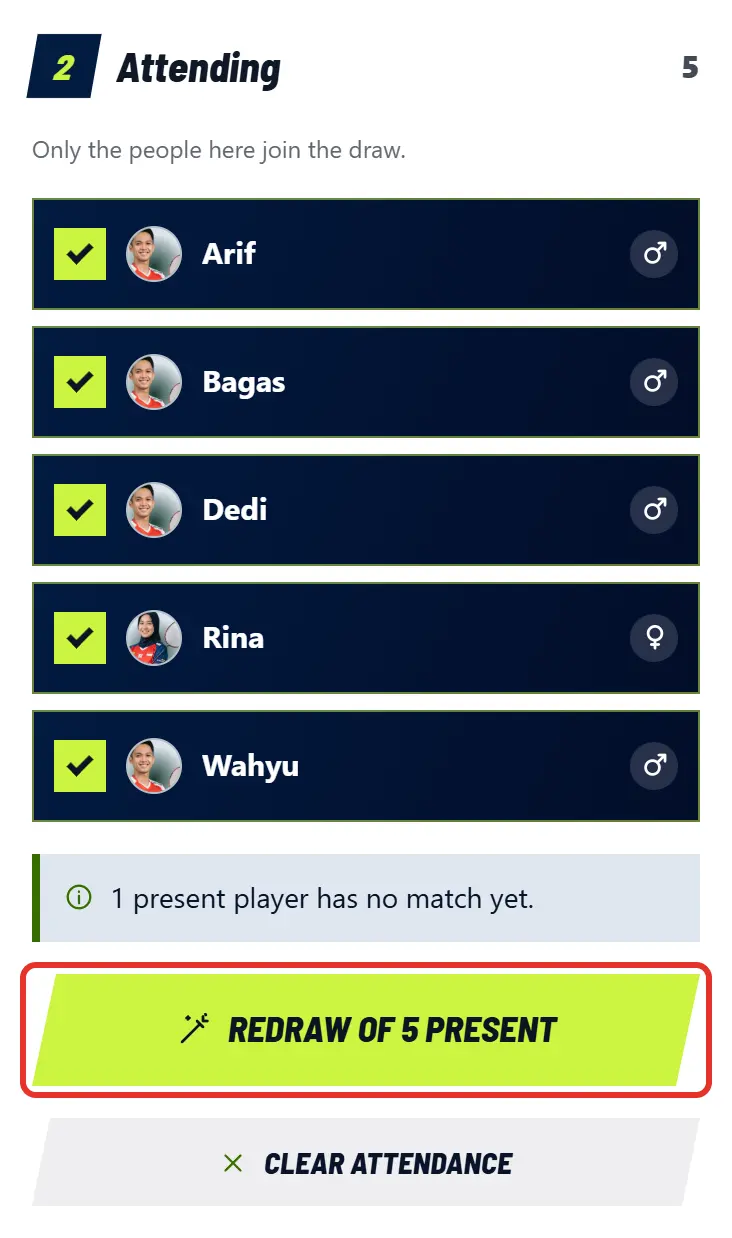
  1. Tap the lime button under Attending, or open Draw and matches then the Draw tab. The board above it says how many people are in and how many signed up but have not come.

    Tap the lime button under Attending, or open Draw and matches then the Draw tab. The board above it says how many people are in and how many signed up but have not come.
  2. Adjust the options if you need to. A suggested number of matches is already filled in, so you can usually carry on.

  3. Tap Start draw. People who have played least go first, and repeat partners and opponents are avoided. The result appears on the Match list tab.

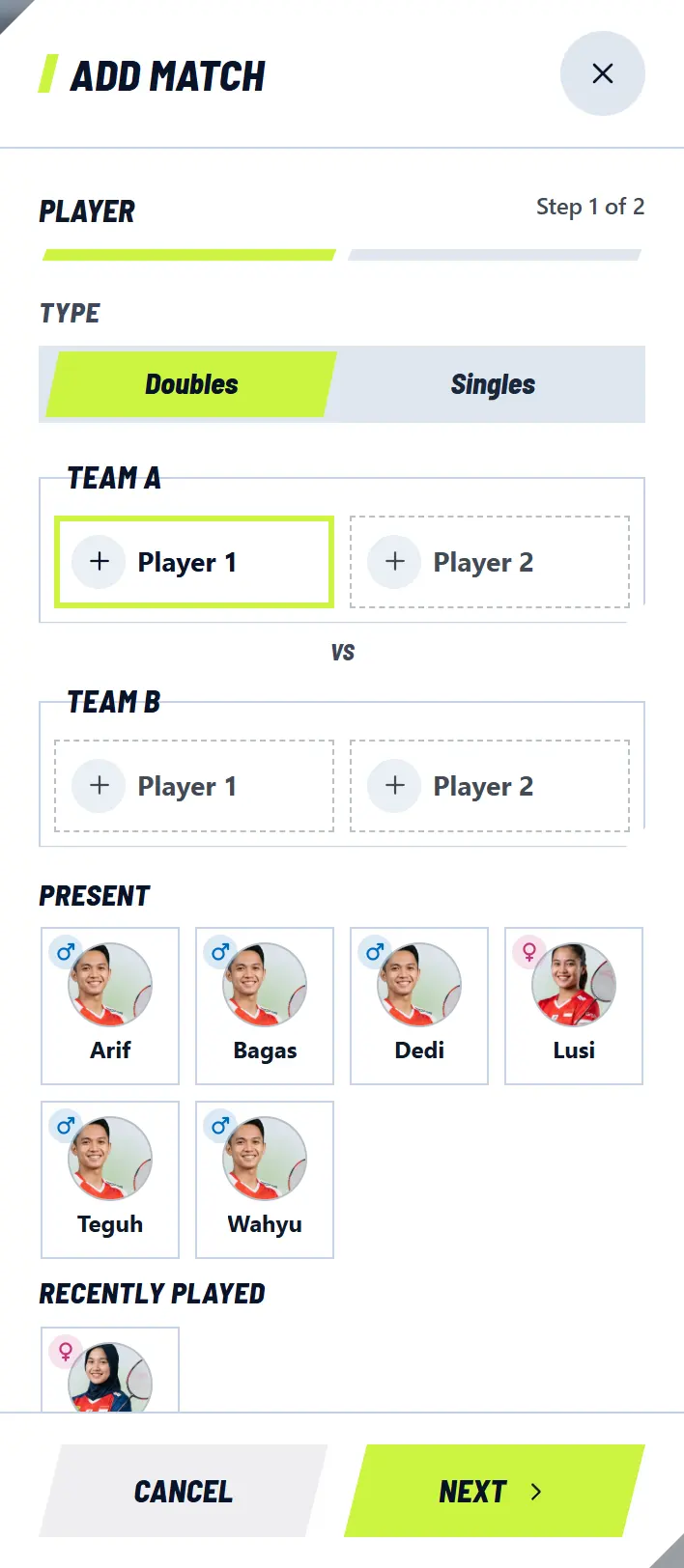
  4. Prefer to arrange it yourself? Tap Manual match. Choose Doubles or Singles, tap player photos to fill Team A and Team B, tap Next, set Game rules, then tap Add match.

    Prefer to arrange it yourself? Tap Manual match. Choose Doubles or Singles, tap player photos to fill Team A and Team B, tap Next, set Game rules, then tap Add match.

Draw options

Format
Auto picks mixed, men's, or women's doubles based on who came. You can also force one type, such as Open doubles or Open singles.
Number of matches
Number of matches per court. The suggestion gives each person about 4 games.
Court
How many courts are used at the same time.
Partners
Balanced rating keeps both teams even, or use Randomize.

7Manage the match list

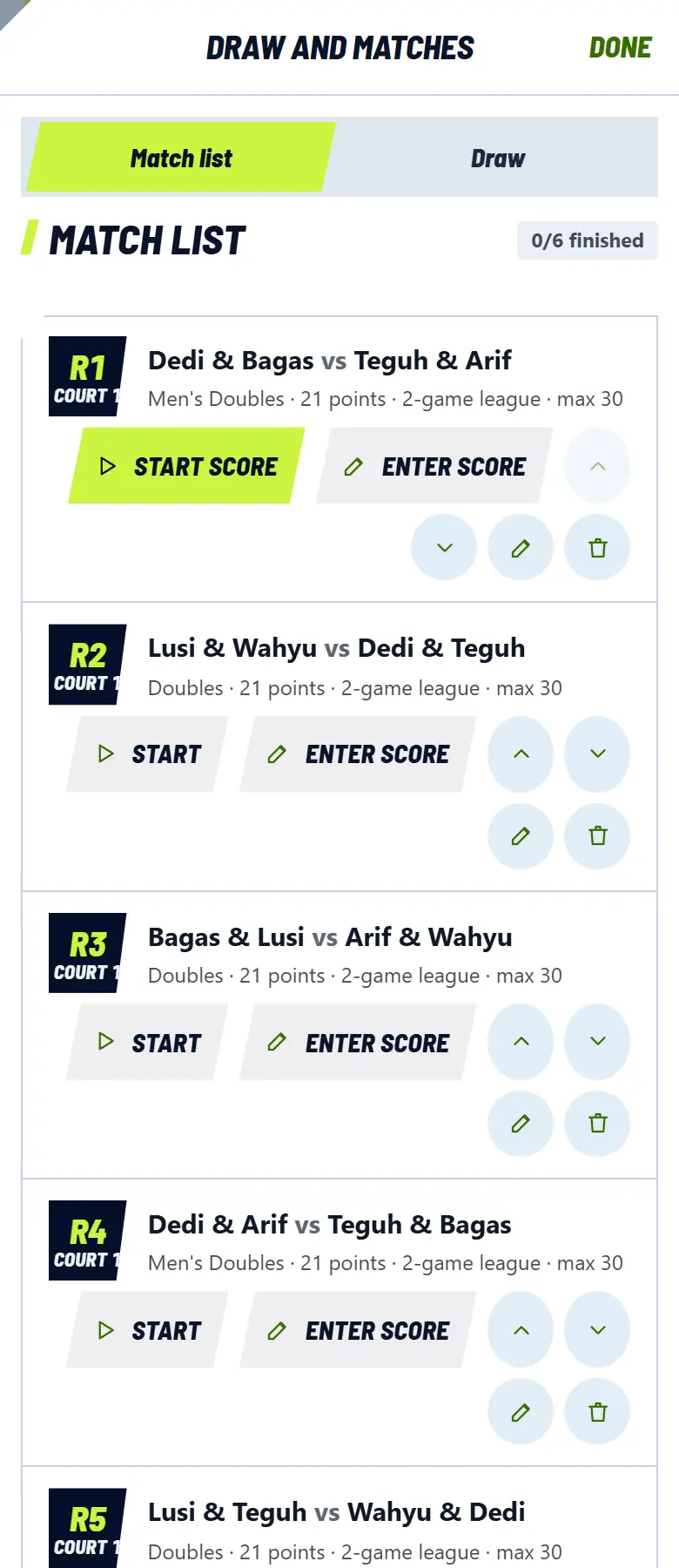
All matches are in Draw and matches, on the Match list tab. The top match is the next one to play.

  1. Each row shows the round, court, both teams, and the rules. A red "tidak hadir" note means a player in that match has not been marked present.

    Each row shows the round, court, both teams, and the rules. A red "tidak hadir" note means a player in that match has not been marked present.
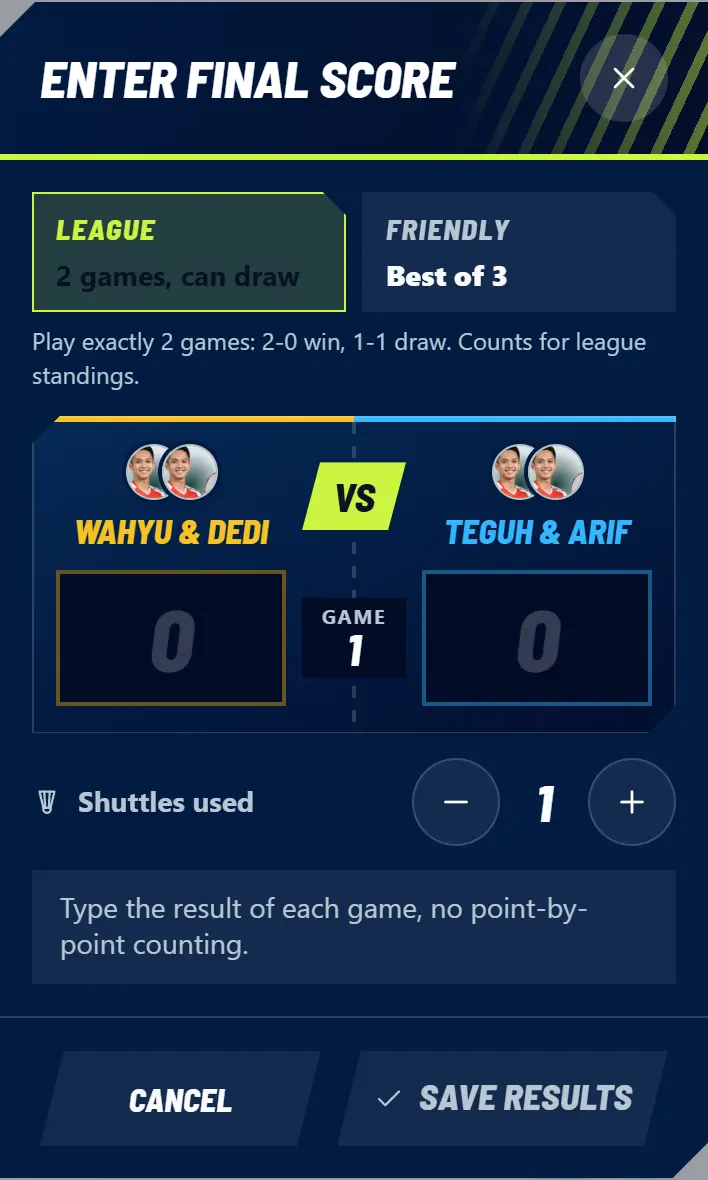
  2. Watching more than one court? Tap Enter score, type the final score of each game and the number of shuttles, then tap Save results. No need to count every point.

    Watching more than one court? Tap Enter score, type the final score of each game and the number of shuttles, then tap Save results. No need to count every point.
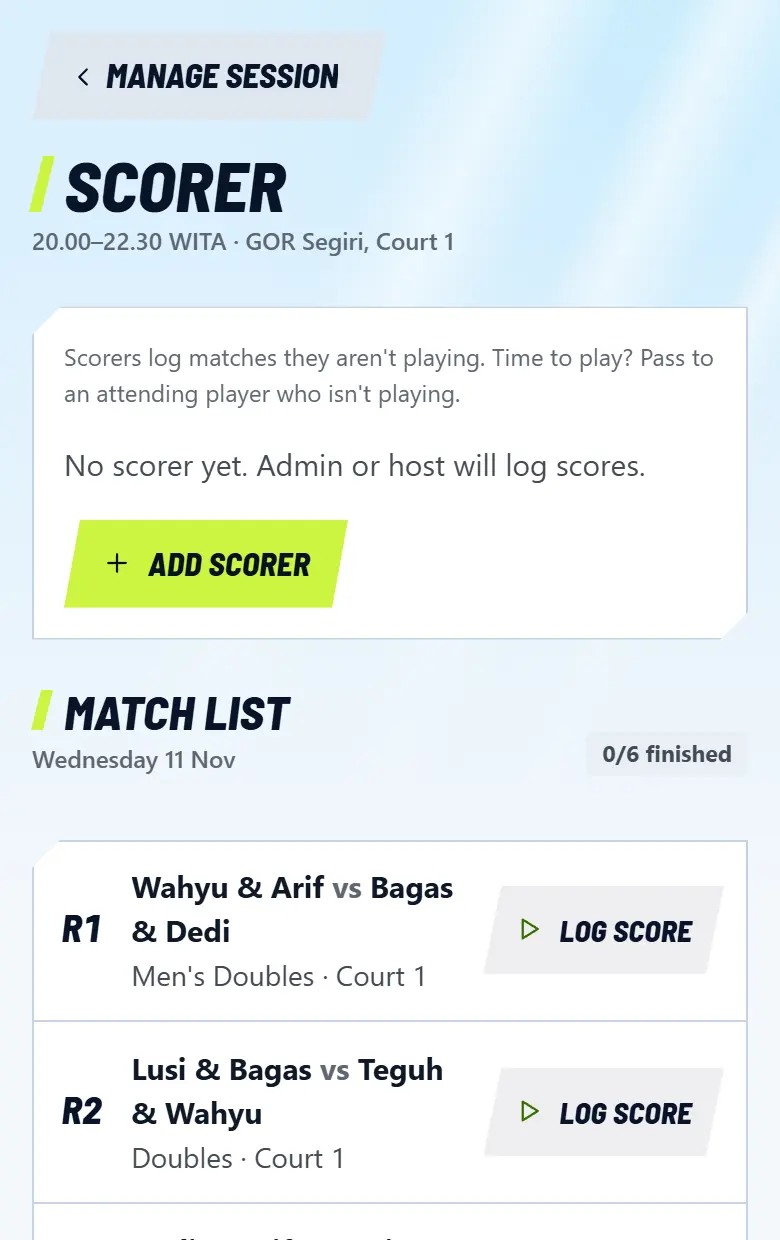
  3. To share the scoring, tap Scorer under the list, then Add scorer. Choose a player who is present and has an account, up to 6 people. Scorers can only score matches they are not playing in.
    To share the scoring, tap Scorer under the list, then Add scorer. Choose a player who is present and has an account, up to 6 people. Scorers can only score matches they are not playing in.
  4. Scorer's turn to play? On the same page they can tap Pass to another player or Stop being scorer.

Buttons on each match

Start score / Start
Opens the scoring screen for that match.
Enter score
Type the final result directly.
Up and down arrows
Change the order of matches not played yet.
Pencil icon
Change the players or rules. For a finished match, opens the details to correct the result.
Trash icon
Delete a match not played yet.
Continue scoring
Appears while a match is in progress.
Grade
Rate the players after the match. You can skip this.

8Keep score

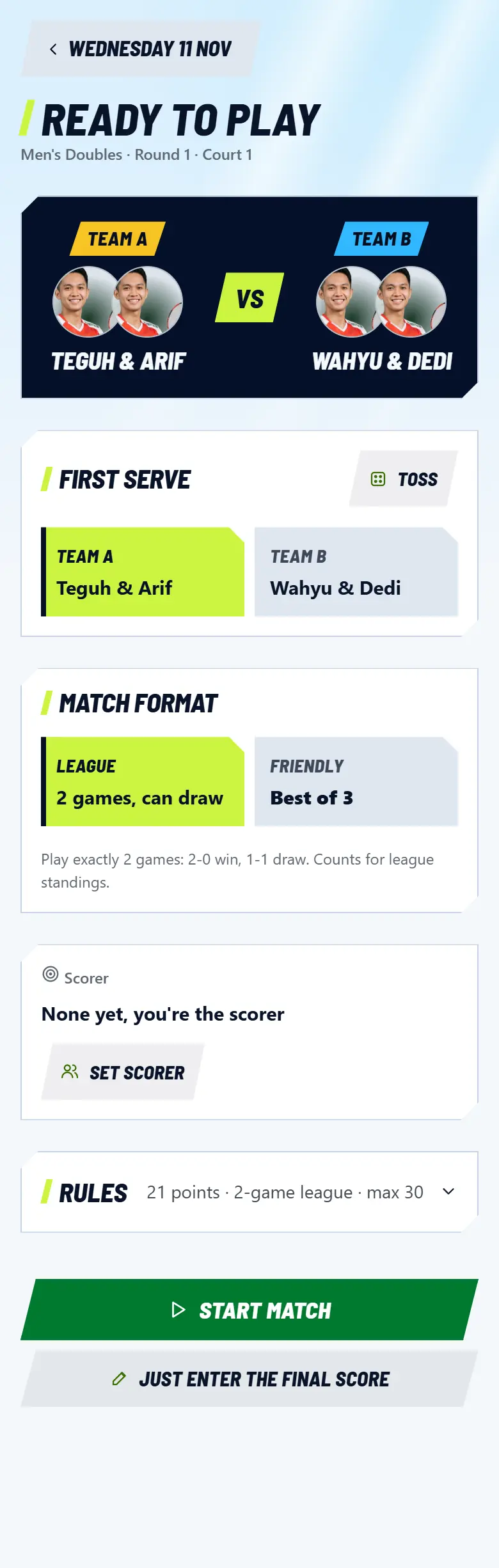
  1. Tap Start scoring on the top card, or Start score in the match list. The Ready to play screen opens. Choose First serve, or tap Toss.

    Tap Start scoring on the top card, or Start score in the match list. The Ready to play screen opens. Choose First serve, or tap Toss.
  2. Check Match format and Rules, then tap Start match. Match already over and not scored? Tap Just enter the final score.

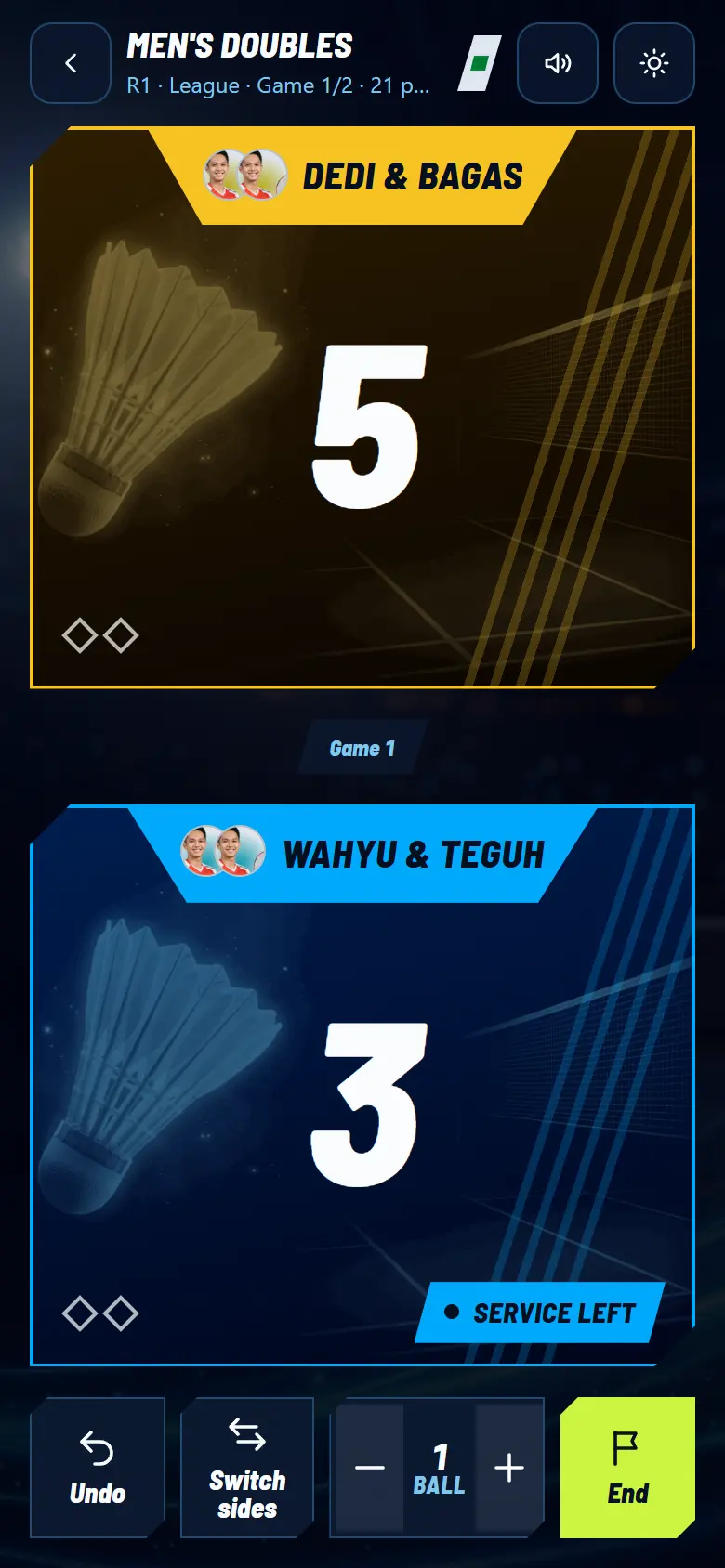
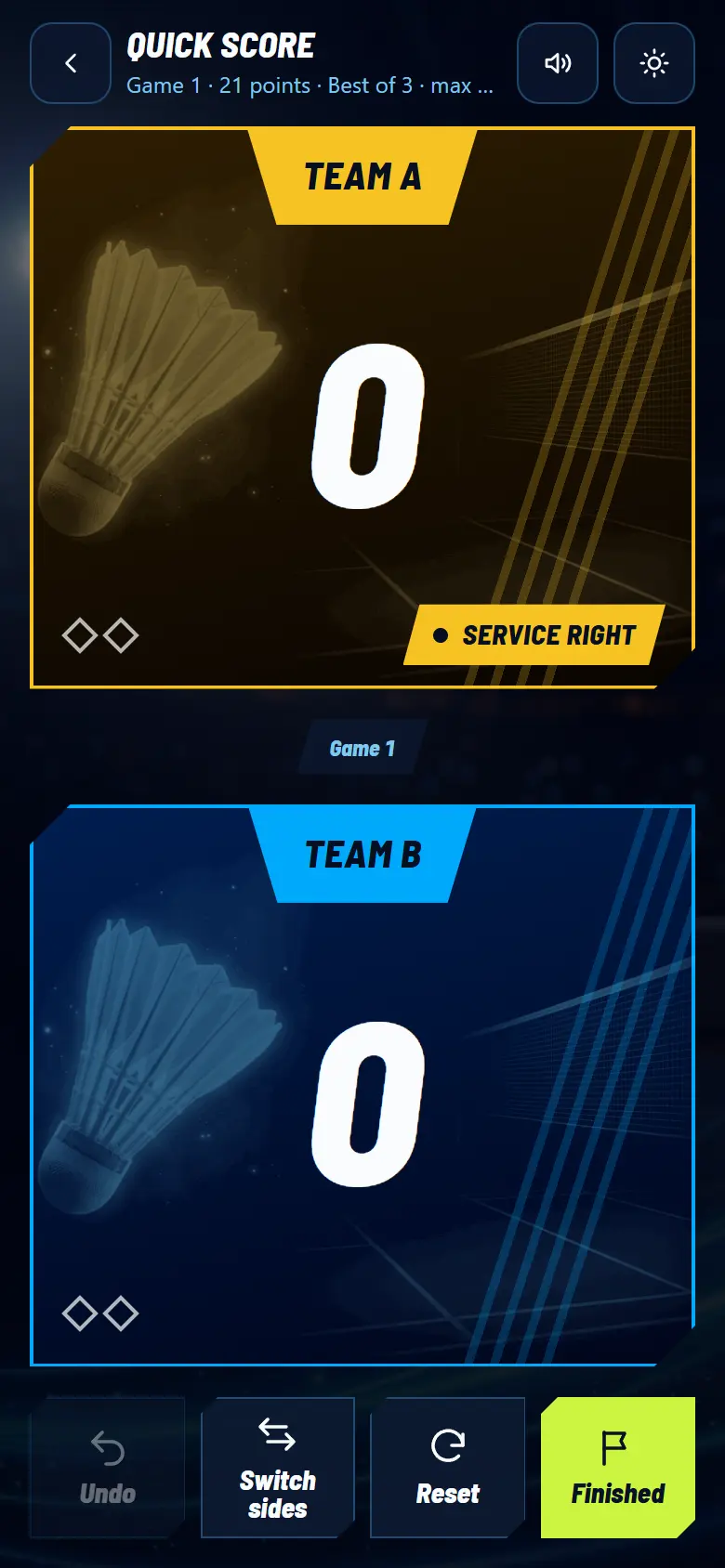
  3. On the scoreboard, tap the box of the team that wins the point. The score, service side, and next game are handled automatically. When a game ends, the board moves to the next game and the teams swap sides.

    On the scoreboard, tap the box of the team that wins the point. The score, service side, and next game are handled automatically. When a game ends, the board moves to the next game and the teams swap sides.
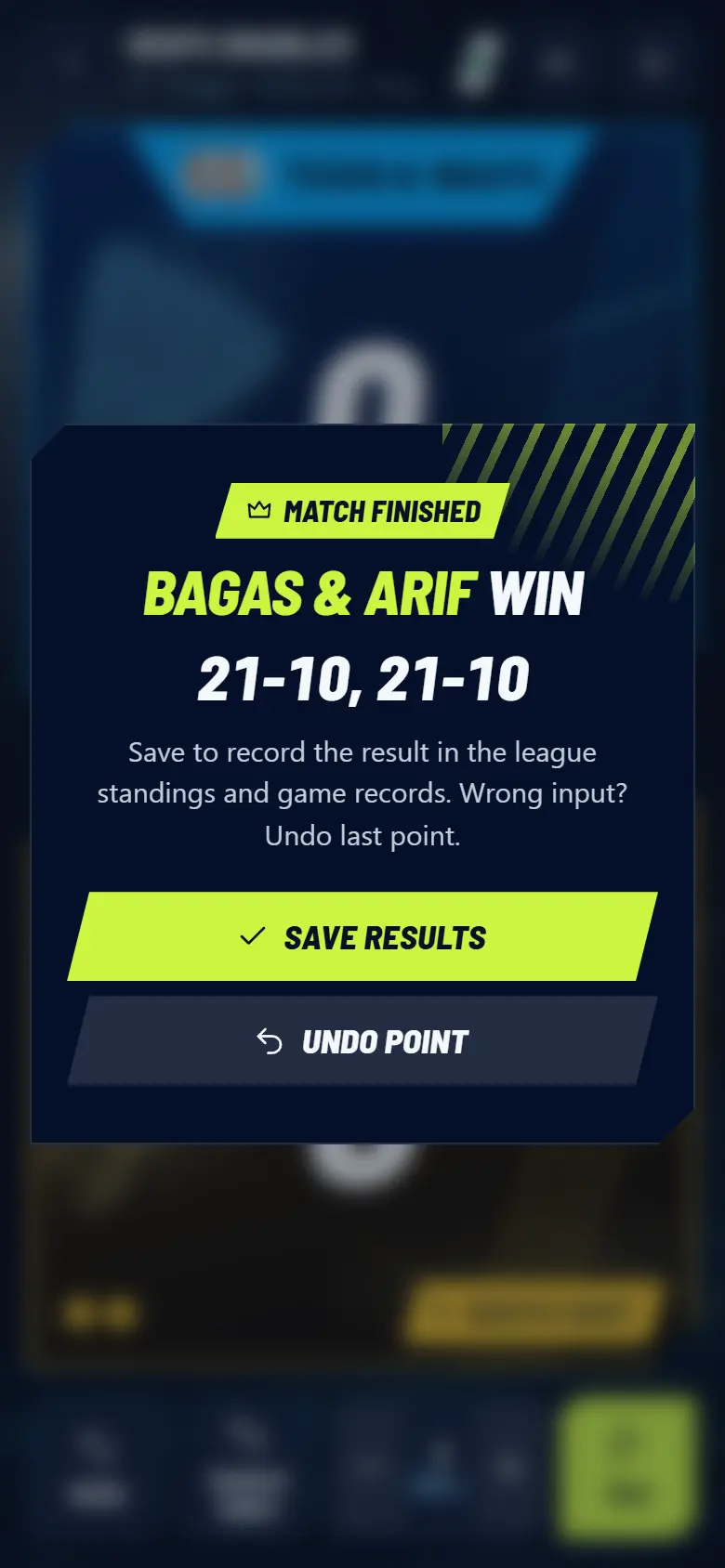
  4. When the match is won, a Match finished card appears. Tap Save results. Wrong last point? Tap Undo point.

    When the match is won, a Match finished card appears. Tap Save results. Wrong last point? Tap Undo point.
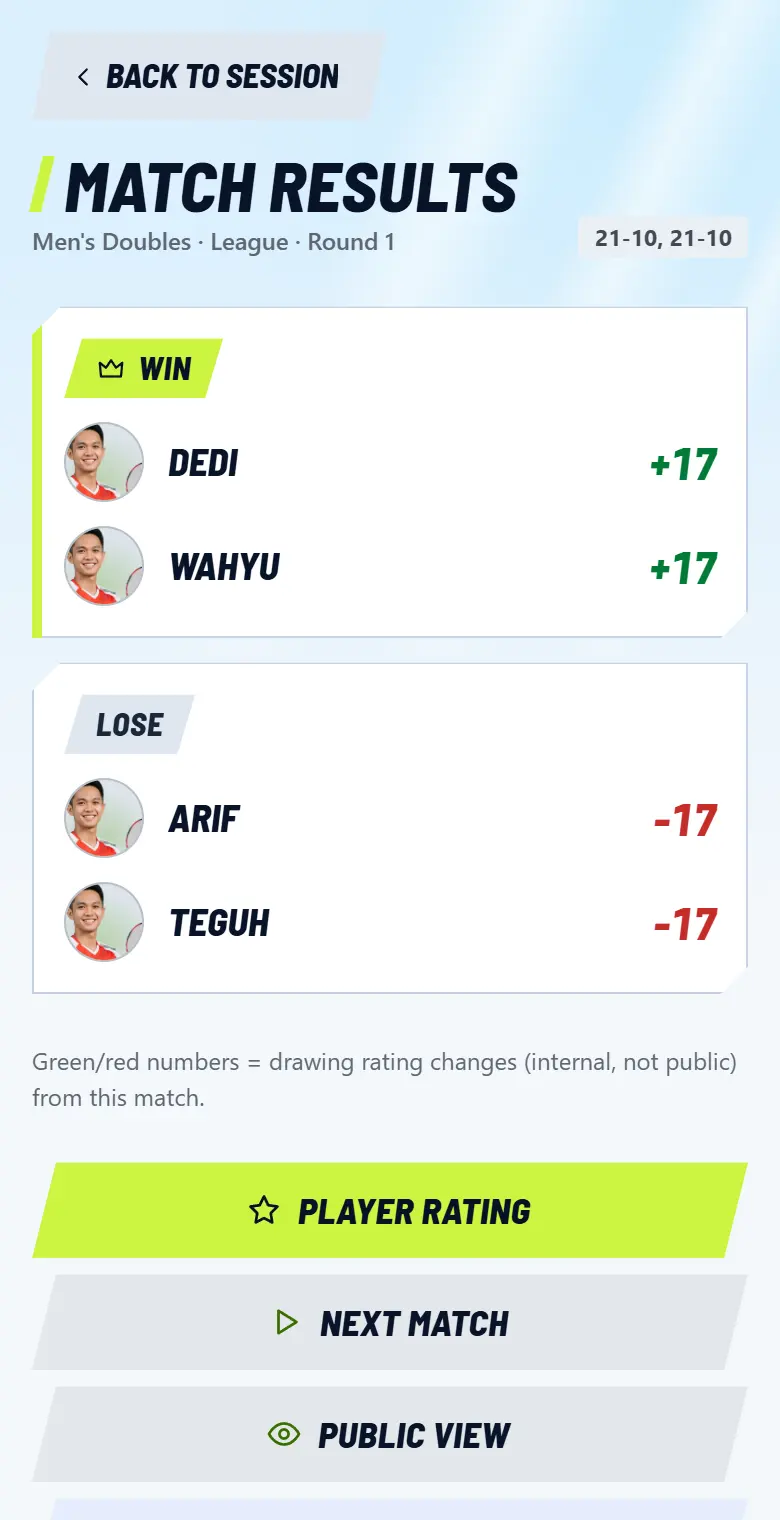
  5. The result page opens. Carry on with Next match.

    The result page opens. Carry on with Next match.
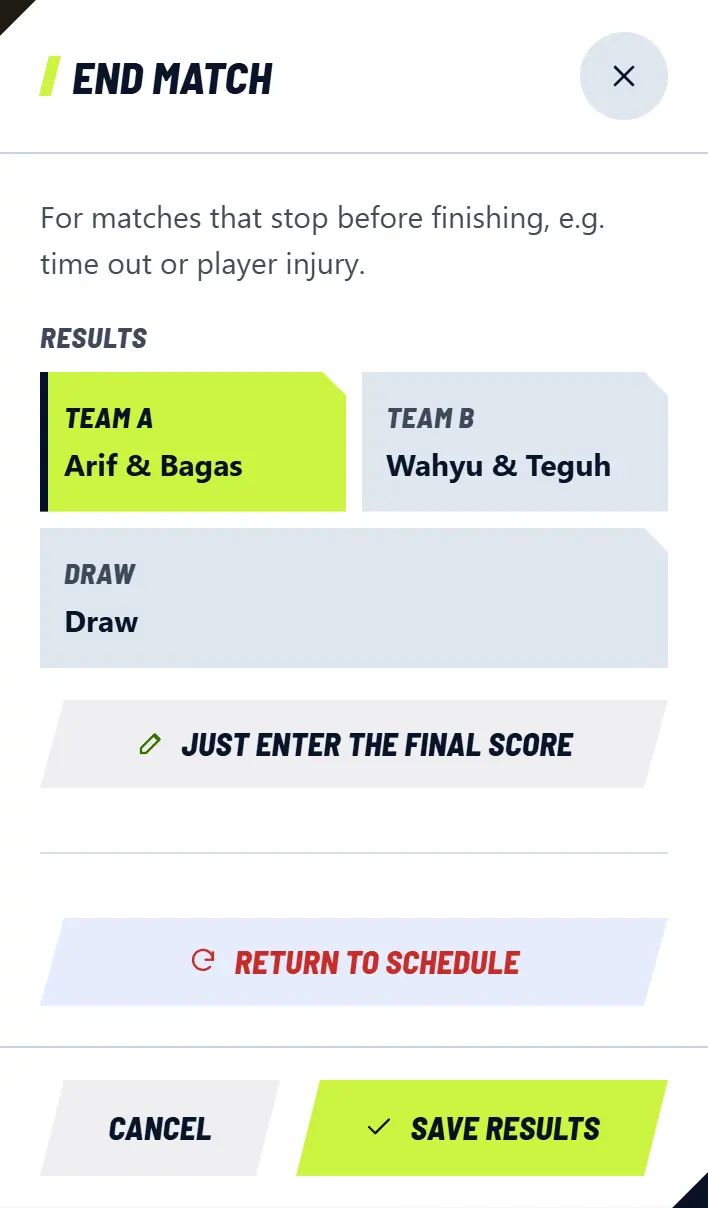
  6. Match stopped early, for example time ran out or someone got hurt? Tap End on the scoreboard, choose the result, then tap Save results. In a friendly match the button says Save winner.

    Match stopped early, for example time ran out or someone got hurt? Tap End on the scoreboard, choose the result, then tap Save results. In a friendly match the button says Save winner.

Options before you start

Match format
League: exactly 2 games, 2-0 wins, 1-1 is a draw, counts toward the league table. Friendly: no draws, does not count toward the league table. Open Play is always friendly.
Points per game
Usually 21.
Max points
The limit during deuce, usually 30. Enter 0 for no limit.
Number of games
An option for friendly matches.
Deuce
When on, a game must be won by 2 points.

Scoreboard buttons

Undo
Cancels the last point.
Switch sides
Swaps the two teams on screen to match the court.
Minus and plus ball
The shuttles used in this match. Add one each time you change shuttle, because this number is used to calculate dues.
End
Stops the match early. It also has Return to schedule to cancel the match and clear its score.
Sound icon
Sets up the umpire voice that calls the score.
Sun or moon icon
Light or dark board.
Left arrow
Back to the session page. The score stays saved, continue later with Continue scoring.

Result page buttons

Player rating
Rate the players' skills after the match.
Public view
The score page other players see.
Correct results
Reopens a match that was recorded wrongly.

9Someone arrives mid-session

  1. On the Manage page, tap Someone just arrived? at the top of the list.

    On the Manage page, tap Someone just arrived? at the top of the list.
  2. Mark them present: tap their name in Signed up or Came without signing up, or create them with New player.

  3. A note shows the players without a match. Tap the lime button, then Redraw, and confirm.

    A note shows the players without a match. Tap the lime button, then Redraw, and confirm.

Matches already played or in progress do not change. Only matches not played yet are rearranged.

10Set costs and collect dues

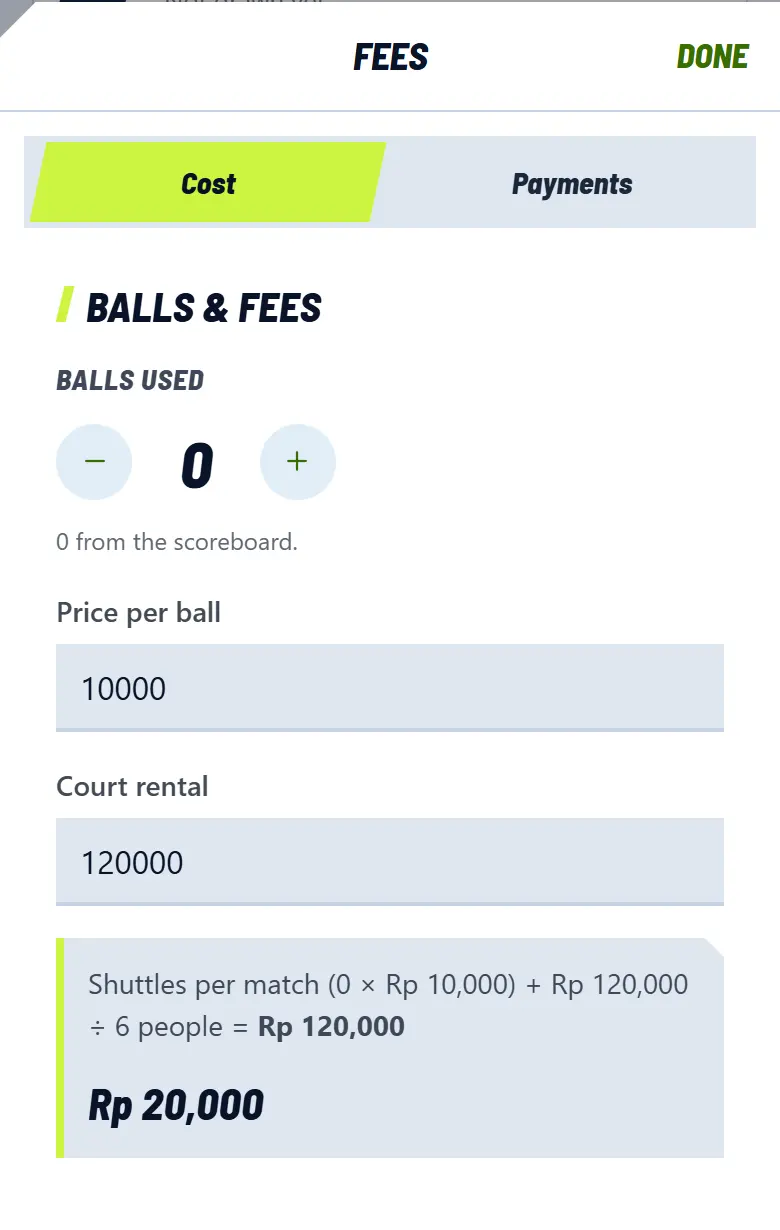
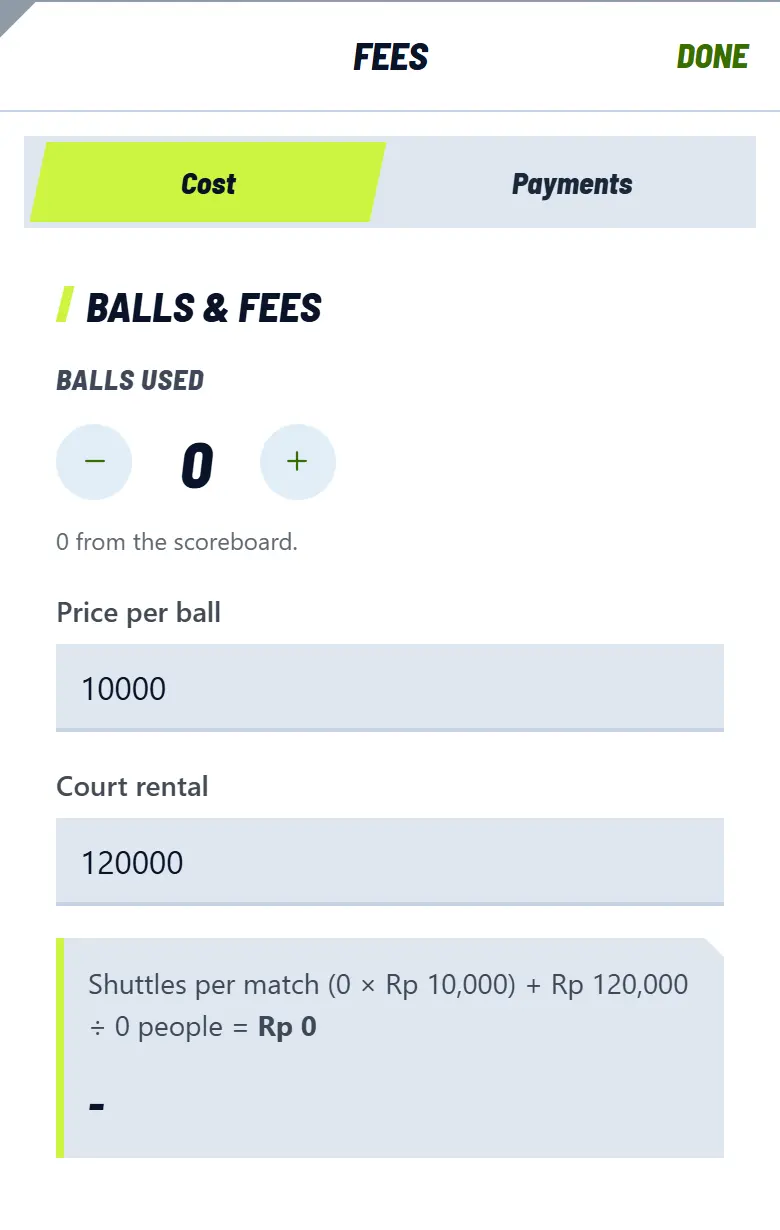
  1. Tap Fees, the Cost tab. Check Balls used, Price per ball, and the court fee. If you change a number, tap Save fees.

    Tap Fees, the Cost tab. Check Balls used, Price per ball, and the court fee. If you change a number, tap Save fees.
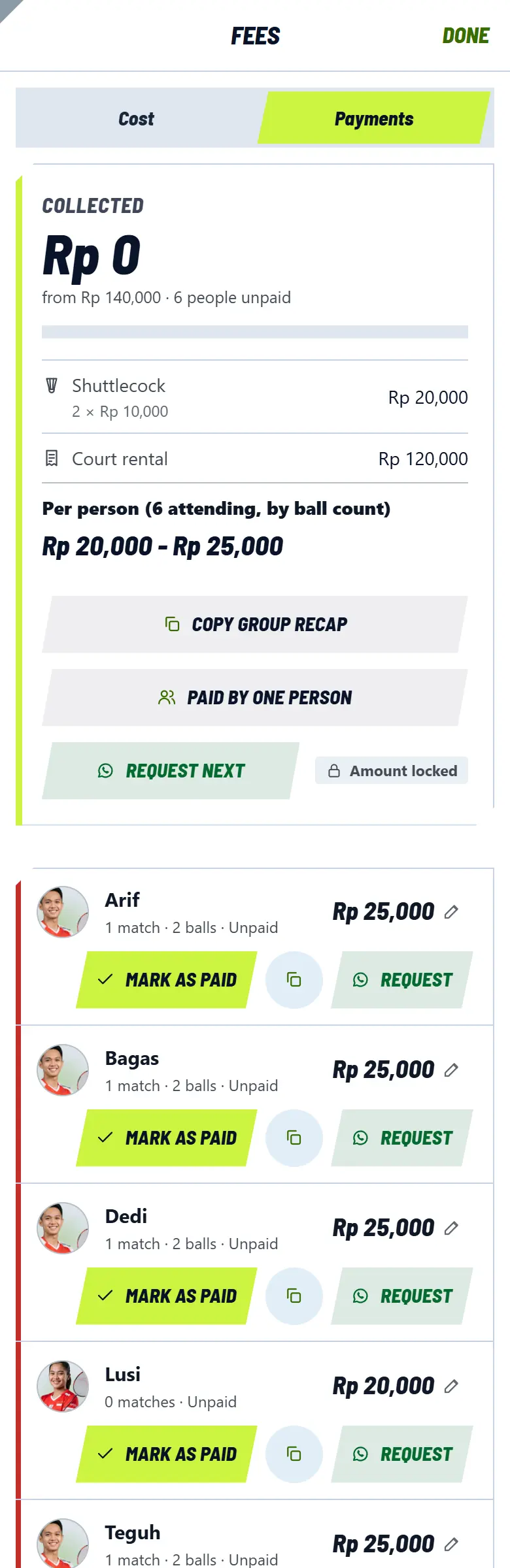
  2. After the session ends, open the Payments tab. Each person's dues are already calculated: shuttles from the matches they played, plus their share of the court.

    After the session ends, open the Payments tab. Each person's dues are already calculated: shuttles from the matches they played, plus their share of the court.
  3. Tap Request to open WhatsApp with the player's invoice. Paid? Tap Mark as paid.

Buttons on the Pembayaran tab

The amount
Tap to change one person's dues.
Copy icon
Copies the invoice to send through another app.
Enter WhatsApp
Appears when the player has no WhatsApp number yet.
Request next
Opens WhatsApp for each unpaid player, one at a time.
Copy group recap
Copies a summary to paste in your group.
Paid by one person
One person pays for or treats everyone who has not paid.
Lock amount
Locks the amounts before the session ends. Ending the session also locks them.

Open Play hosts cannot see players' WhatsApp numbers, so collect on site or through chat. V-SKOR does not collect dues, the money goes directly to the admin or host.

11End the session

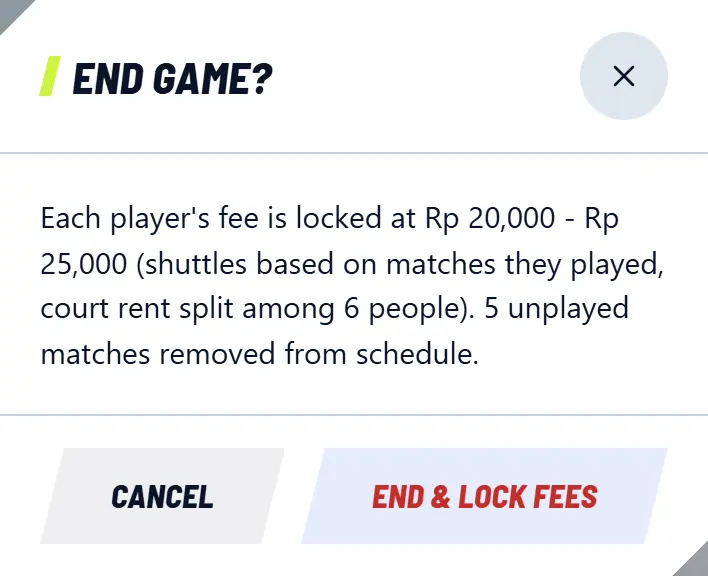
  1. When you finish, tap the red End game button. Read the summary, then tap End & lock fees.

    When you finish, tap the red End game button. Read the summary, then tap End & lock fees.
  2. The page changes. Tap Send fee bill to start collecting.

    The page changes. Tap Send fee bill to start collecting.
  3. Ended it by mistake, or still playing? Tap Reopen session. Unpaid dues are recalculated.

What happens when it ends

Dues
Calculated, then locked.
Matches not played
Removed from the schedule.
Matches in progress
Cancelled with no winner. Their shuttles go to spare shuttles, so total dues do not drop.

Past the end time? The top card reminds you, and says when the session will end automatically. Still playing? Tap Still playing (+30 mins).

Open Play hosts can Post invitation to play again on Home right after the session ends.

12Change, cancel, or switch modes

  1. Tap the Open Play info row under Open Play rules. Edit session info opens the same form you used to create the game. Open Play hosts can only change it before play starts.

    Tap the Open Play info row under Open Play rules. Edit session info opens the same form you used to create the game. Open Play hosts can only change it before play starts.
  2. Not playing after all? Open Play hosts tap Cancel schedule, and participants are notified. Community admins tap Delete session. Careful: any results are deleted too. This button is hidden while a match is in progress.

  3. Want it simpler partway through? Tap How to play, then Just count score. Attendance and the draw are hidden, and existing matches stay saved.

    Want it simpler partway through? Tap How to play, then Just count score. Attendance and the draw are hidden, and existing matches stay saved.

Related topics

Create Open Play

Invite people to play, even if you are not a community admin.

Steps

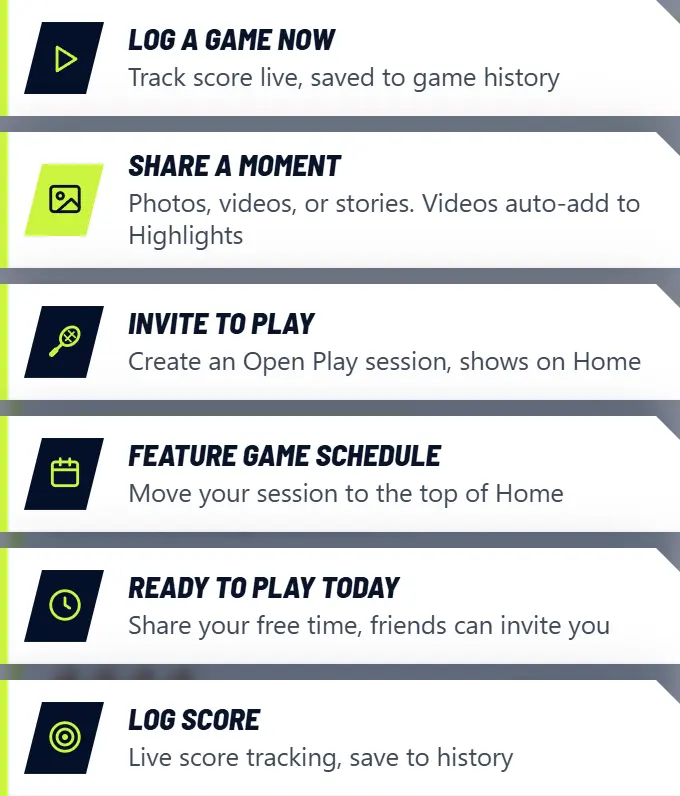
  1. On the Play tab, tap Host a game. Or from Home: tap the plus button, then Invite to play.

    On the Play tab, tap Host a game. Or from Home: tap the plus button, then Invite to play.
  2. Choose For whom, then enter the date and time.

  3. Enter the venue name, city, and Google Maps link.

  4. Set the quota and payment, then choose how to play: Full to arrange who plays whom, or Just count score to just play.

  5. Tap Create schedule. Your game shows on Home, and players in your city get notified.

  6. Tap Share to send the link. Join requests appear in Manage, under Sign-ups and attendance: tap Accept or Reject.

Note

To keep out fake games, public Open Play needs a confirmed email, a profile photo, and a complete profile including full name and date of birth.

Open the Play tab

Related topics

Run game day

The short version: mark who came, run the draw, keep score, then end the session. Every button is in the complete guide.

Steps

  1. Open your game, then tap Manage at the top. Community admins can also go through Sessions & schedule. The big button always shows the next step, and everything else is in the list below it.

    Open your game, then tap Manage at the top. Community admins can also go through Sessions & schedule. The big button always shows the next step, and everything else is in the list below it.
  2. Tap Sign-ups and attendance. There are two lists: Signed up holds people who signed up but may not come, Attending holds people who actually came. Tap a name once they arrive. Join requests from guests are here too.

    Tap Sign-ups and attendance. There are two lists: Signed up holds people who signed up but may not come, Attending holds people who actually came. Tap a name once they arrive. Join requests from guests are here too.
  3. Tap Draw and matches, then Start draw to arrange matches automatically from the people who came. Prefer to choose? Tap Manual match.

    Tap Draw and matches, then Start draw to arrange matches automatically from the people who came. Prefer to choose? Tap Manual match.
  4. Someone arrives late, mid-session? Tap Someone just arrived?, mark them present, then Redraw. Matches already played stay, only the ones not played yet are rearranged.

  5. Tap Start scoring on the top card. The scoreboard goes full screen, just tap the team that scores.

    Tap Start scoring on the top card. The scoreboard goes full screen, just tap the team that scores.
  6. Costs and payments are in Fees: set the shuttle price and court fee, then mark who has paid.

    Costs and payments are in Fees: set the shuttle price and court fee, then mark who has paid.
  7. When you finish, tap the red End game button. Everyone's dues are calculated automatically, then you can Send fee bill.

Note

Watching more than one court? Tap Enter score on the match, then type the final score of each game. No need to count point by point, and records and standings still update.

Want it simpler? In How to play, choose Just count score. Just tap Start scoring, choose who plays, and the scoreboard is ready.

Changing the schedule, cancelling, or opening it to the public is in Open Play info and Who can join. Live stream, sharing, and chat are in the same list.

One person keeps score per match. To share the work, make a player who is there the scorer. Others can follow the live score on their phones.

Related topics

Admin not here yet? Take over the session

Matches can still go ahead when the admin is late.

Steps

  1. Once playing time has started, open the session page.

  2. On the Admin hasn't started? card, tap Take session control, then confirm.

  3. You can now mark who came, set matches, and keep score. The admin is told and can take it back at any time.

  4. Admin arrived? Tap Release. Saved matches and scores stay.

Note

Session details, costs, and ending the session stay with the admin.

Related topics

Check and pay your dues

Your dues appear after you play, with how to pay.

Steps

  1. Open the Me tab, then My fees.

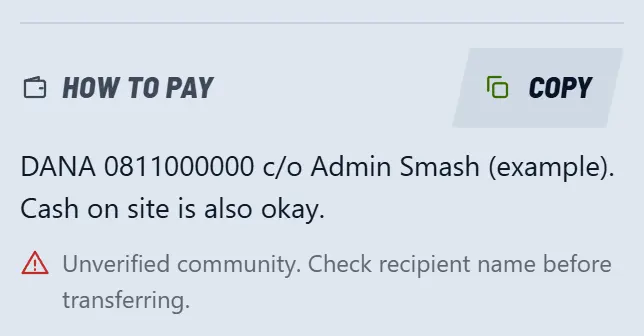
  2. Tap a row to see the details and How to pay.

    Tap a row to see the details and How to pay.
  3. Paid? Tap Confirm payment, then Send to admin. WhatsApp opens with a ready message. Attach your transfer proof, and the admin marks it paid.

Note

V-SKOR does not collect dues. The money goes directly to the admin or host. Check the recipient's name before you transfer.

Public Open Play is paid on site. V-SKOR never asks you to transfer in advance.

Open My dues

Related topics

Keep score without a schedule

A full screen scoreboard for casual games. No account needed.

Steps

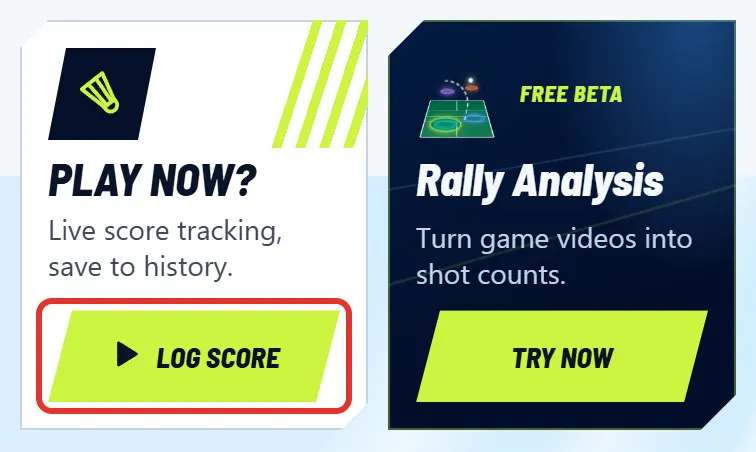
  1. On Home, tap Log score.

    On Home, tap Log score.
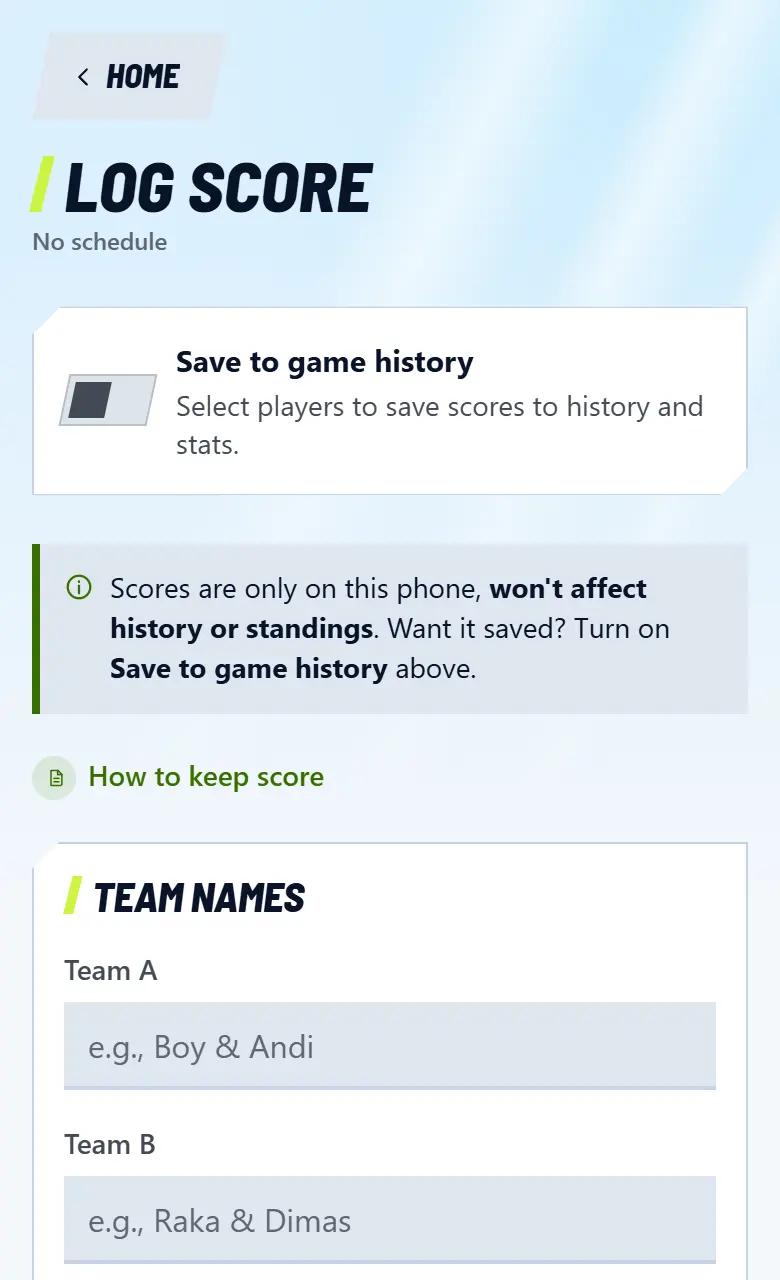
  2. Enter a Team names if you like, choose First serve, then set points and games under Rules.

    Enter a Team names if you like, choose First serve, then set points and games under Rules.
  3. Tap Start scoring. Each time a point is won, tap that team. Mistake? Tap Undo. The umpire voice can call the score.

    Tap Start scoring. Each time a point is won, tap that team. Mistake? Tap Undo. The umpire voice can call the score.

Note

While Save to game history is off, the score stays on this phone and does not count toward history or standings.

Open Log score

Related topics

Save scores to your history

Play casually and still keep the results, even for friends without an account.

Steps

  1. On Home, tap Log score.

  2. Turn on Save to game history, then tap Start logging game.

  3. Choose who plays by tapping their photo. Friend without an account? Tap New friend, enter a nickname, then choose Male or Female.

  4. Keep score as usual. The result goes to history and stats.

  5. Want to send it to a friend? Tap Send records. With that link, they can claim the record when they sign up.

Note

This needs an account and a player profile.

Open Log score

Related topics

Follow the live score

The score updates itself every time the scorer taps a point.

Steps

  1. Open the session from the Play tab. Matches in progress are marked LIVE.

  2. Tap a match to see the score, games, and who is serving.

  3. Want it on a big screen? Tap TV Mode.

Note

See a play icon on the LIVE tag? You can watch that match's video right in the app.

Open the Play tab

Related topics

How standings work

Points come from League match results each season.

Steps

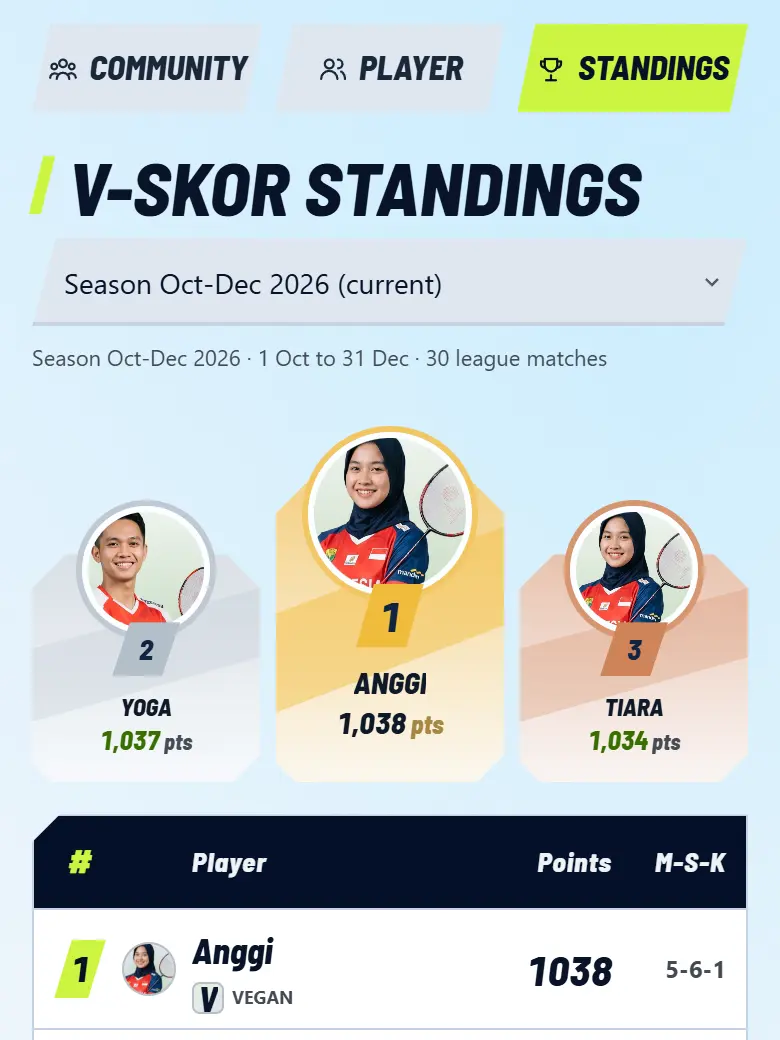
  1. Open the Community tab, then Standings.

    Open the Community tab, then Standings.
  2. Each season starts at 1000 points. Win +5, draw +2, loss +1.

  3. After at least 5 League matches, you enter that season's ranking.

  4. Highest points come first. On a tie, point difference decides, then number of wins.

Note

The V-SKOR standings combine matches from verified communities. Unverified communities still have their own standings on their page.

Open Standings

Related topics

Join a community

Games from communities you join show on the Play tab.

Steps

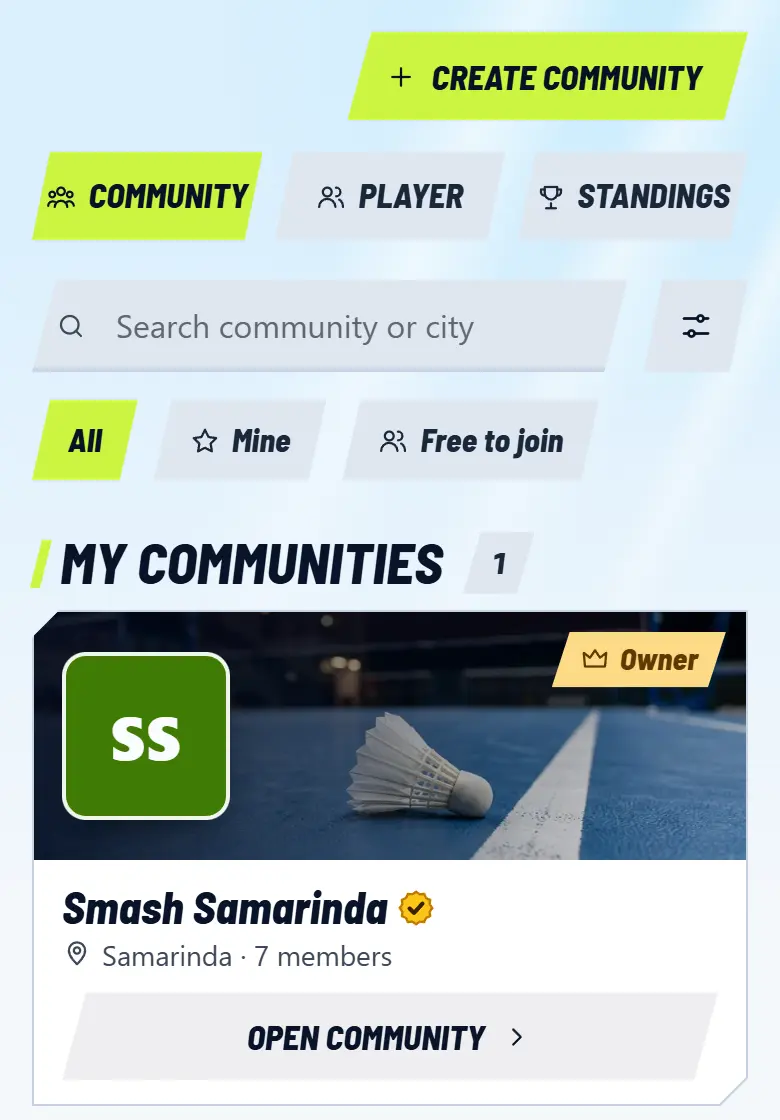
  1. Open the Community tab, then search for a community in your city.

    Open the Community tab, then search for a community in your city.
  2. Tap View profile to look inside, then tap Request to join.

  3. The community admin approves your request. Those marked Free to join need no waiting.

  4. Once accepted, the community appears under My Communities.

Open the Community tab

Related topics

Create a community

Run a badminton club? Create its community on V-SKOR.

Steps

  1. Open the Community tab, then tap Create community in the top right.

  2. Enter a name and city, then Next. Then fill in the description, how to join, and how to pay.

  3. Tap Create community. It is ready, and you are the owner.

  4. To give it an identity, tap Manage, then add a cover photo and logo.

Note

A community joins the V-SKOR standings once it earns the Verified badge: automatically at 7 members and 1 game with a recorded score.

All set? Next, create member profiles, then invite them in.

Open the Community tab

Related topics

Create member profiles

Add players to your community, even if they have no account yet.

Steps

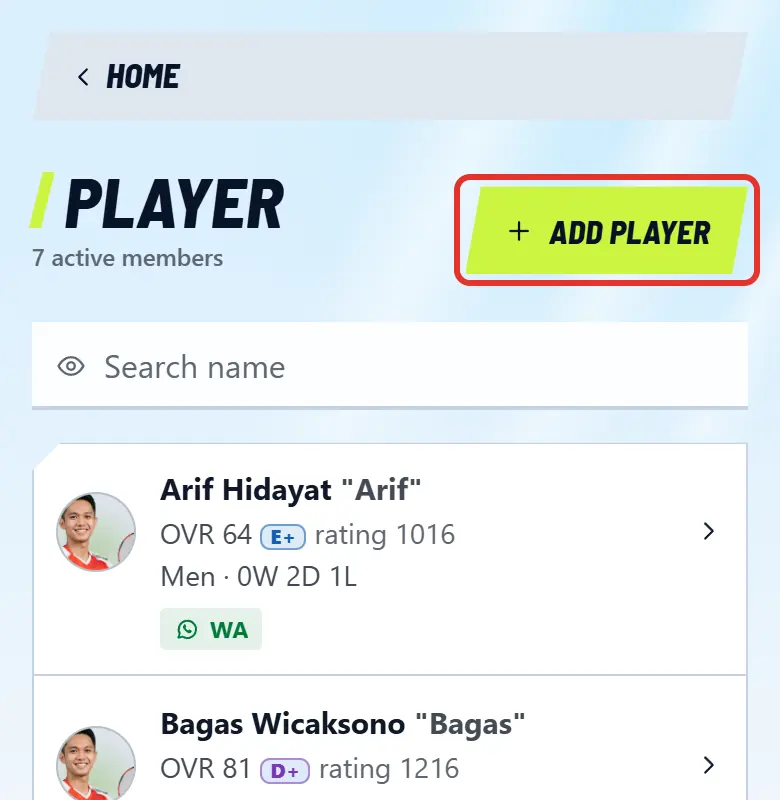
  1. Tap the Admin button in the top right corner, open Player, then tap Add player.

    Tap the Admin button in the top right corner, open Player, then tap Add player.
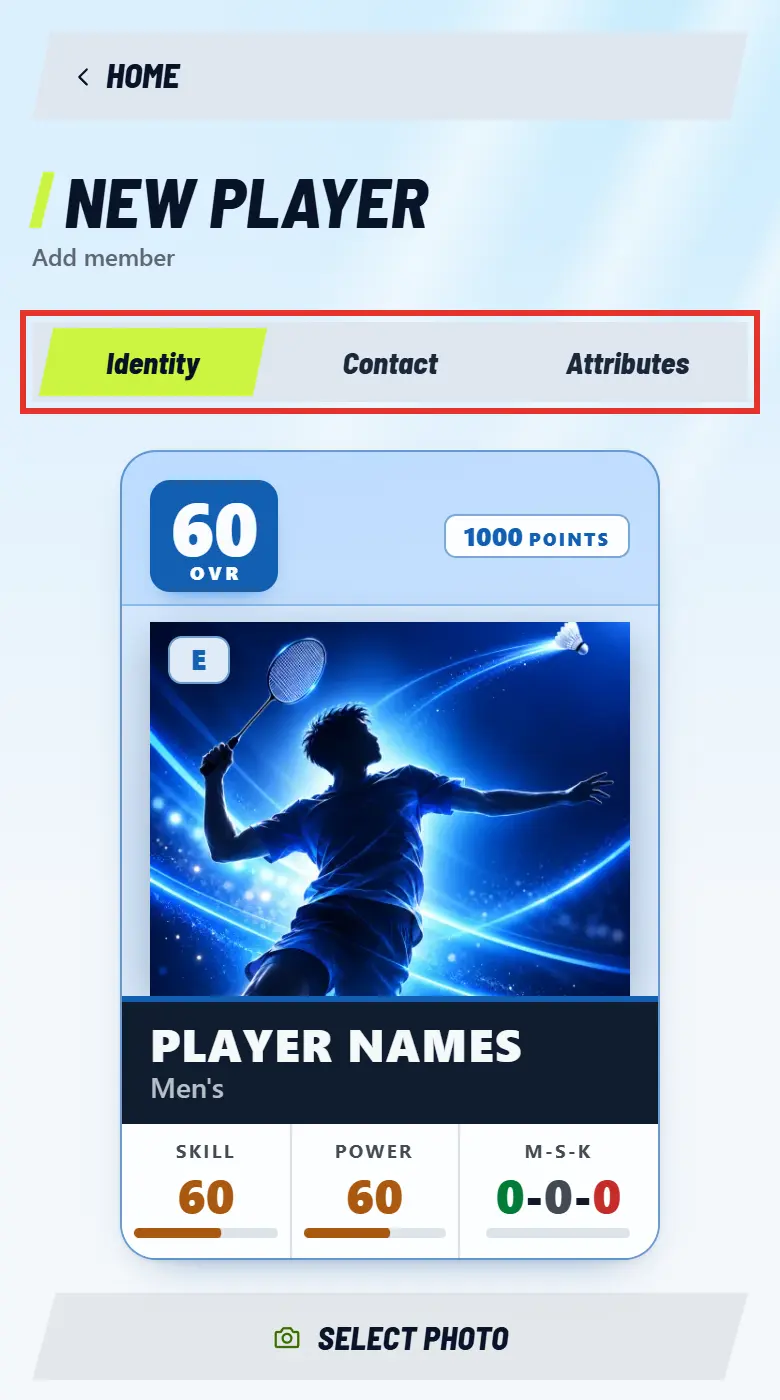
  2. On the Identity tab, enter the full name, nickname, and category. The photo can wait.

    On the Identity tab, enter the full name, nickname, and category. The photo can wait.
  3. On the Contact tab, enter the WhatsApp number. It is private, only admins can see it.

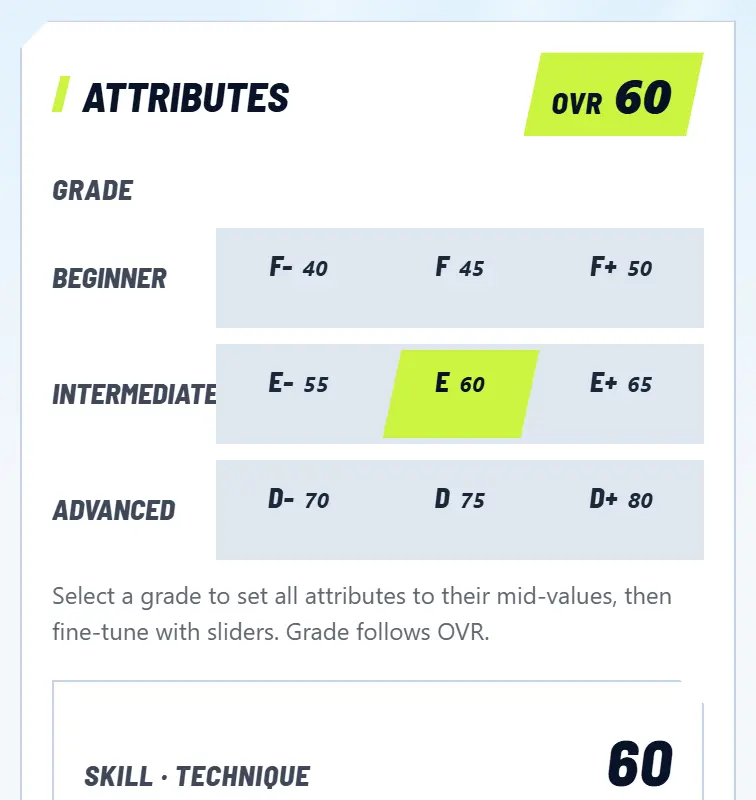
  4. On the Attributes tab, choose a grade from Beginner to Advanced. You can still fine-tune it with the sliders.

    On the Attributes tab, choose a grade from Beginner to Advanced. You can still fine-tune it with the sliders.
  5. Tap Save. The member can now be picked when marking attendance and setting matches.

Note

Someone at the court without a profile? In Manage, open Sign-ups and attendance, open Came without signing up, then tap New player. They are ticked as present right away, and with Send invite link on, they get their link too.

Open Add player

Related topics

Invite members to their profile

Members whose profile you created can have their own account. Their match history, grade, and standings stay intact.

Steps

  1. In the admin panel, open Player, then tap the member's name.

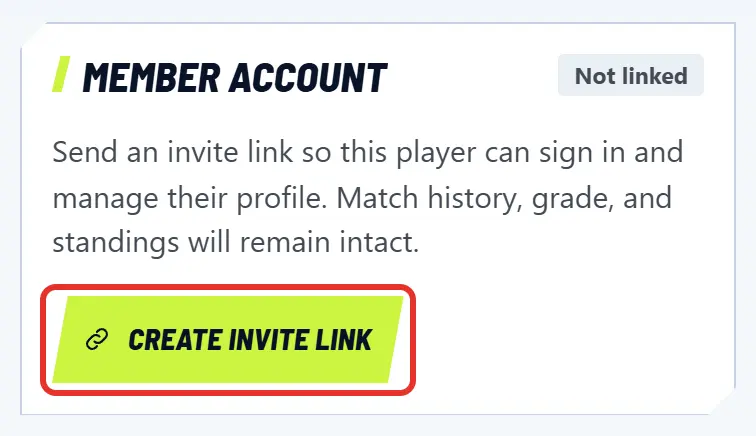
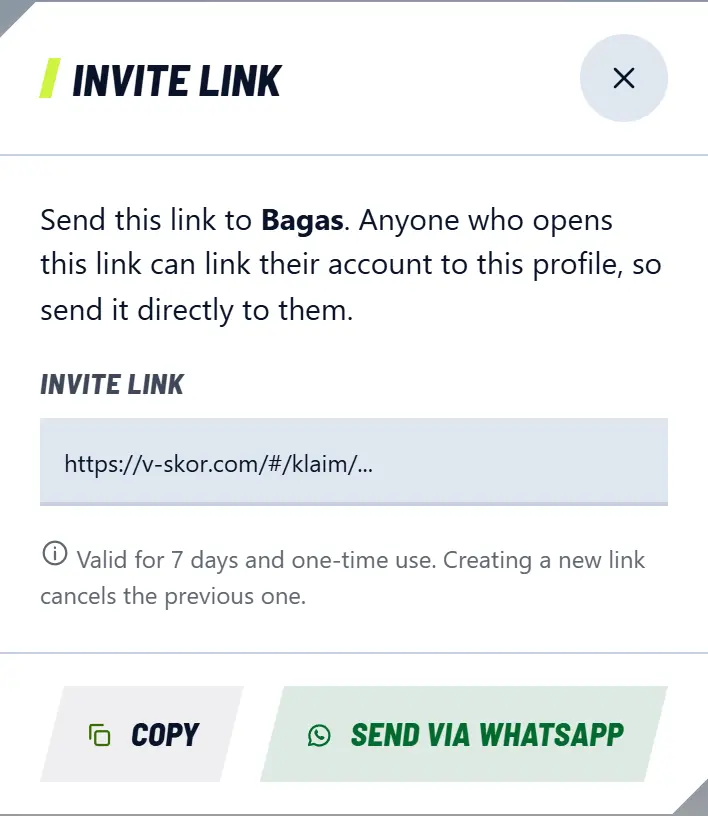
  2. Open the Contact tab, then tap Create invite link.

    Open the Contact tab, then tap Create invite link.
  3. Tap Send via WhatsApp, or Copy and send it to them yourself.

    Tap Send via WhatsApp, or Copy and send it to them yourself.
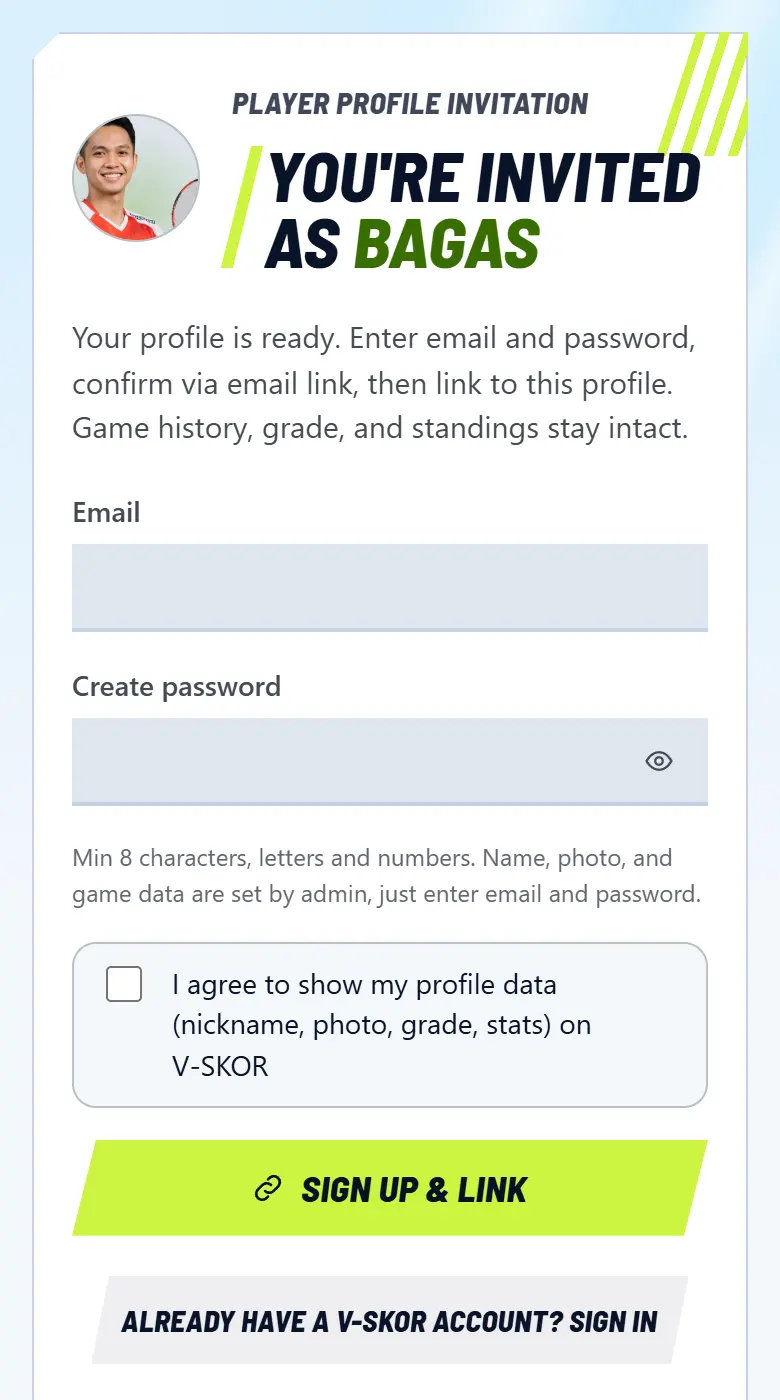
  4. The member opens the link, enters an email, creates a password, ticks the agreement, then taps Sign up & link. Already have an account? Tap Sign in on the same page.

    The member opens the link, enters an email, creates a password, ticks the agreement, then taps Sign up & link. Already have an account? Tap Sign in on the same page.
  5. The member opens the email from V-SKOR and clicks the confirmation link. Once connected, the status in the admin panel changes to Linked.

Note

The link lasts 7 days and works once. Creating a new link cancels the previous one. Send it directly to the person, because anyone who opens it can connect their account to that profile.

Once connected, members can change their own photo, nickname, hand, playing style, social media, and WhatsApp number.

Open the player list

Related topics

Earn the gold Verified badge

The gold badge turns on automatically once your community has 7 members and 1 game with a recorded score.

Steps

  1. Open your community page. The Road to the Verified badge card shows your progress, only admins can see it.

  2. Add members until you reach 7. Profiles you create for them count too.

  3. Create a game schedule, set up the matches, then record the results. Watching more than one court? Choose Enter final score and just type the result.

  4. Once both are complete, the badge turns on by itself. Owners and admins get a congratulations pop-up when they open the app, no application needed.

Note

What you get: a place in the V-SKOR standings, protection for your exact community name, and guest players counted in their global stats.

Reading the WhatsApp numbers of members with accounts and rating players with accounts still go through a V-SKOR team check, because they involve personal data.

Open Communities

Related topics

Invite people with the community link

One link to share in your WhatsApp group, so people can create a profile and join on their own.

Steps

  1. In the admin panel, open Community.

  2. Under How to join, choose Requires approval or Free to join, then tap Save info.

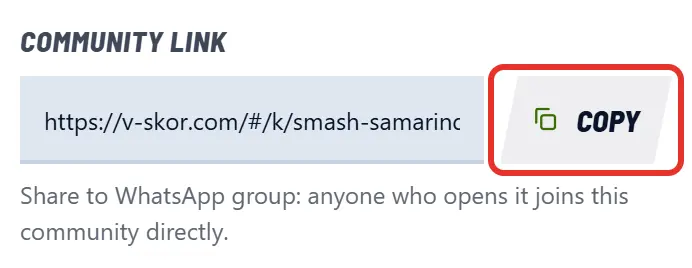
  3. Under Community link, tap Copy, then share it in your WhatsApp group.

    Under Community link, tap Copy, then share it in your WhatsApp group.
  4. If you chose Requires approval, join requests appear under Player. Tap Accept or Reject.

Note

This link is for new people. Members whose profile you already created should use a personal invite link, so their history stays connected and they don't end up with two profiles.

Open community info

Related topics

Manage a community as an admin

Manage members, games, and dues from the admin panel.

Steps

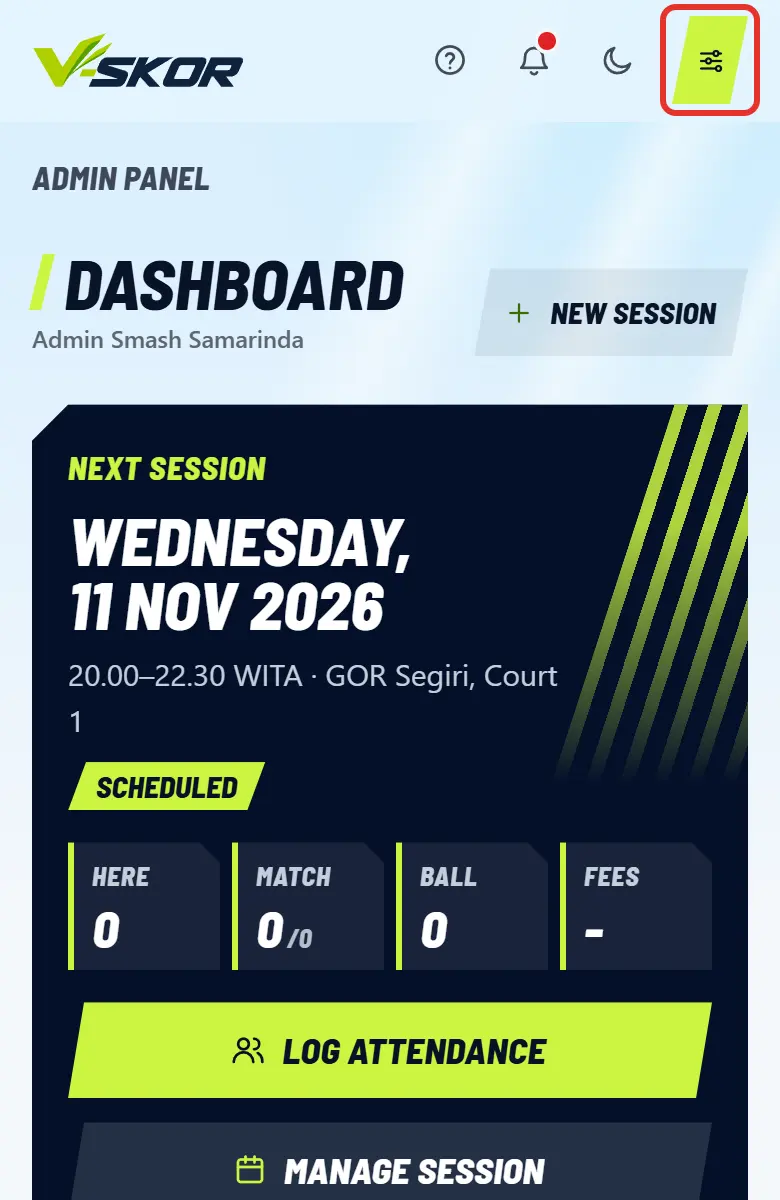
  1. Tap the Admin button in the top right corner. On phones it shows as an icon.

    Tap the Admin button in the top right corner. On phones it shows as an icon.
  2. Open Settings. On the Club tab, enter the venue, playing times, and admin WhatsApp. On the Fees tab, enter the shuttle price and bank account.

  3. Open Player to create member profiles and invite them in. Join requests appear here too: tap Accept or Reject.

  4. Open Sessions & schedule, then tap Create session. The game shows on the Play tab right away.

  5. After playing, everyone's dues are in the Fees menu. Remind them over WhatsApp, then mark who has paid.

Note

All admin changes are recorded in the Notes menu.

Open the admin panel

Related topics

How to record your game properly

No expensive gear needed, just a phone and somewhere to put it. A properly recorded video makes shot counts and distance run more accurate.

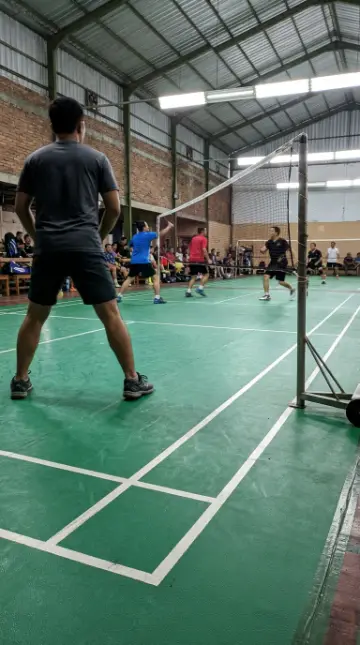
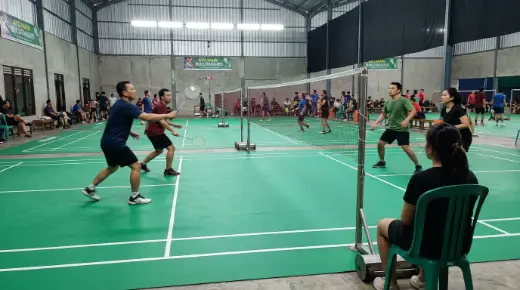
Phone position examples

Phone upright

Good: centred behind the line, at chest height
Good: from the corner of the court, at chest height

Phone sideways

Good: centred behind the line, at chest height
Good: from the corner of the court, at chest height

Not ideal

Too low, players block each other
Beside the net, the back line is out of view

How to record

  1. Get your phone ready. Check the battery and storage, then wipe the camera lens clean.

  2. Pick a spot. The best place is centred, behind the back line of the court. The corner of the court is also good. Avoid standing beside the net.

  3. Place the phone at chest height or higher, so it cannot move. A tripod is easiest. No tripod? Prop it up or tie it to a fence, pole, or chair. Do not hold it in your hand.

  4. Open your phone camera and choose Video mode. The phone can be upright or sideways. What matters is that the whole court is in frame, including the net and both back lines. Something cut off? Move back a little or raise the phone.

  5. Set the zoom once before you record, then leave it alone. Avoid 360 cameras or wide lenses that adjust the view by themselves.

  6. Press record before you start playing, then leave the phone alone. Do not move it or follow the players until you finish. You can record for a long time, and later just choose the 1 minute you want to analyse.

  7. When you finish playing, stop recording. The video is saved in your phone gallery. Moving it to another phone? Use a cable or Google Drive. If it has to go over WhatsApp, send it as a document, not as a video, so the quality does not drop.

What makes the result less accurate

Shaky or hand-held camera
The court lines shift too, so distance and player positions drift. Put the phone somewhere still.
Camera following the players or the shuttle
The whole court needs to stay in view from start to finish.
Zooming while recording
The court changes size in the picture, so distance and player positions are less accurate.
360 camera or wide lens
The court lines bend and change size.
Only part of the court in view
Players and shots outside the picture are not counted.
Camera too low
Players on the far side are hidden behind the ones in front.
Camera too far away
Players and the shuttle look small, so some shots may be missed. Record closer, with the whole court still in view.
People or objects in front of the camera
Players and shots in the blocked area may be missed. Find a spot with a clear view.
Dark or blurry
The shuttle is hard to read. Record on a well-lit court and clean the lens first.
Video sent over WhatsApp
The quality drops, so the shuttle is hard to read. Use the original camera video.
The next court is in the shot
Player markers can get mixed up. Find a spot that focuses on one court.

Note

These are tips for the best result. Any video can still be analysed, though accuracy may drop.

Tennis and padel work the same way. For padel, record from behind the glass or from the outside corner of the court, with the back glass still in view.

Is the video in Google Photos or Drive? Download it to your phone before choosing it.

Got your video?

Now upload it to V-SKOR and make your Rally analysis.

How to upload and make your Rally analysis

Related topics

Use Rally analysis

Your match video becomes shot counts, distance run, and a cool overlay. It is processed on your phone or laptop without uploading, or use Fast Analysis if your phone is slow.

Steps

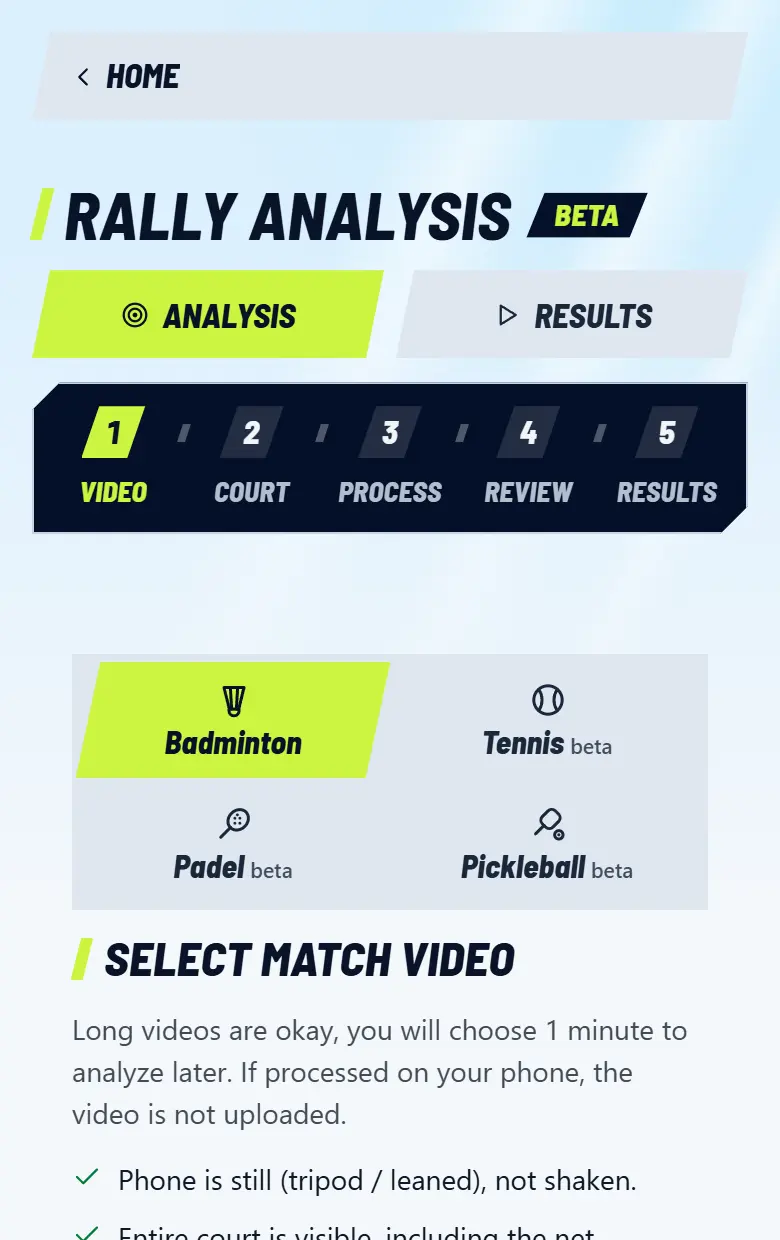
  1. On Home or the Me tab, tap the Rally Analysis card. The page has two tabs: Analysis for a new video and Results for all your result videos.

    On Home or the Me tab, tap the Rally Analysis card. The page has two tabs: Analysis for a new video and Results for all your result videos.
  2. Choose the sport (badminton, tennis, or padel), then tap Select video. The video can be long. No video yet? See how to record one.

    Choose the sport (badminton, tennis, or padel), then tap Select video. The video can be long. No video yet? See how to record one.
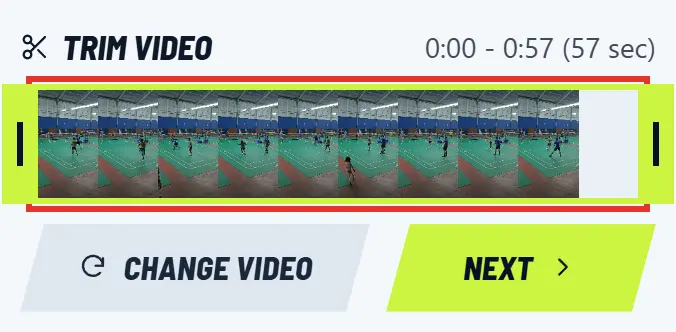
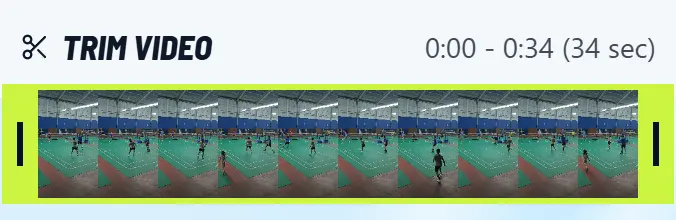
  3. Drag the two handles under Trim video to the part you want to analyse, up to 1 minute. Drag the middle to move the selection. Then tap Next.

    Drag the two handles under Trim video to the part you want to analyse, up to 1 minute. Drag the middle to move the selection. Then tap Next.
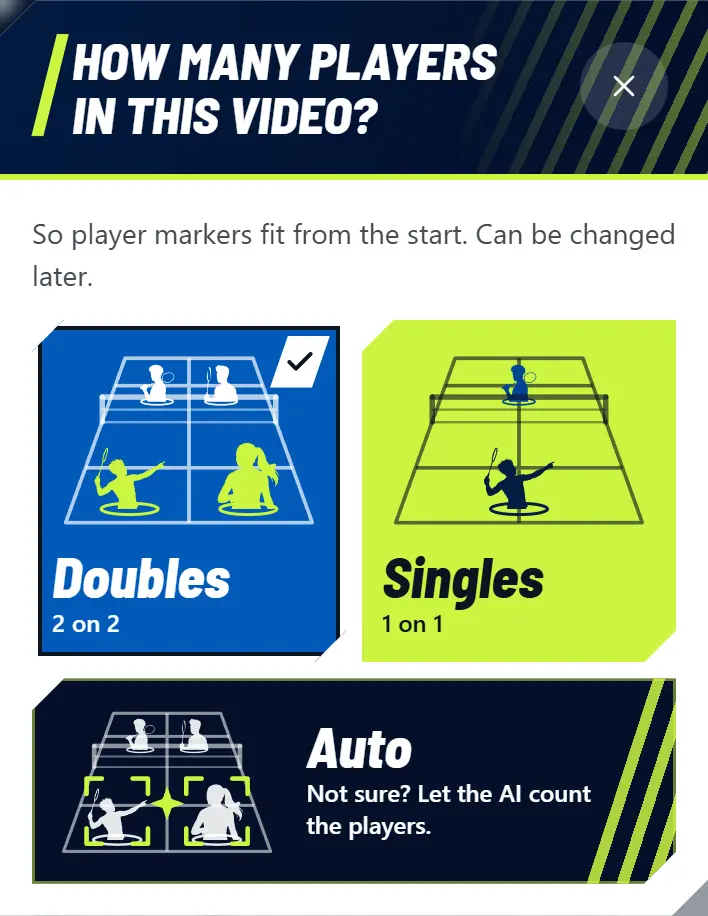
  4. Choose how many players there are: Doubles, Singles, or Auto if you are not sure. You can change it later with the Change button.

    Choose how many players there are: Doubles, Singles, or Auto if you are not sure. You can change it later with the Change button.
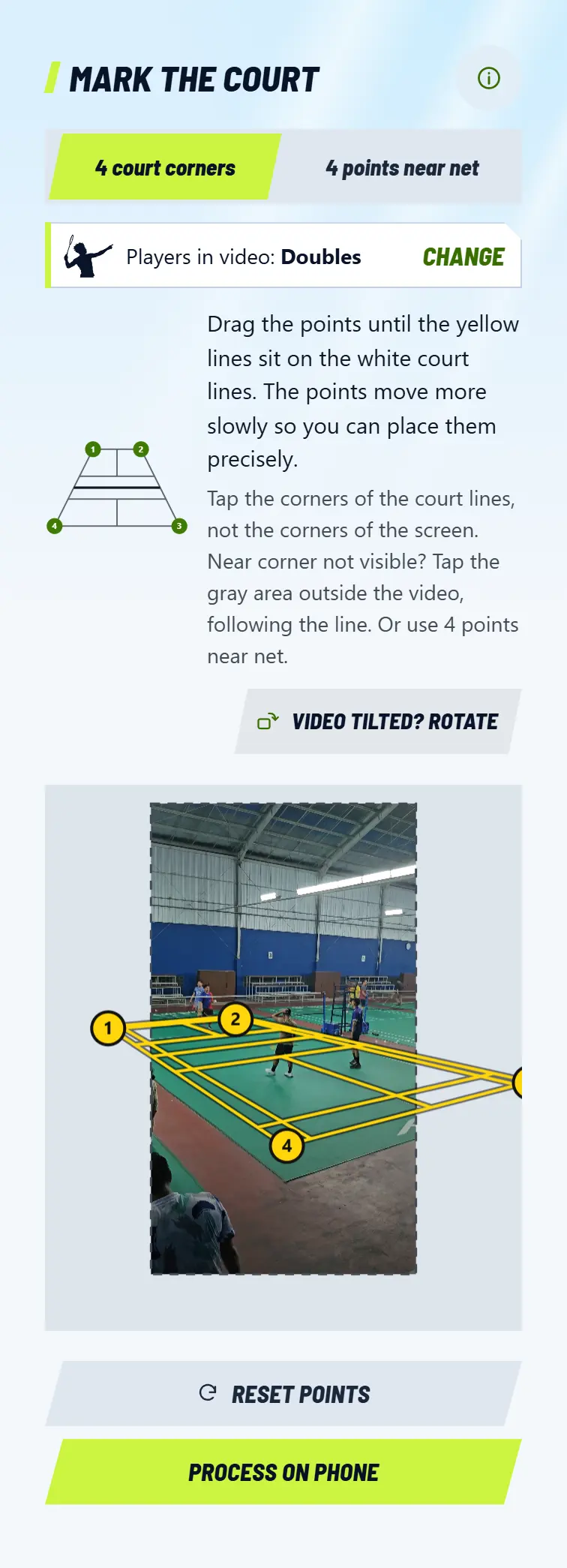
  5. Mark the court: tap the points one by one, following the small diagram above the video. Use 4 court corners, or 4 points near net if the camera is low and much of the court is cut off. Drag the points until the yellow lines sit on the white court lines, then tap Process on phone. On a laptop or PC, the button is called Continue processing. If your phone is slow, choose Fast Analysis when the button is there: see how.

    Mark the court: tap the points one by one, following the small diagram above the video. Use 4 court corners, or 4 points near net if the camera is low and much of the court is cut off. Drag the points until the yellow lines sit on the white court lines, then tap Process on phone. On a laptop or PC, the button is called Continue processing. If your phone is slow, choose Fast Analysis when the button is there: see how.
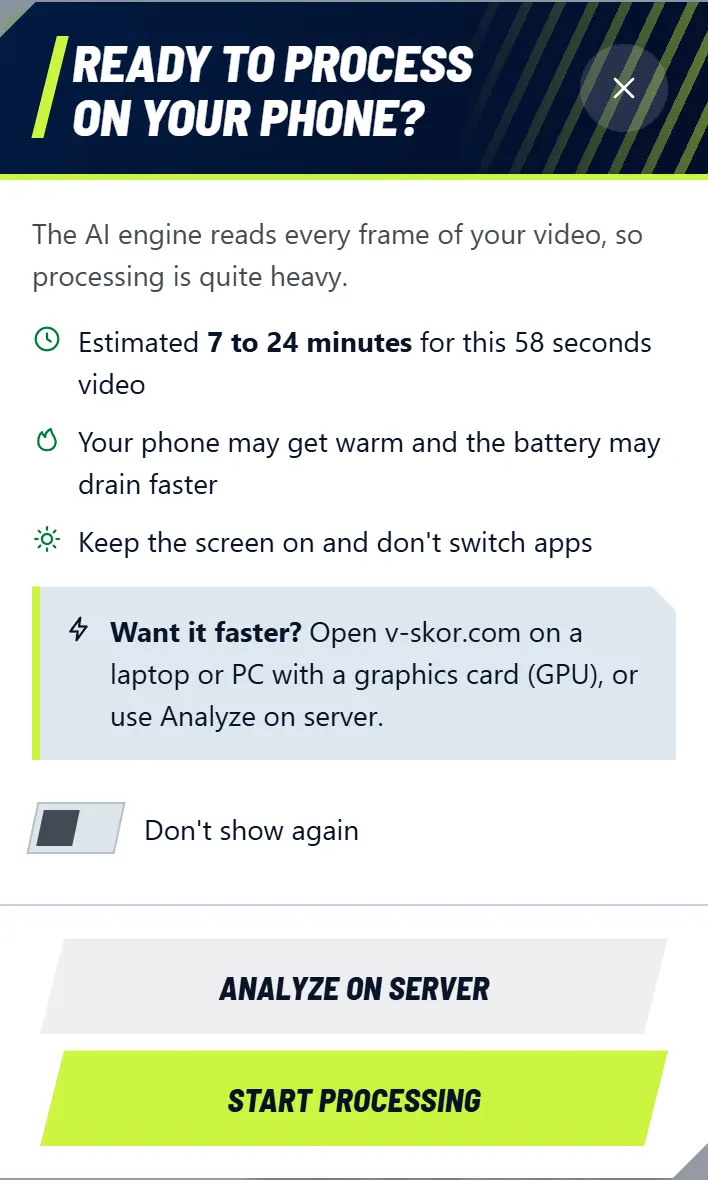
  6. On a phone, Ready to process on your phone? appears with an estimate of how long it will take. Tap Start processing. Want it faster? Open v-skor.com on a laptop or PC with a graphics card (GPU), or tap Analyze on server when the button is there. Turn on Don't show again if you do not need the reminder again.

    On a phone, Ready to process on your phone? appears with an estimate of how long it will take. Tap Start processing. Want it faster? Open v-skor.com on a laptop or PC with a graphics card (GPU), or tap Analyze on server when the button is there. Turn on Don't show again if you do not need the reminder again.
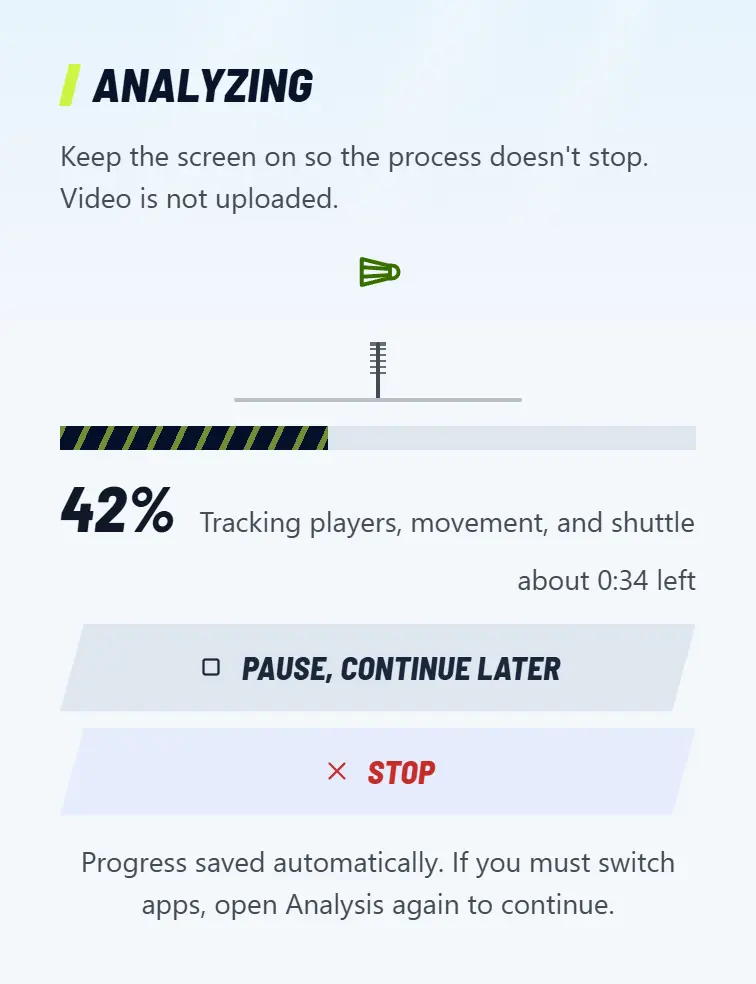
  7. Wait while it processes and keep the screen on. Need to stop? Tap Pause, continue later. Your progress is saved.

    Wait while it processes and keep the screen on. Need to stop? Tap Pause, continue later. Your progress is saved.
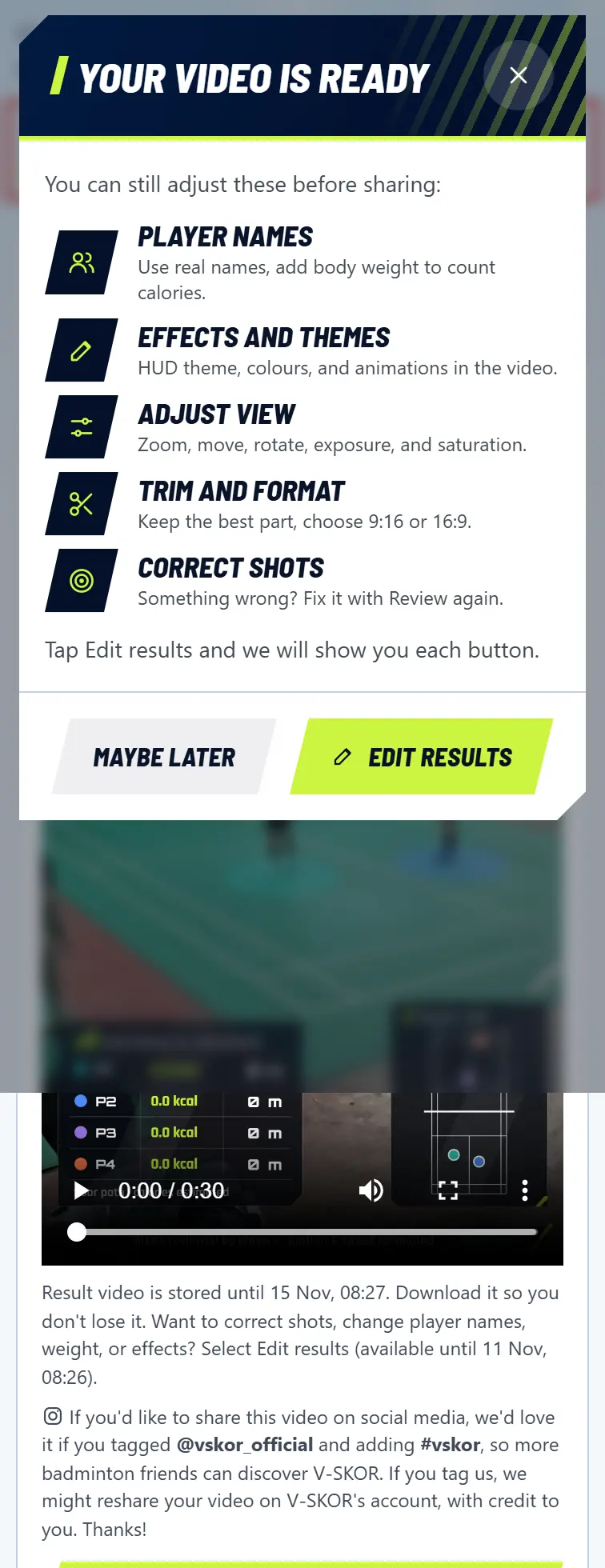
  8. Check the engine's work. Something wrong? See how to edit shots and how to fix player markers. All good? Tap Done, see results.

  9. Adjust the look until you like it, then tap Save video. Here is everything you can still change.

Note

For the best result: keep the phone still (tripod or propped up) at chest height, with the whole court and net in view, and use the original camera video, not one sent over WhatsApp.

Marked a point wrongly? Drag it, or tap Reset points. Video sideways? Tap Video tilted? Rotate on the same screen, the points you marked turn with it. If you miss it, the engine turns the video itself while processing.

The points must sit right on the court lines, not roughly near them. Marks that are off make many shots go undetected. See the warning Points are not on the court, Points are not right yet, or The court lines do not fit yet (the yellow court is tilted, not sitting on the floor lines)? Fix the points first, because the analysis may be inaccurate.

Already sent it with Fast Analysis or Analyze on server? Your results are in the Results tab. The Analysis tab is always ready for a new video.

Open Rally analysis

Related topics

Edit shots: change the player or type, add, or delete

The engine can make mistakes. On the review screen you can fix all of them, and your corrections go straight into the counts and the video.

Steps

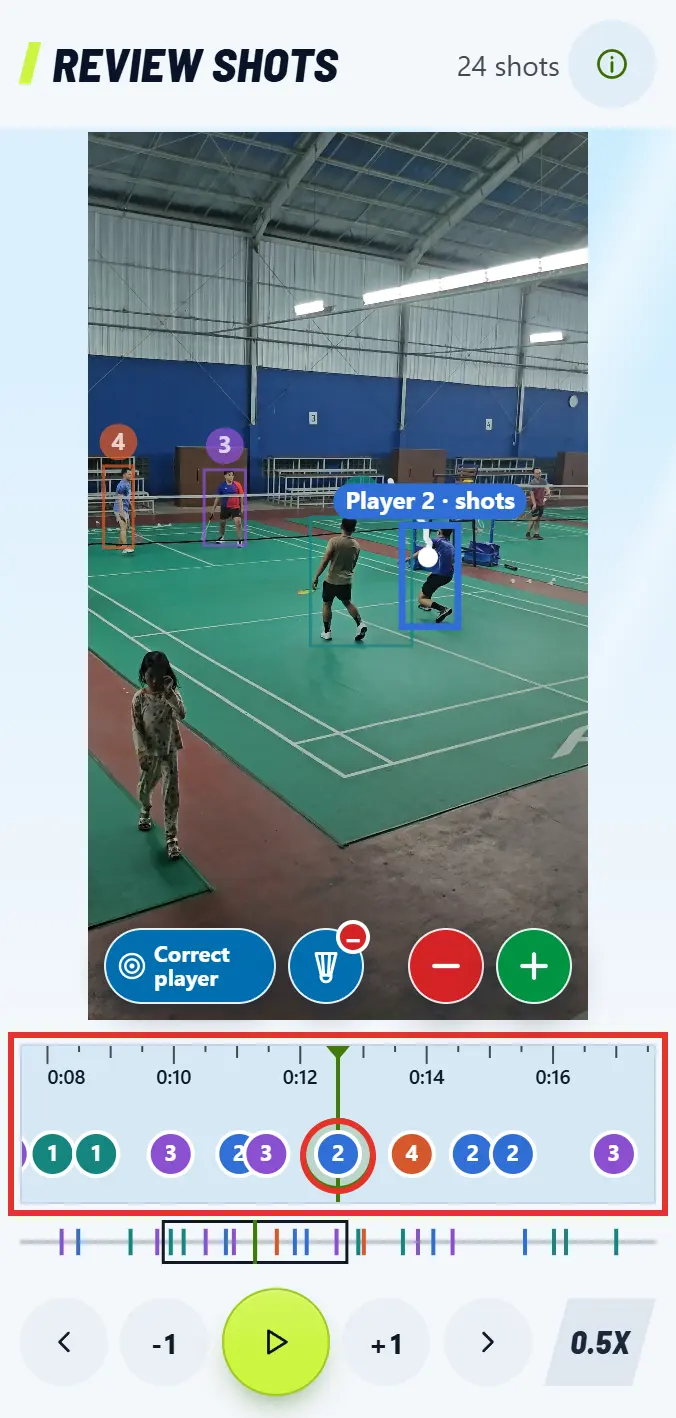
  1. Find the moment: drag the timeline left and right. Each circle is one shot. The thin bar below it shows the whole video, and you can tap it to jump.

    Find the moment: drag the timeline left and right. Each circle is one shot. The thin bar below it shows the whole video, and you can tap it to jump.
  2. Tap the circle. The video stops on that shot and its panel opens below.

    Tap the circle. The video stops on that shot and its panel opens below.
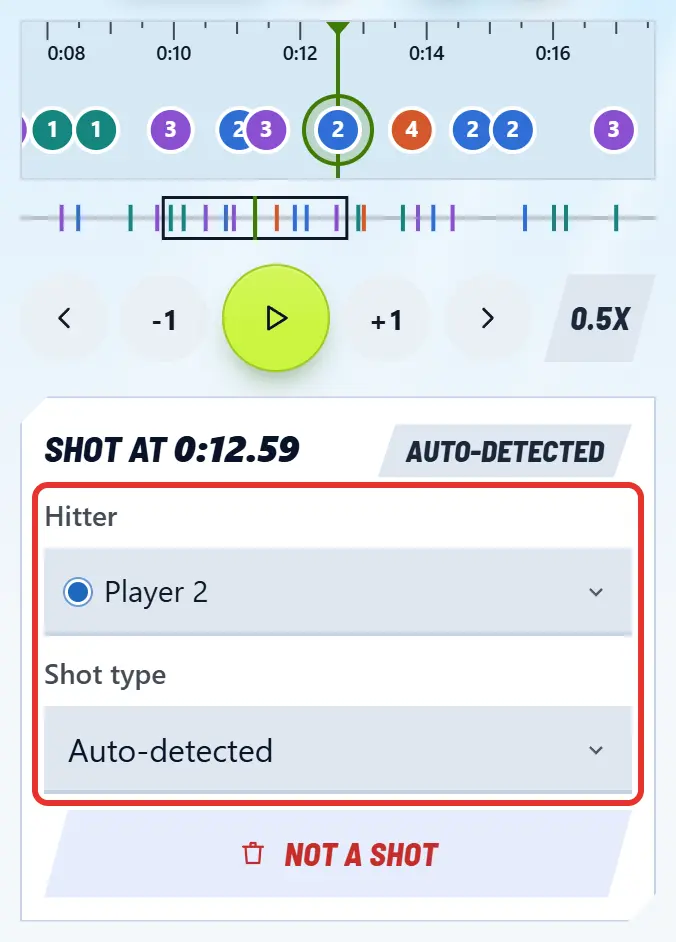
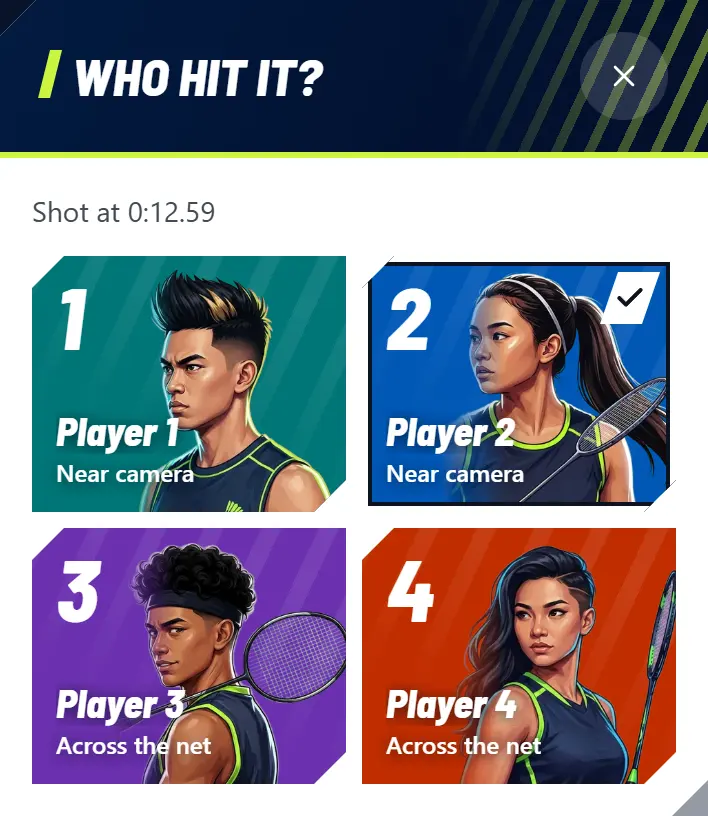
  3. Wrong player: tap the Hitter box, then choose the right player. Even quicker: tap the number in the circle.

    Wrong player: tap the Hitter box, then choose the right player. Even quicker: tap the number in the circle.
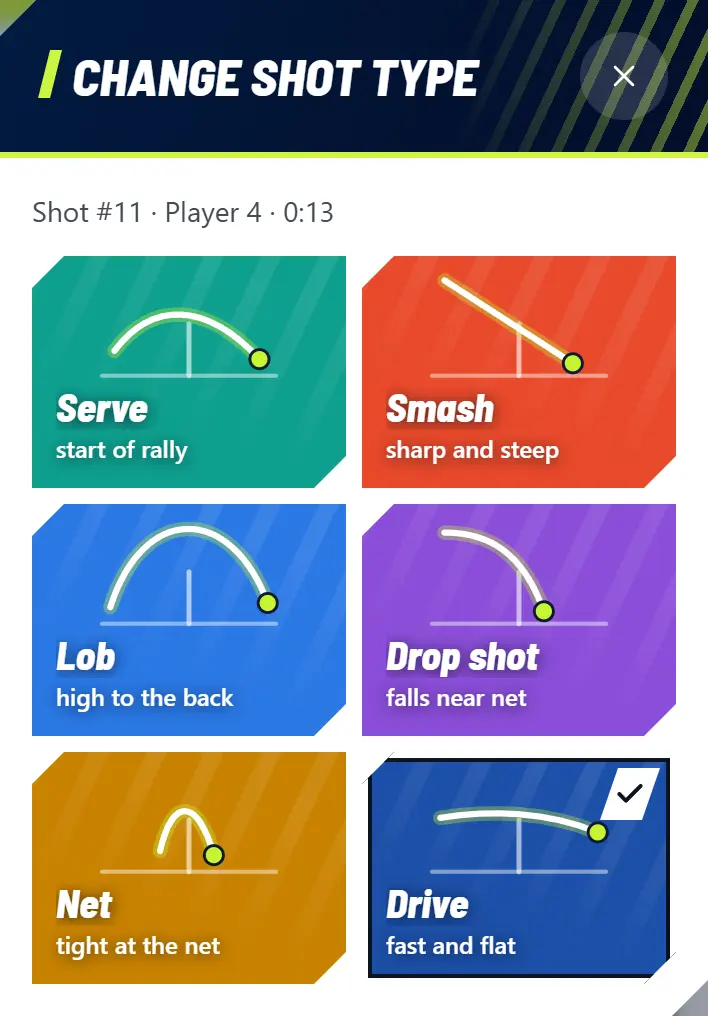
  4. Wrong shot type: tap Shot type, then choose the type. Want the original guess back? Choose Auto-detected.

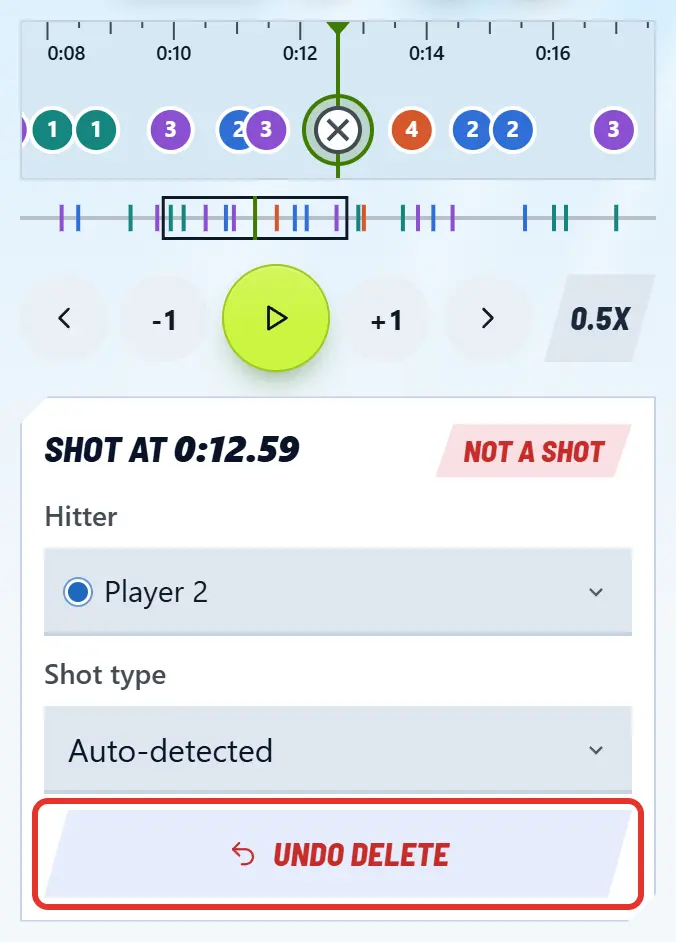
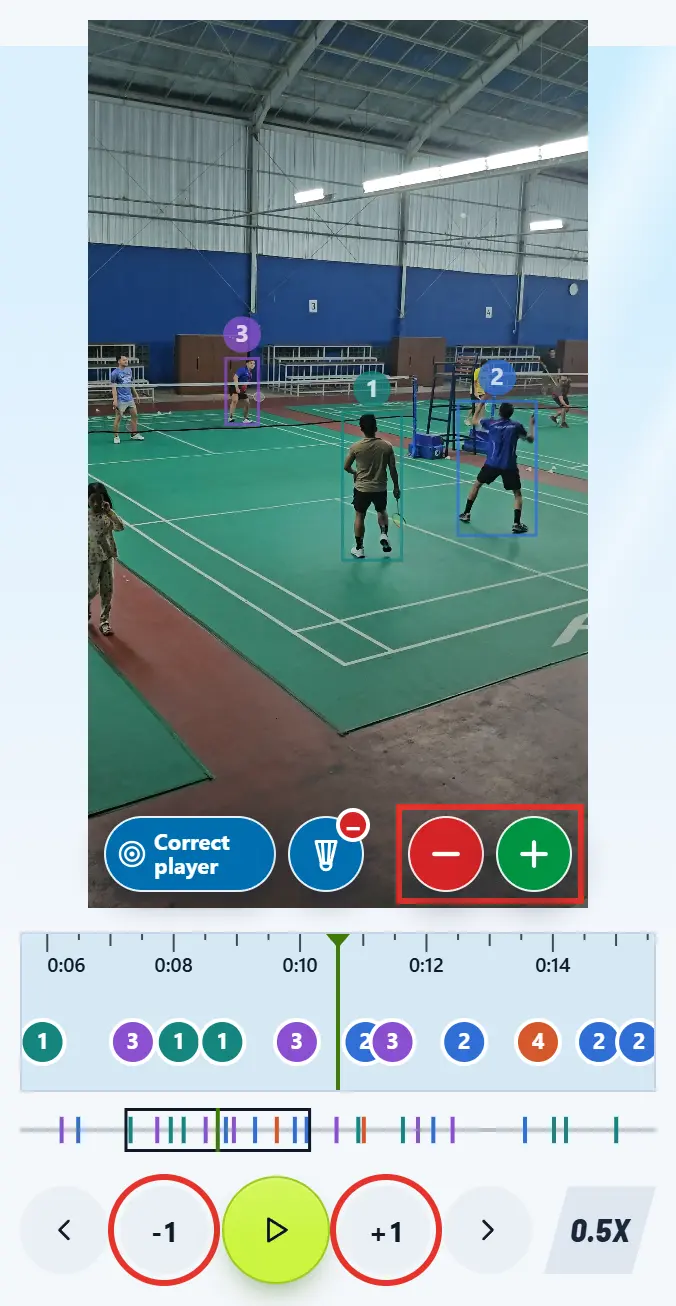
  5. Not actually a shot: tap Not a shot in the panel, or the red minus button on the video. The marker gets a cross and is not counted. Deleted by mistake? Tap the marker again, then Undo delete.

    Not actually a shot: tap Not a shot in the panel, or the red minus button on the video. The marker gets a cross and is not counted. Deleted by mistake? Tap the marker again, then Undo delete.
  6. A shot was missed: stop the video right as the racket meets the shuttle. Use -1 and +1 to find the exact frame. Tap the green plus button, then choose the player. To remove a marker you added, use Delete marker.

    A shot was missed: stop the video right as the racket meets the shuttle. Use -1 and +1 to find the exact frame. Tap the green plus button, then choose the player. To remove a marker you added, use Delete marker.
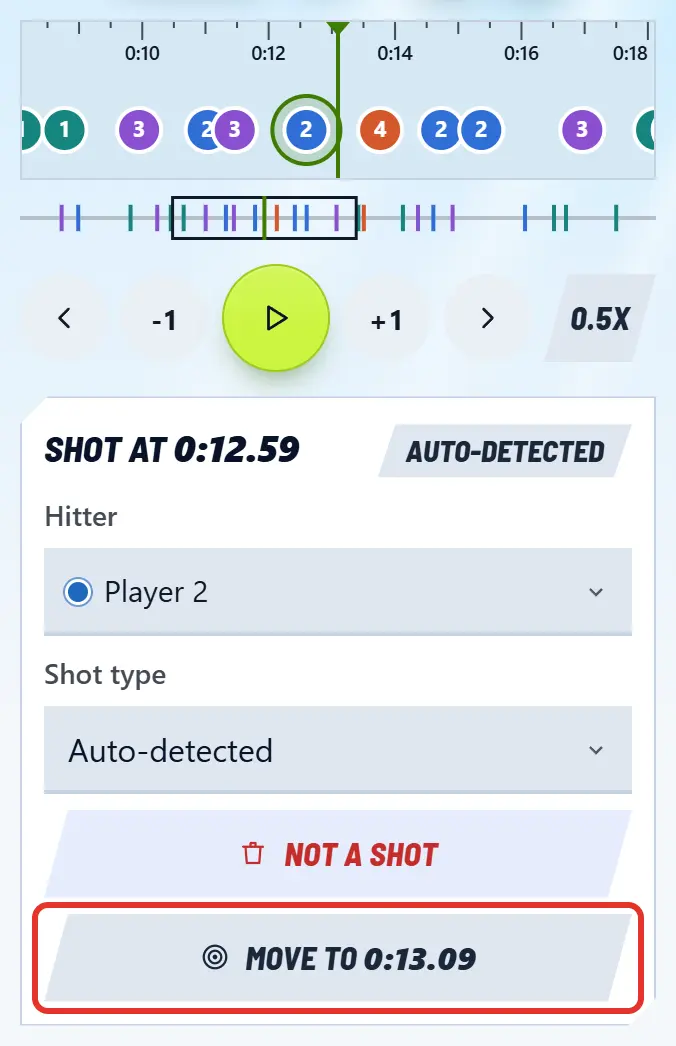
  7. A marker is slightly off: tap it, move the video to the right moment (up to 1.5 seconds from the marker), then tap Move to in the panel.

    A marker is slightly off: tap it, move the video to the right moment (up to 1.5 seconds from the marker), then tap Move to in the panel.
  8. All done? Tap Done, see results. You can come back any time with Review again on the Results screen.

What the timeline markers mean

Coloured circle with a number
One shot. The colour and number show the player.
Circle with a cross
Marked as not a shot, so it is not counted.
Circle with a question mark
A new marker with no player yet. It is not counted until you choose one.
Shot name above a circle
A shot type you chose yourself.

Buttons under the timeline

Left and right arrows
Jump to the previous or next shot.
-1 and +1
Go back or forward one frame, to find the moment the racket meets the shuttle.
Middle button
Play or pause the video.
Far-right button
Playback speed: 1x, 0.5x, or 0.25x.

Note

In tennis and padel, the shuttle means the ball, and the shot types change to match.

Your corrections are sent, without the video, to help train the engine for better accuracy.

Open Rally analysis

Related topics

Fix player markers

Markers are the box and name that follow each player in the video. If they swap, stick to a spectator, or a shuttle animation comes from the next court, you can fix it all on the review screen.

Steps

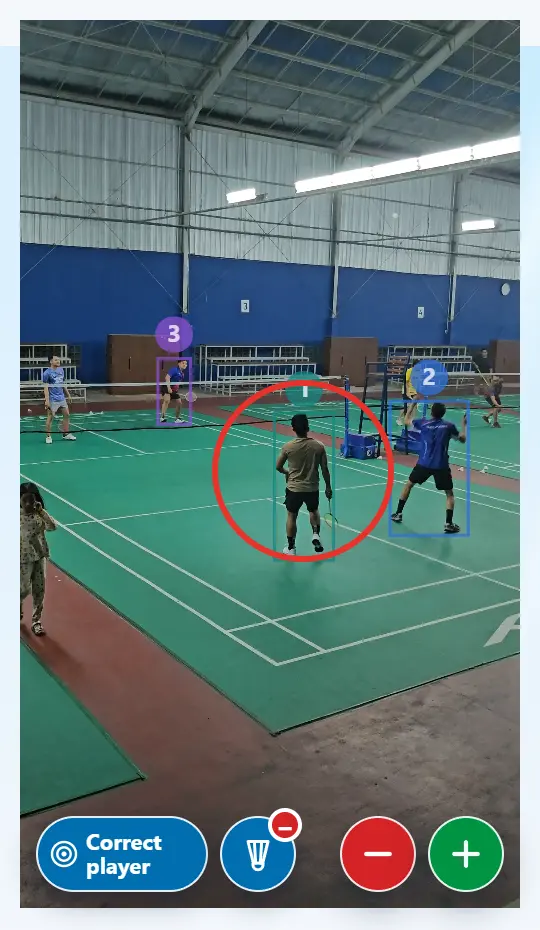
  1. Marker on the wrong person: stop the video where the marker first goes wrong, then tap the person in the video.

    Marker on the wrong person: stop the video where the marker first goes wrong, then tap the person in the video.
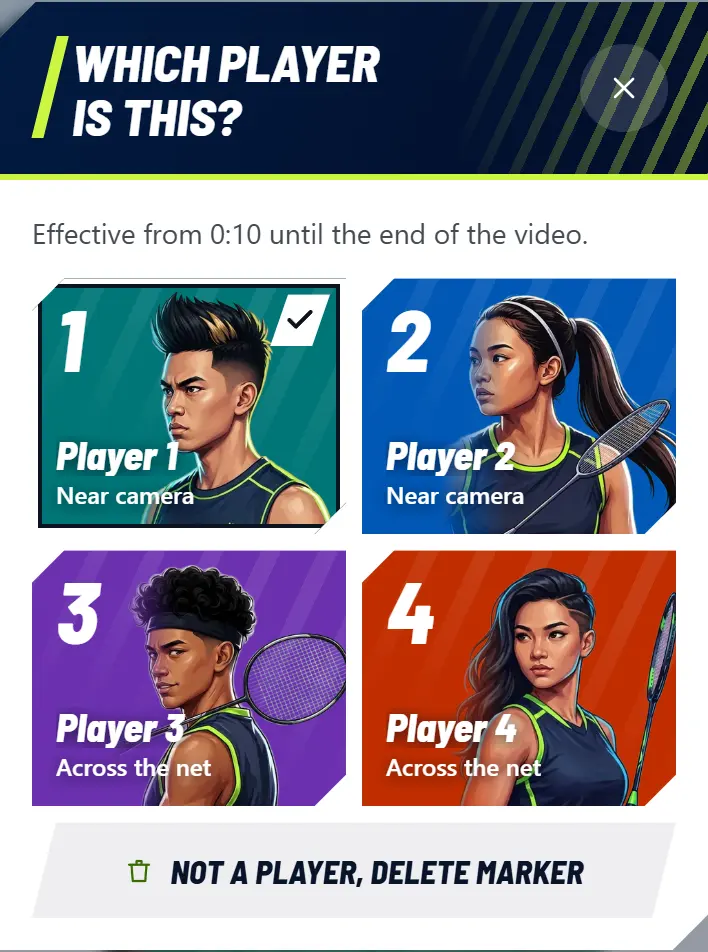
  2. In the Which player is this? pop-up, choose the right player. It applies from that point to the end of the video. If that person is wearing another player's marker, the two markers swap and later shots follow them.

    In the Which player is this? pop-up, choose the right player. It applies from that point to the end of the video. If that person is wearing another player's marker, the two markers swap and later shots follow them.
  3. Marker stuck on a spectator or umpire: tap the marker in the video, then choose Not a player, delete marker at the bottom of the same pop-up. The marker disappears for as long as it was on that person.

  4. A player has no marker: tap the person in the video, then choose the player, or Add Player if they are not in the list. Up to 4 players.

  5. Marker missing though the person is visible: tap the person in the video, even without a box. Players with a missing marker are listed first. The marker is filled in for that part only, other players and shots stay the same. Still gaps? Tap again at another moment.

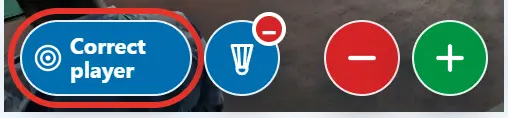
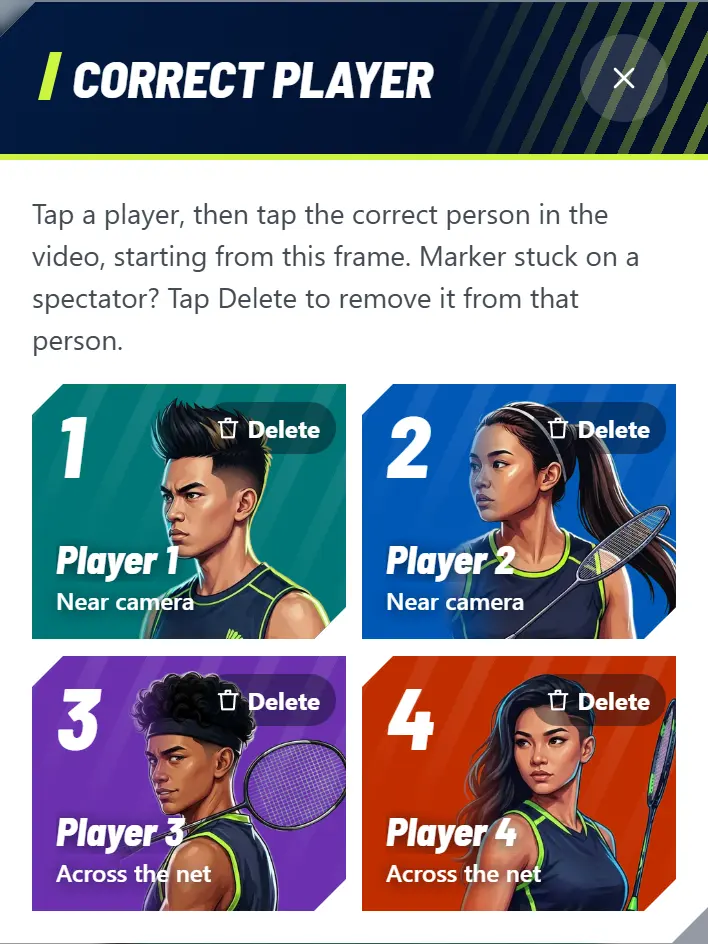
  6. Another way: tap the Correct player button on the video. In the list, choose the player to move, or tap Delete if the marker is on a spectator.

    Another way: tap the Correct player button on the video. In the list, choose the player to move, or tap Delete if the marker is on a spectator.
    Another way: tap the Correct player button on the video. In the list, choose the player to move, or tap Delete if the marker is on a spectator.
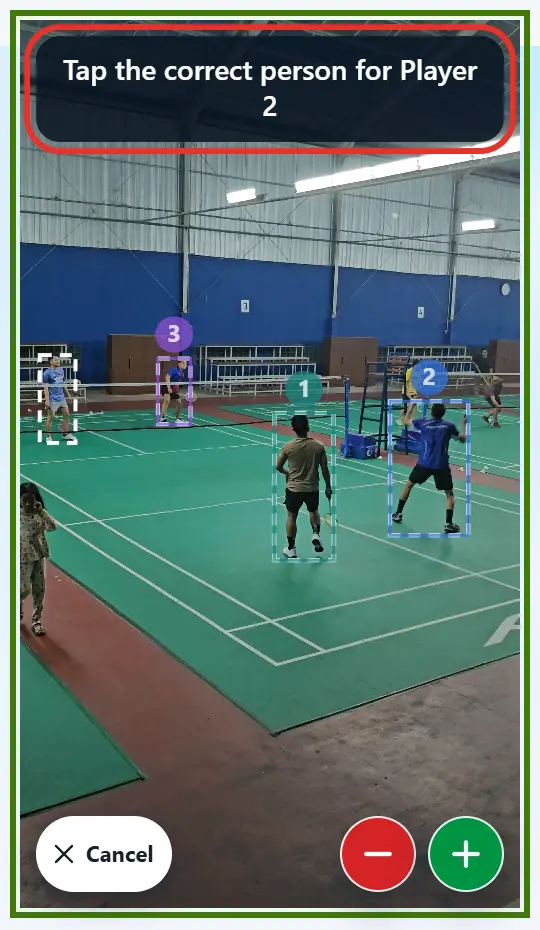
  7. Then tap the right person in the video. No dashed box on them? Just tap their body. Changed your mind? Tap Cancel.

    Then tap the right person in the video. No dashed box on them? Just tap their body. Changed your mind? Tap Cancel.
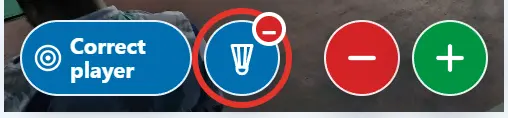
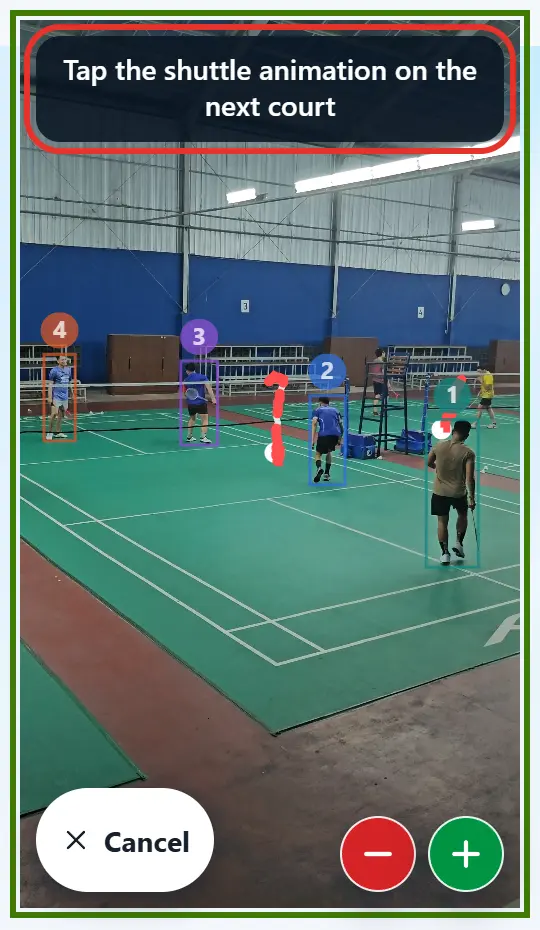
  8. Shuttle animation from the next court: move to when the animation appears, tap the shuttle minus button, then tap its dashed red line. Deleted by mistake? Tap the shuttle minus button again, then Restore.

    Shuttle animation from the next court: move to when the animation appears, tap the shuttle minus button, then tap its dashed red line. Deleted by mistake? Tap the shuttle minus button again, then Restore.
    Shuttle animation from the next court: move to when the animation appears, tap the shuttle minus button, then tap its dashed red line. Deleted by mistake? Tap the shuttle minus button again, then Restore.

Note

Once a marker is fixed, that player's distance run and court zones are worked out again. You enter player names on the Results screen.

Open Rally analysis

Related topics

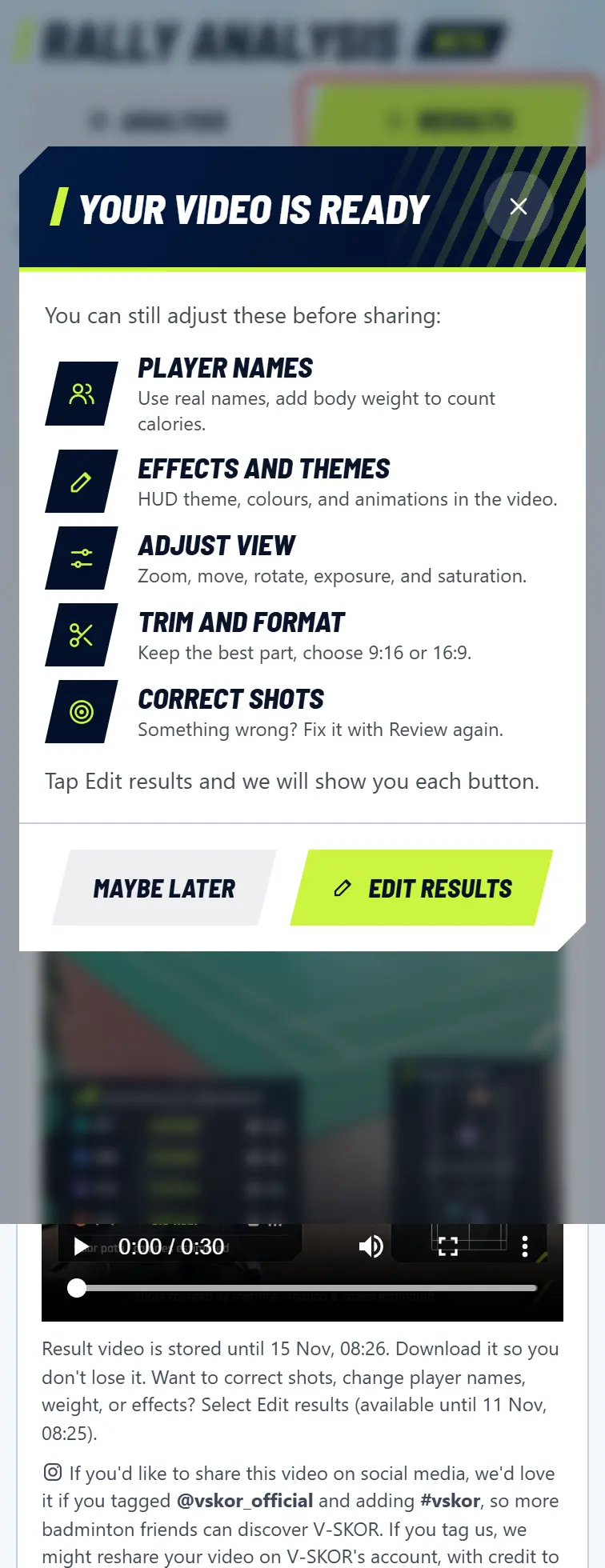
What you can still change before saving the video

Every change on the Results screen shows in the preview straight away. The saved video matches that preview exactly, so get it right first, then save.

The full list

Video format
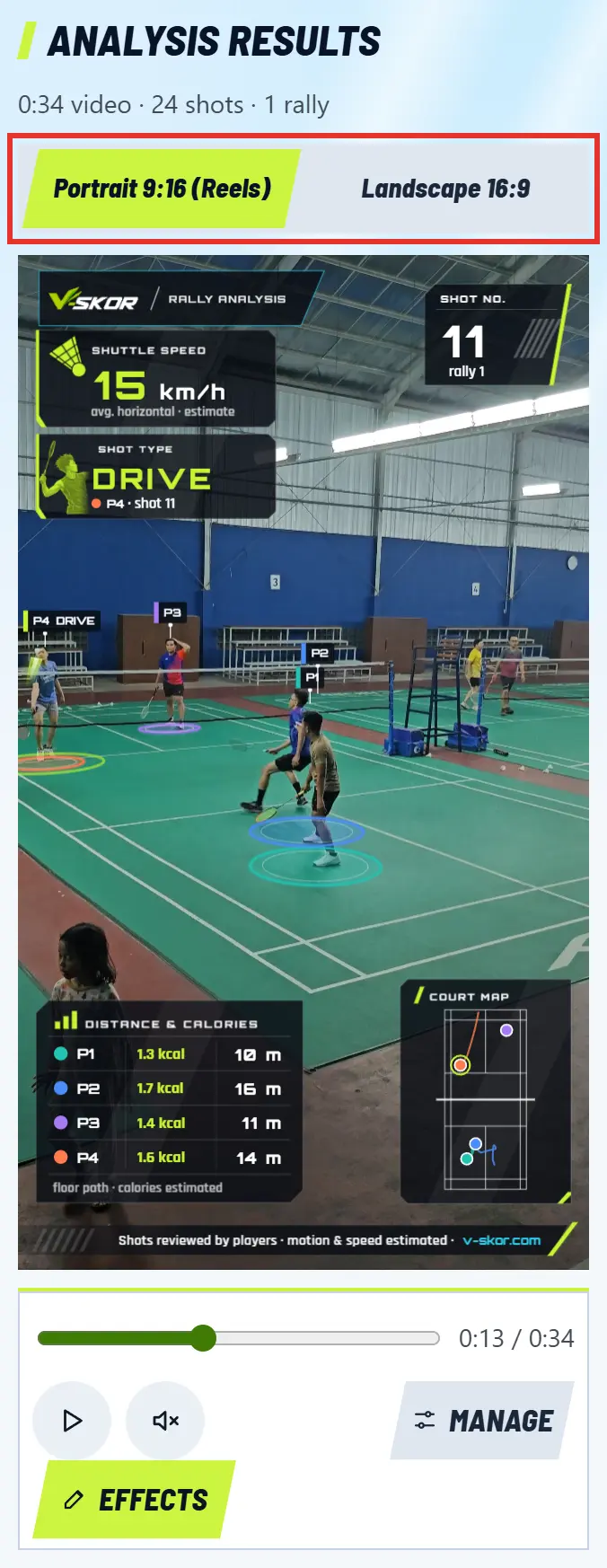
Portrait 9:16 (Reels) or Landscape 16:9.
Shot names
Tap the name in the video, then choose the right one.
Trim video
Where the saved video starts and ends, at least 1 second.
Display style
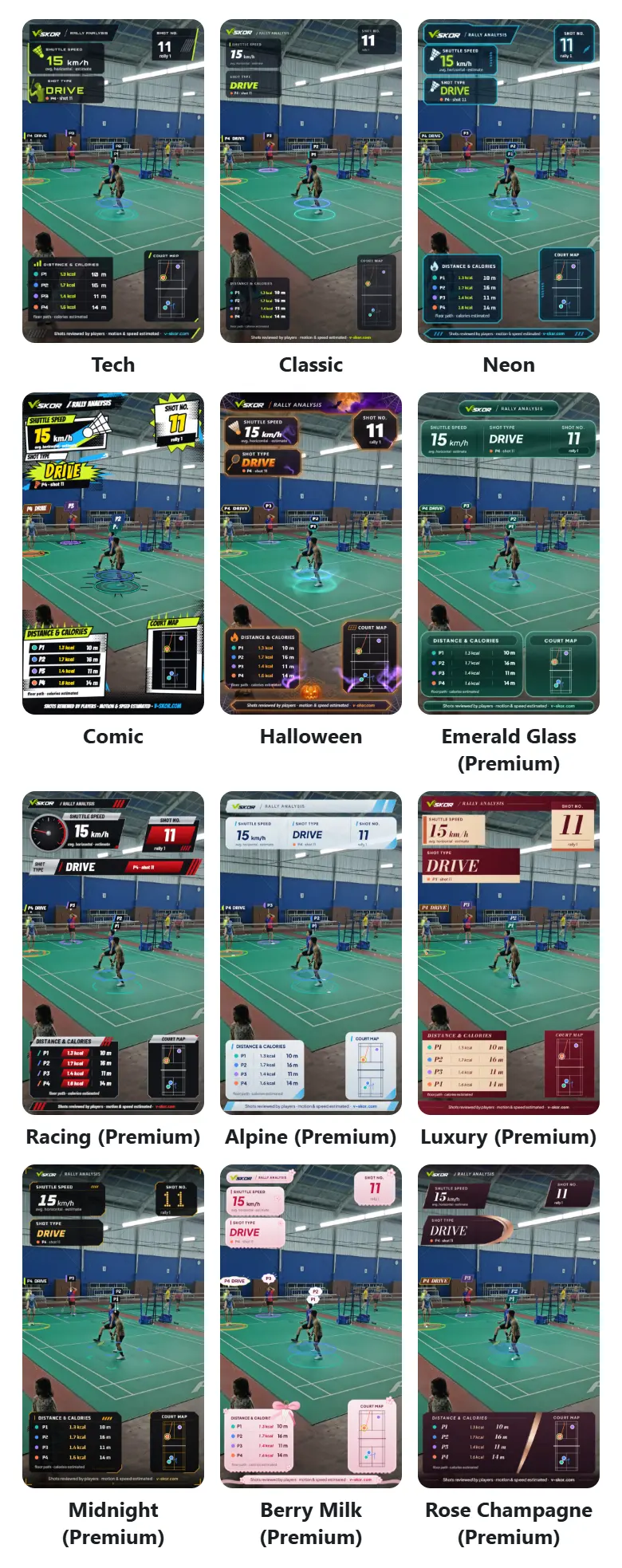
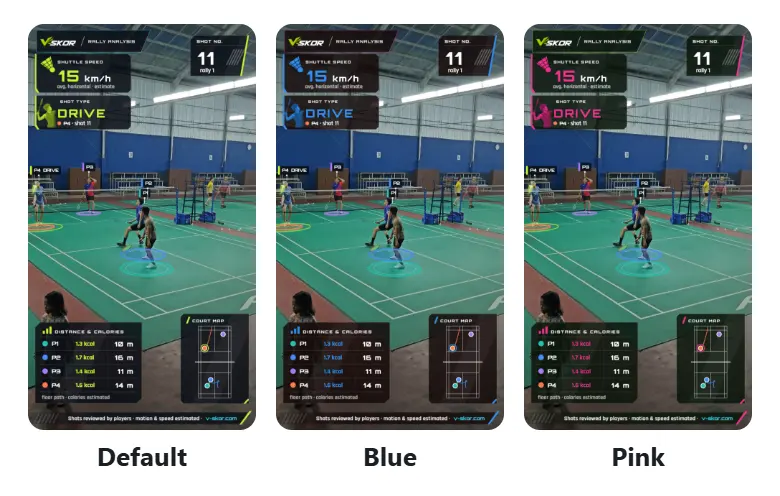
Tech (default), Classic, Neon, Comic, or Halloween.
Player animation
The effect at each player's feet: Style default, Pulse Halo, Vector Lock, Orbit HUD, Highlight, or None.
Player name box
The P1, P2, and name boxes above heads: Full, Transparent, or Very transparent.
When labels overlap
When player name labels cover each other. Fade (default): the labels of the team that just hit fade, so the receiving team's labels stay clear and steady. Stack: the old way, the covered label moves up above the other.
Shuttle or ball animation
Its trail in the video: Plasma, Electric, Sonic, Lock On, or None.
Shuttle drop or Ball bounce
Floor wave, or None.
Racket hits the shuttle or ball
Smash flash, Flash on every shot, or None.
Video language
Indonesian or English.
Calories
Show or hide them, on the Player stats board and in the video.
HUD colour
Slide to change the main colour of the panels in the video. The logo, player markers, web address, and pumpkin stay the same. Default brings back the style's own colour.
HUD size
Shrink the panels in the video down to 80% if they cover the play. The text stays readable.
Player names
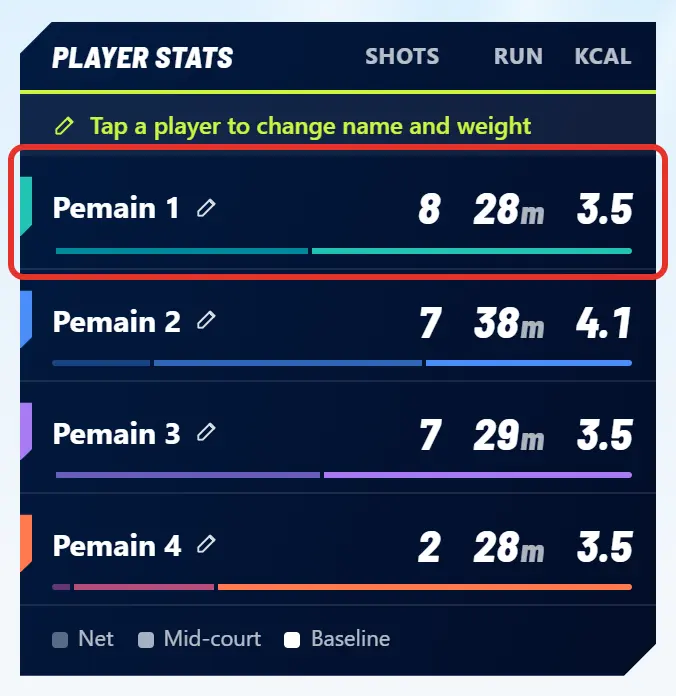
Tap the player's row on the Player stats board, or tap the player in the video. The name also shows in the video.
Body weight
Tap the player's row on the Player stats board, used to work out calories. Blank means 65 kg.
Hitters, shot markers, and player markers
With Review again. The other choices above are kept.

How to, one by one

  1. Choose the format: Portrait 9:16 (Reels) for Reels, Stories, and TikTok, or Landscape 16:9 for YouTube. The speaker button is only for the preview, and the saved video keeps its sound.

    Choose the format: Portrait 9:16 (Reels) for Reels, Stories, and TikTok, or Landscape 16:9 for YouTube. The speaker button is only for the preview, and the saved video keeps its sound.
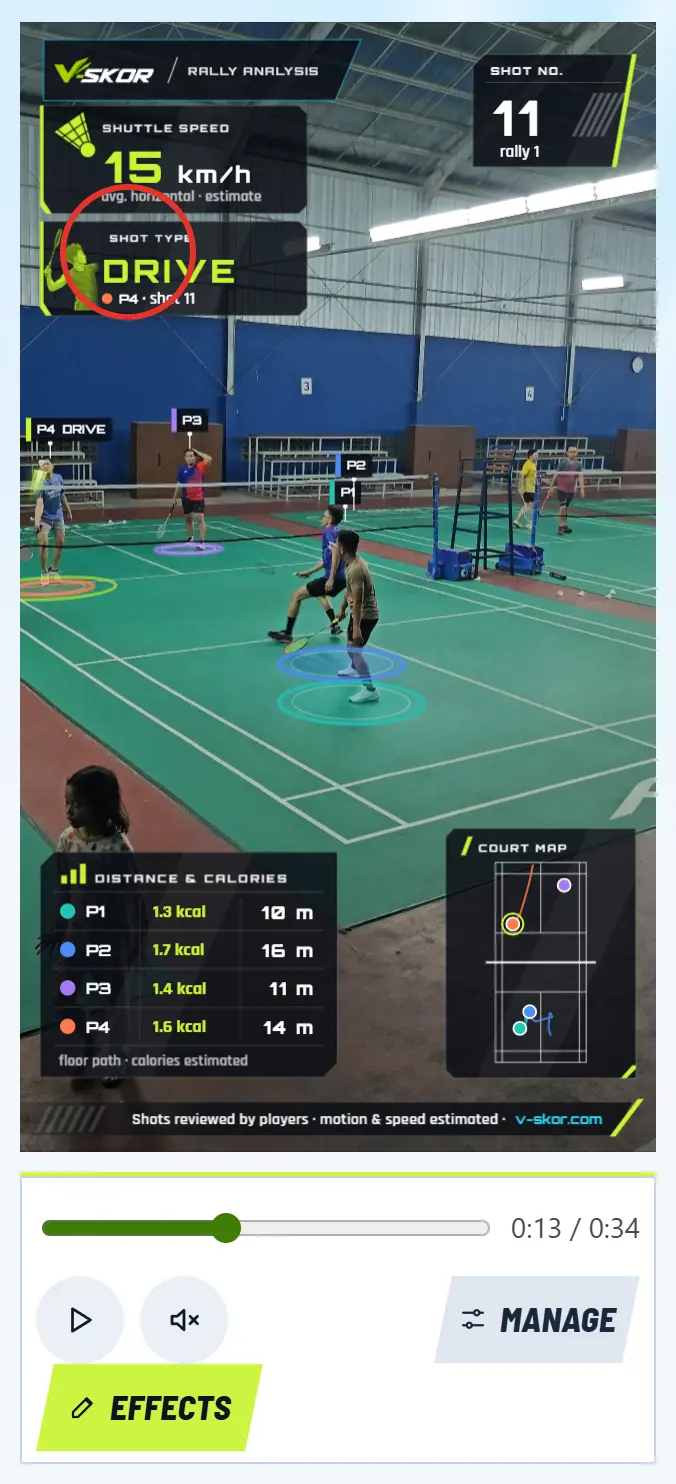
  2. Change a shot name without going back to Review: stop the video on that shot, then tap its name in the video (in the shot type panel, the label above the head, or the big text). Want to change a player name? Tap the player in the video.

    Change a shot name without going back to Review: stop the video on that shot, then tap its name in the video (in the shot type panel, the label above the head, or the big text). Want to change a player name? Tap the player in the video.
  3. Choose the right type. The text in the video changes straight away. Back to auto-detect appears if you have changed the type before.

    Choose the right type. The text in the video changes straight away. Back to auto-detect appears if you have changed the type before.
  4. Want a shorter video? Drag the two handles under Trim video. Drag the middle to move the selection.

    Want a shorter video? Drag the two handles under Trim video. Drag the middle to move the selection.
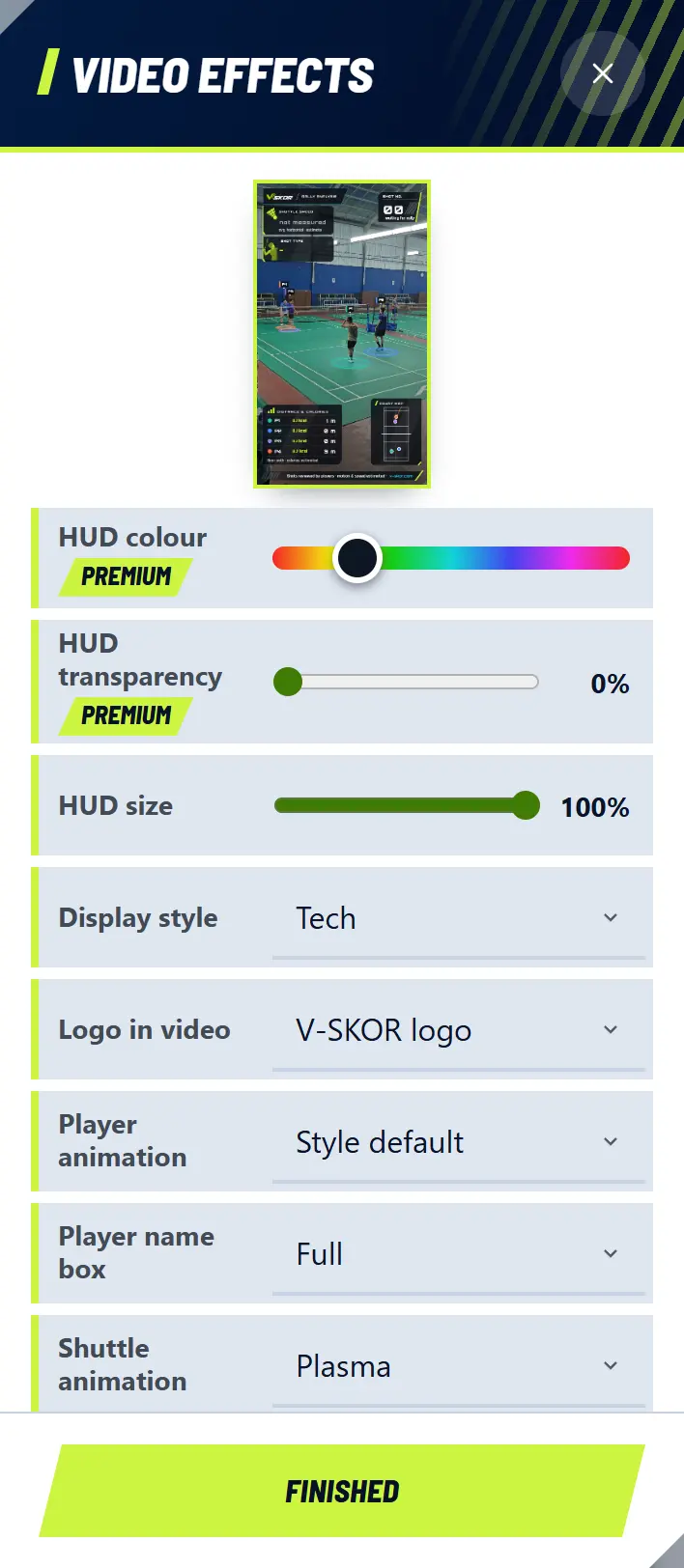
  5. Tap the Effects button next to the sound button to open Video effects. Each choice shows in the small preview straight away, and this phone remembers it for your next video. Don't want calories? Turn off Show calories (est.) on board & video.

    Tap the Effects button next to the sound button to open Video effects. Each choice shows in the small preview straight away, and this phone remembers it for your next video. Don't want calories? Turn off Show calories (est.) on board & video.
  6. Want to adjust how the video looks? On a phone, touch the video with two fingers: pinch to zoom, move to reposition. On a computer, tap Manage, then move the Zoom slider, use the arrow buttons, or drag the video. Rotation, Exposure, and Saturation are under Manage, on a phone too. Player markers stay attached. To players zooms straight to the playing area, the Reset button puts it all back. These settings apply per video.

  7. These are the five Display style choices. Each style brings its own player animation, unless you change Player animation.

    These are the five Display style choices. Each style brings its own player animation, unless you change Player animation.
  8. Want another colour? Slide HUD colour. The logo, player markers, web address, and pumpkin stay the same. Default brings back the style's own colour. Do the panels cover the play? Shrink them with HUD size, down to 80%.

    Want another colour? Slide HUD colour. The logo, player markers, web address, and pumpkin stay the same. Default brings back the style's own colour. Do the panels cover the play? Shrink them with HUD size, down to 80%.
  9. Scroll down to the Player stats board. Tap a player's row to change a name or body weight. Body weight is only stored on this phone.

    Scroll down to the Player stats board. Tap a player's row to change a name or body weight. Body weight is only stored on this phone.
  10. Is a hitter or marker wrong? Tap Review again at the very bottom. See edit shots and player markers.

    Is a hitter or marker wrong? Tap Review again at the very bottom. See edit shots and player markers.
  11. Happy with it? Tap Save video and keep the screen on until it finishes. The video is made on this phone, not uploaded.

    Happy with it? Tap Save video and keep the screen on until it finishes. The video is made on this phone, not uploaded.
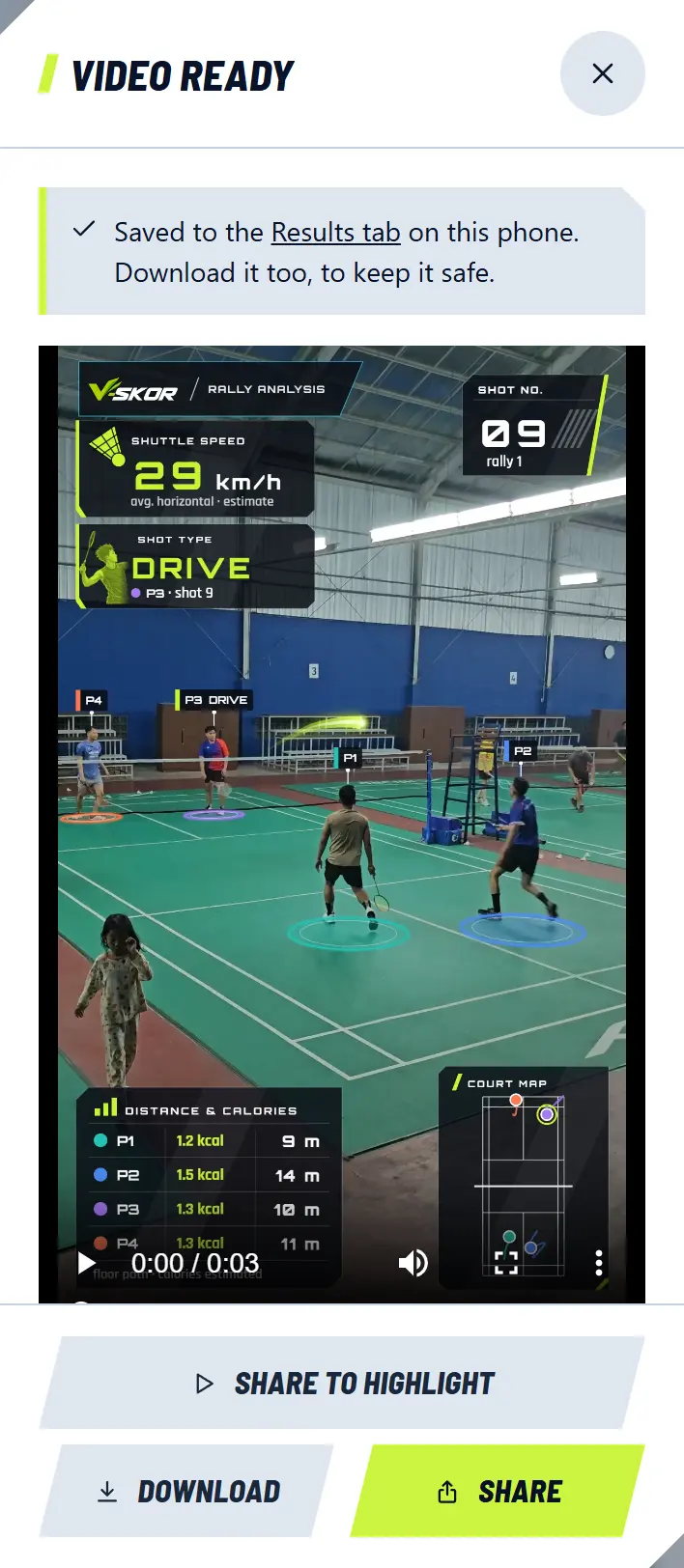
  12. In the Video ready pop-up, tap Download to keep it, Share to send it to another app, or Share to Highlight. Not quite right? Close the pop-up, change it, and save again.

    In the Video ready pop-up, tap Download to keep it, Share to send it to another app, or Share to Highlight. Not quite right? Close the pop-up, change it, and save again.
  13. A saved video goes to the Results tab on this phone automatically. See your video list.

Note

Analyze another video clears this result. Save your video first if you still need it.

Results from Fast Analysis or Analyze on server can be changed the same way, with Edit results on the Results tab.

The Calories, Processing time, Share, and Beta version buttons under the board hold short explanations. Tap one if you need it.

Open Rally analysis

Related topics

Fast Analysis and Analyze on server

Is your phone slow, or did the analysis fail? Send the video clip and let the V-SKOR engine or team process it. Then just watch the result on the Results tab.

Which one to choose

Process on phone
Processed on your phone, and the video is not uploaded. The speed depends on your phone. On a laptop or PC it is called Continue processing, and it is usually much faster with a graphics card (GPU).
Fast Analysis
Processed by the V-SKOR engine or team, usually in a few minutes. For badminton for now, and the button only shows while the service is on.
Analyze on server
Processed by the V-SKOR engine or team, usually in under 24 hours. Tennis and padel videos are handled by the team. The button appears when analysis on your phone is slow or fails, or your phone is not supported yet. On phones that aren't suitable, it is called Analyze a video.

Steps

  1. Choose the video, trim it to 1 minute at most, and mark the court as usual. See how. Accurate marks give a more accurate result.

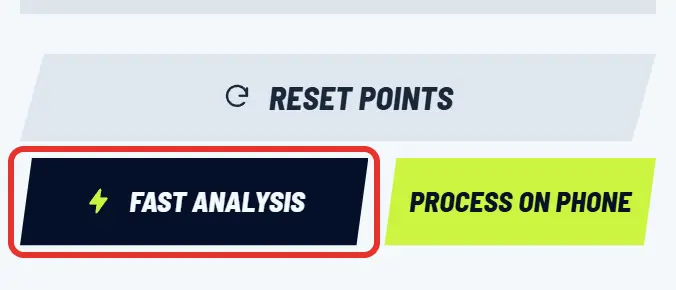
  2. Tap Fast Analysis next to Process on phone, then Send. Or tap Analyze on server.

    Tap Fast Analysis next to Process on phone, then Send. Or tap Analyze on server.
  3. Keep the screen on until the video has been sent. After that you can close the app, and a notification tells you when the result is ready.

  4. Open the Results tab to see the status. When it says Ready, watch the video there, then tap Download video. Still queued and changed your mind? Tap Cancel submission.

    Open the Results tab to see the status. When it says Ready, watch the video there, then tap Download video. Still queued and changed your mind? Tap Cancel submission.
  5. Want to correct shots, or change names, body weight, effects, or format? Tap Edit results, then save the video again. See what you can change.

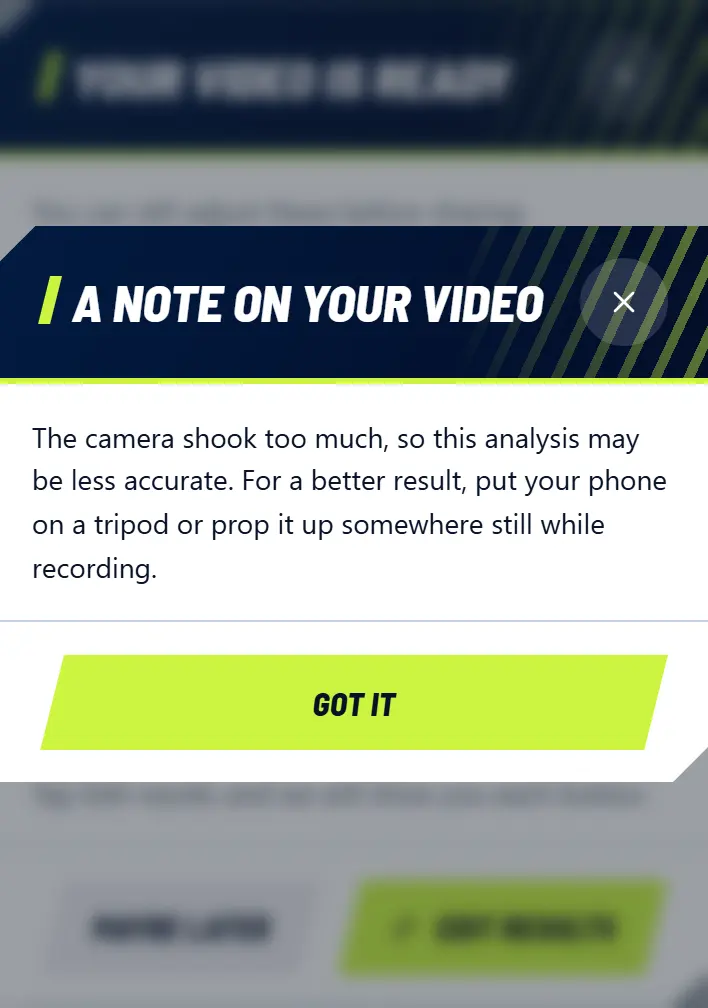
  6. See a yellow exclamation icon in the corner of the video? Tap it to read A note on your video, for example that the camera shook too much so the result may be less accurate. The video is still delivered.

    See a yellow exclamation icon in the corner of the video? Tap it to read A note on your video, for example that the camera shook too much so the result may be less accurate. The video is still delivered.

Note

The limit is 5 submissions per week per account, and one is processed at a time. Wait for the previous one to finish before sending another.

Only the clip you chose is sent. Sent videos are deleted automatically 3 days after sending, and result videos 7 days after they are ready. Edit results works while the sent video still exists, so download the result to keep it.

Open Rally analysis

Related topics

All your result videos on the Results tab

Videos from our team, from the engine, and the ones you made on this phone are all in one list.

Steps

  1. Open Rally Analysis, then tap the Results tab. You can also use My analysis videos on the Me tab.

    Open Rally Analysis, then tap the Results tab. You can also use My analysis videos on the Me tab.
  2. Each video has a label showing where it came from: Yours, V-SKOR engine, or V-SKOR Team. Want to see just one kind? Tap it above the list.

  3. Every card has the same buttons: Download video, Share to Highlight, and Edit results. Already shared? The button changes to View in Highlight.

  4. You can remove your own videos you no longer need with Delete.

Note

Your own videos are stored on this phone only and are not uploaded, so they do not show on other phones, and they are lost if the browser data is cleared. The limit is 20 videos. Download the ones that matter.

Edit results on your own video needs the original video. If it is no longer on this phone, you will be asked to choose it again from your gallery.

Videos from our team and the engine are kept on your account: result videos for 7 days after they are ready, sent videos for 3 days after sending.

Share to Highlight needs a community. Not in one yet? Join one on the Community tab first.

Open the Results tab

Related topics

Analysis failed or is too slow

Processing on your phone depends on your phone. If it is still too heavy, use Fast Analysis or Analyze on server.

Steps

  1. Close other apps, plug in a charger, and keep the screen on until it finishes.

  2. Use a short part of the video. The shorter it is, the faster it finishes.

  3. Still too heavy? Use Fast Analysis when the button is there. Failed, stuck, or taking too long? Tap Analyze on server. You choose the video and mark the court on this phone, and the V-SKOR engine or team processes it. Read more.

  4. You get a notification, and the result is on the Results tab.

If processing stops

The page goes back to the start mid-process
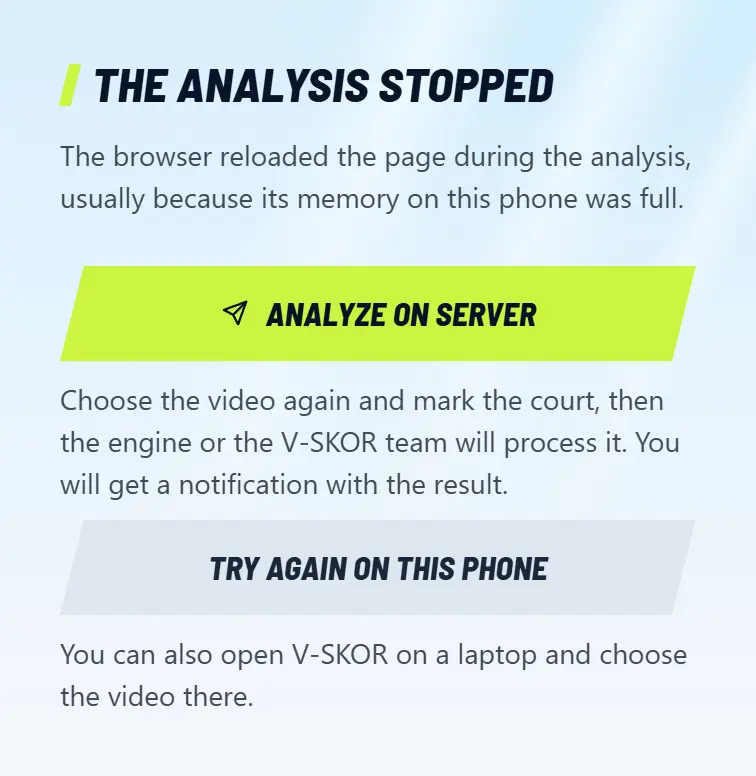
The browser reloaded the page, usually because the browser ran out of memory on the phone, or the app was left in the background. The The analysis stopped card appears: tap Analyze on server so the V-SKOR engine or team processes it, or Try again on this phone with the screen kept on and without switching apps.
Making the video stops partway
Close other apps, tap Save video again, and keep the screen on until the video is ready. The message you see: Your phone stopped while making the video. Try again, or close other apps first.
A result video from the engine or team cannot be remade
See This browser could not make the video? The result video is still safe: tap Download video. Want to change names or effects? Try another browser or a laptop.
If processing stops

If the result looks wrong

The engine sees people, but none inside the lines
The court marks are probably off. Tap Mark the court again.
The engine finds no players
If the players are clearly visible, your phone may not be supported yet. Use Analyze on server. Also check the players are not too small in the video.
Very few shots
Check the court points and the chosen sport. A padel video chosen as badminton is not read correctly.
The message says the video file is incomplete
The file was cut off while being saved or sent, so the end of it is really missing. The part that is there can still be analysed. Want all of it? Use the original camera video.
The video is saved sideways
The engine turns it during processing and tells you. You can also turn it with Video tilted? Rotate.
Shaky camera
The engine still tries to follow the camera, but the result may be less accurate. Put the phone on a tripod or prop it up somewhere still. See how to record properly.

Note

Message says the video can't be read yet? If you see the Choose with the Files app button, tap it, choose Files or My Files, then open the DCIM folder, then Camera. If the video is in Google Photos or Drive, download it to your phone first, then choose it again. Still the same? Contact support and we will check it.

Your clip is only seen by the V-SKOR team to process it and test the engine's accuracy. Sent videos are deleted automatically 3 days after sending, and result videos 7 days after they are ready.

Open Rally analysis

Related topics

Share moments and Highlights

Your friends' news is on Home. Videos you post go to Highlights automatically.

Steps

  1. On Home, tap the plus button, then Share a moment. Scrolled far down? The plus button also appears in the bottom right corner.

    On Home, tap the plus button, then Share a moment. Scrolled far down? The plus button also appears in the bottom right corner.
  2. Choose a photo or video, or write a story, then post it.

  3. Like a friend's post? Smash it! Hold the post until the racket appears, then let go. The racket smashes the post, sound and all, and the "Smashed" count below it goes up. On iPhone, silent mode means no sound. Changed your mind? Tap Smash. Want another reaction or a comment? Hold Smash to pick a reaction, or write a comment.

  4. Videos on Home play by themselves, muted, as they scroll into view. Tap a video to watch it full screen like Reels: swipe up for the next video, and use the buttons at the bottom right for Smash, comments, sharing, and sound. Hold the video to smash it.

  5. Want to share a post or video? Tap the share icon on the post, or the send button while watching Highlights. Send it via WhatsApp, another app, or a copied link, or straight to a community chat or private message on V-SKOR. In chat, the link shows up as a card you can tap.

  6. Just want videos? Tap Highlight above the list and the videos open full screen. Pinch the screen with two fingers to see every video in a grid, then tap any video to watch it.

Note

Free and want to play? Choose Ready to play today from the plus button so friends can invite you.

Open Home

Related topics

Use chat

There is community chat, a chat for each game, and private messages.

Steps

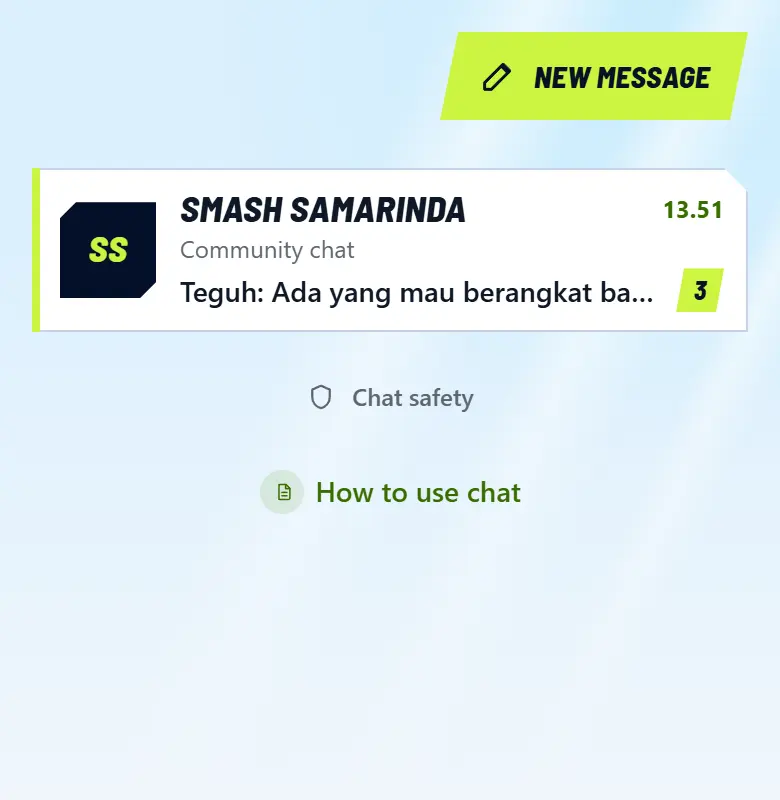
  1. Open the Chat tab. A red number means new messages.

    Open the Chat tab. A red number means new messages.
  2. Open a chat, write a message, then send it. Lines that start with 1. 2. 3. or a - become a neat list. Tap the plus button to send a photo, video, sticker, or poll.

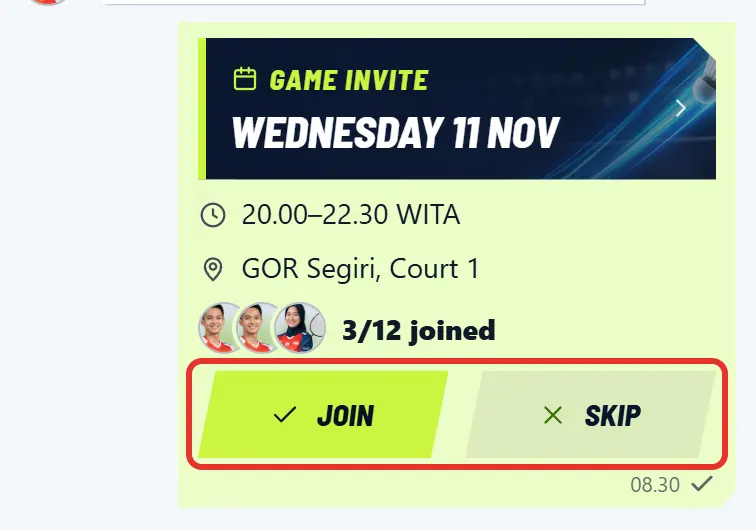
  3. Want to invite people to play? In a community or game chat, tap the plus button, then Invite, and pick the game. An invite card appears in the chat: members just tap Join or Skip, and everyone can see who is in and who skipped. Tap the card to see the game details.

    Want to invite people to play? In a community or game chat, tap the plus button, then Invite, and pick the game. An invite card appears in the chat: members just tap Join or Skip, and everyone can see who is in and who skipped. Tap the card to see the game details.
  4. Tap a message bubble to react, reply, copy, or report it. You can delete your own message within one minute.

  5. Want a private chat? Tap New message in the top right, then search for the player. Private messages can only be read by the two of you.

Note

Keep it polite. Messages that break the rules can be reported, and community admins can hide them.

Open Chat

Related topics

Play streaks and monthly recap

Weekly streaks, challenges, badges, and a monthly recap.

Steps

  1. Open the Me tab. The motivation card is there.

  2. Streak grows each week you play at least one match. Weeks without scheduled games do not break it.

  3. Court Ruler is the player with the most matches this month in your community.

  4. At the start of each month, a Recap card appears. Tap to open it, then Share to Story.

Open the Me tab

Related topics

Use the V-SKOR Twibbon

Photo frames for stories and feeds. Your photo is not uploaded.

Steps

  1. Open the Me tab, then V-SKOR Twibbon.

  2. Choose story or feed size, then add your photo from the gallery.

  3. Move and zoom until it fits, then save or share.

Open Twibbon

Related topics

Stream with OBS and the score overlay

A TV style scoreboard on your stream, updating every time the scorer taps a point.

Steps

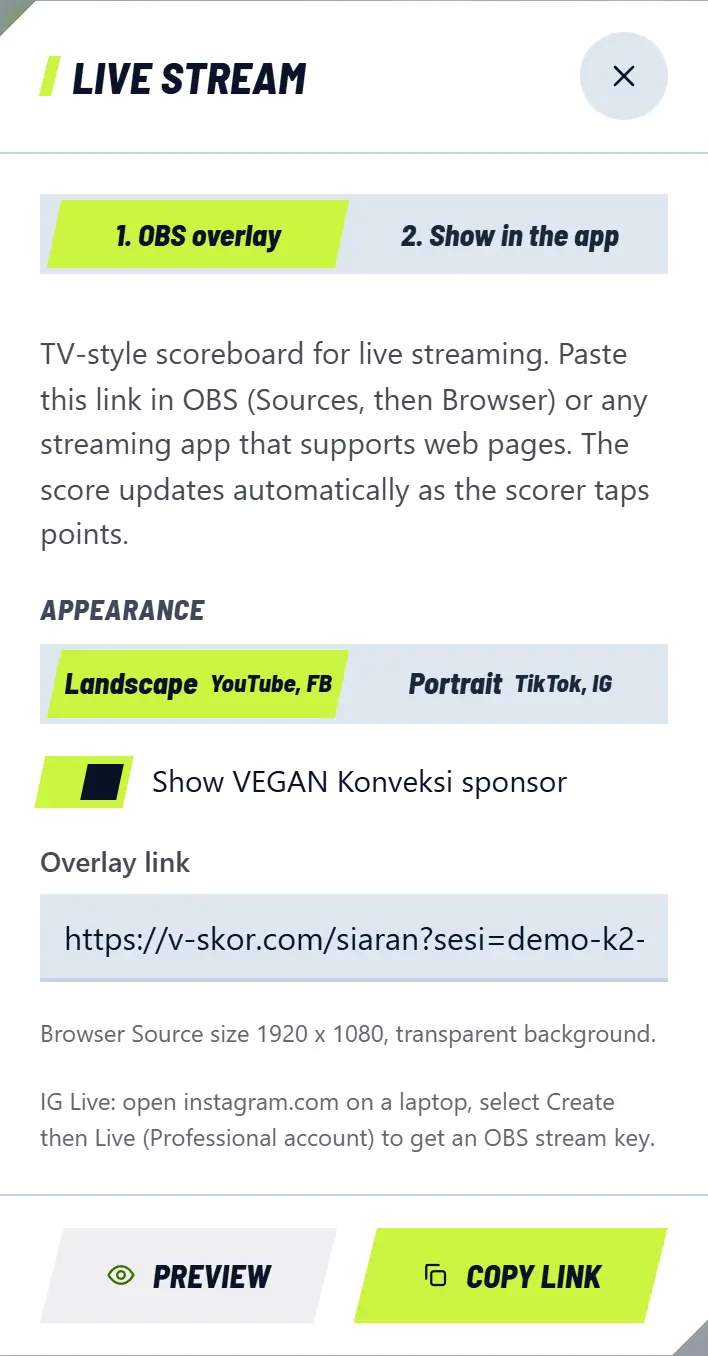
  1. In Manage, tap Live Stream. Scorers find it on the session or match page.

  2. On the 1. OBS overlay tab, choose Landscape for YouTube and Facebook, or Portrait for TikTok and Instagram, then tap Copy link.

    On the 1. OBS overlay tab, choose Landscape for YouTube and Facebook, or Portrait for TikTok and Instagram, then tap Copy link.
  3. In OBS, open Sources, add Browser, paste the link, then set the size to 1920 x 1080 (portrait: 1080 x 1920).

  4. Get the stream key from YouTube Studio, paste it under Settings then Stream in OBS, then start streaming.

Note

The overlay background is transparent, so your camera stays visible.

Related topics

Show your YouTube stream in V-SKOR

Viewers can watch right on the Open Play, session, and match pages, without leaving for YouTube.

Steps

  1. Start streaming on YouTube. The score overlay comes from OBS.

  2. On YouTube, tap Share, then Copy link.

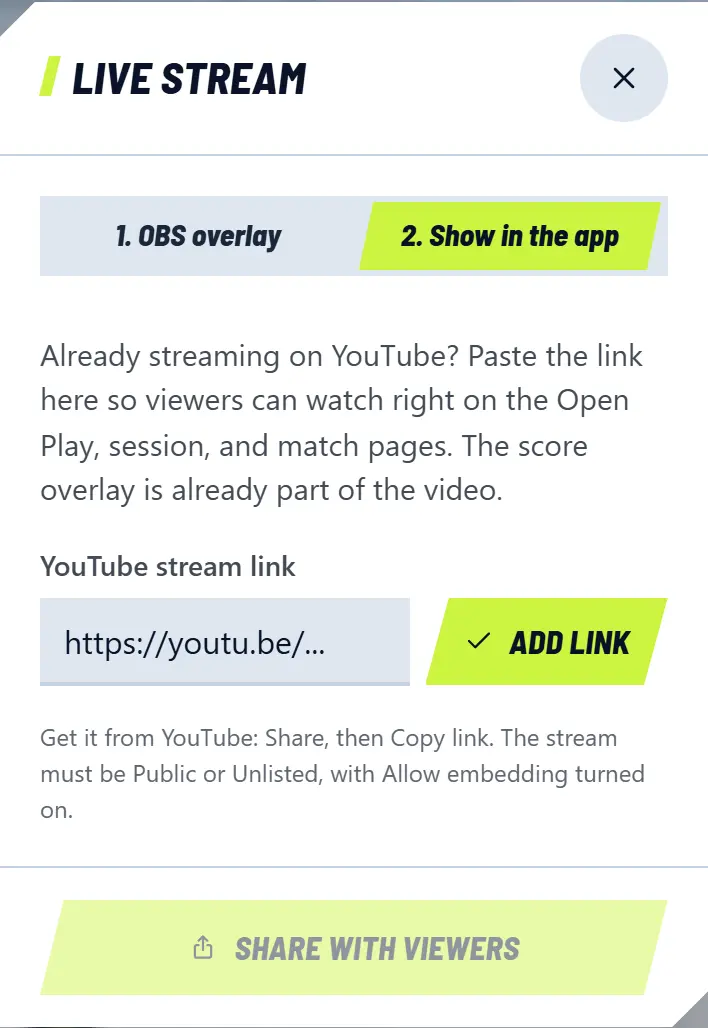
  3. In V-SKOR under Manage, tap Live Stream, then open the 2. Show in the app tab.

    In V-SKOR under Manage, tap Live Stream, then open the 2. Show in the app tab.
  4. Paste the link, then tap Add link.

    Paste the link, then tap Add link.
  5. Tap Share with viewers to send the watch link.

Note

The stream must be Public or Unlisted, with Allow embedding on in YouTube Studio. Channel links do not work, it must be the stream link.

While the video plays, the app hides the score because video usually runs a few seconds behind. Viewers can tap Show score.

Related topics

Stream from your phone with PRISM

No laptop needed. Use two phones: one to stream, one to keep score.

Steps

  1. On the scoring phone, tap Live Stream, choose a layout, then tap Copy link.

  2. Send the link to the streaming phone, for example over WhatsApp, then copy it there.

  3. Open PRISM Live Studio, swipe to My Studio, tap Widget, then choose Web.

  4. Paste the link in the URL field, then tap Save. Drag it and its corners until it fits, without covering the players.

  5. Swipe back to the main screen, tap Ready, choose your platform, then Go Live.

Note

Each time you reopen PRISM, tap the overlay box in My Studio again to activate it. Plug in a charger and turn on Do Not Disturb on the streaming phone.

Related topics

Manage your profile and appearance

All account settings are on the Me tab.

Steps

  1. Open the Me tab. Tap the camera icon to change your photo.

  2. Tap Edit Profile to change your name, date of birth, dominant hand, and playing style. Admins manage category and grade.

  3. Open City & Open Play News to get news about Open Play nearby and use the In my city filter.

  4. Turn on Dark mode under Appearance if you often play at night.

  5. Want to sign out? Tap Log out at the bottom.

Open the Me tab

Related topics

Delete your account

How to ask for your account and data to be deleted.

Steps

  1. Open the Me tab, then Delete account under Help.

  2. Follow the steps on that page. We process requests manually.

Note

Full details about data are in the Privacy Policy.

Read the full steps

Related topics